✨ New in Wavebox: Smart Note checklists, new look Navigator, Chat with Settings & more.
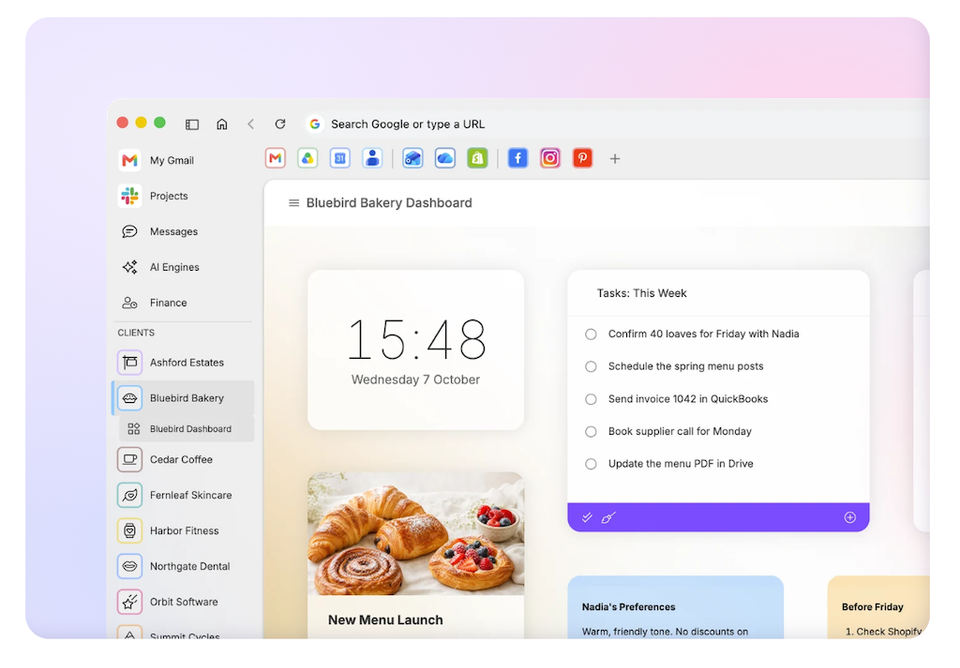
This week’s release (155.3.12) is one of those quietly useful ones: a handy addition to Smart Notes, the AI Assistant moving in with Settings, a new Dashboard widget for the time-zone jugglers, and a redesign of Navigator. Update Wavebox and it’s all there. Let’s take a look.
✅ New: Tick things off in Smart Notes
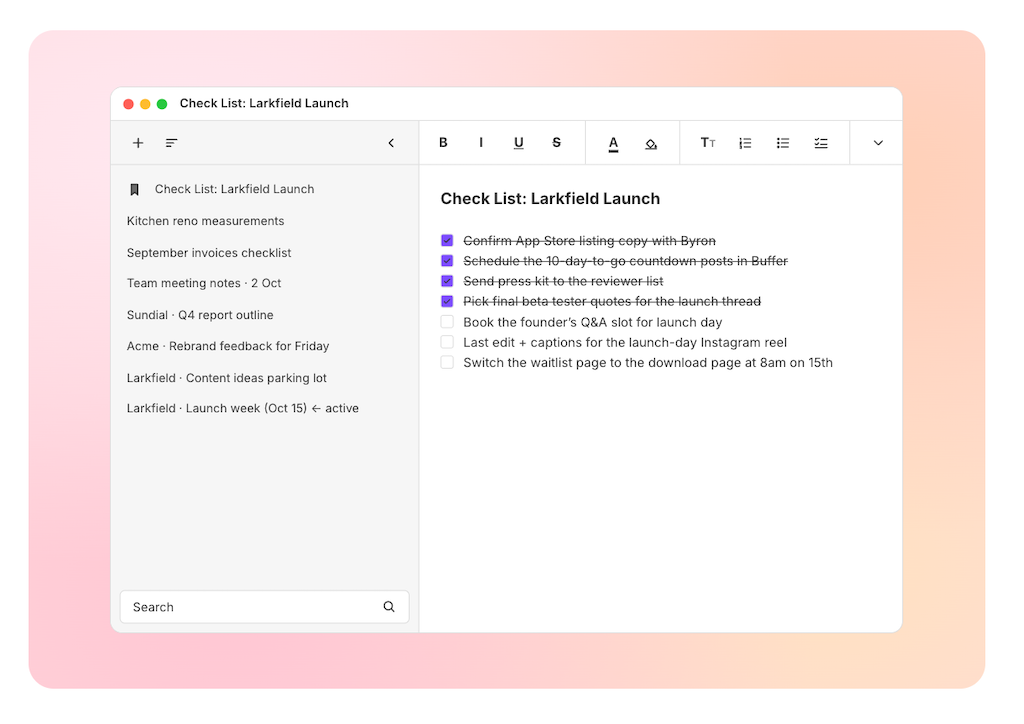
Smart Notes can now hold checklists. Jot down a list, tick items off as you go, and your ticks will still be there after a restart. Smart Notes started out as an easy way to pin simple notes to webpages, but over time it has morphed into a really useful note-taking app in its own right.
Try it: Click the ☰ Wavebox menu in the top-right, then select Smart Notes. Or add the Smart Note icon to the toolbar in the top-right, or add the Smart Note app to the webdock via the App Store.
🤖 New: Chat with Settings, now inside Settings too!
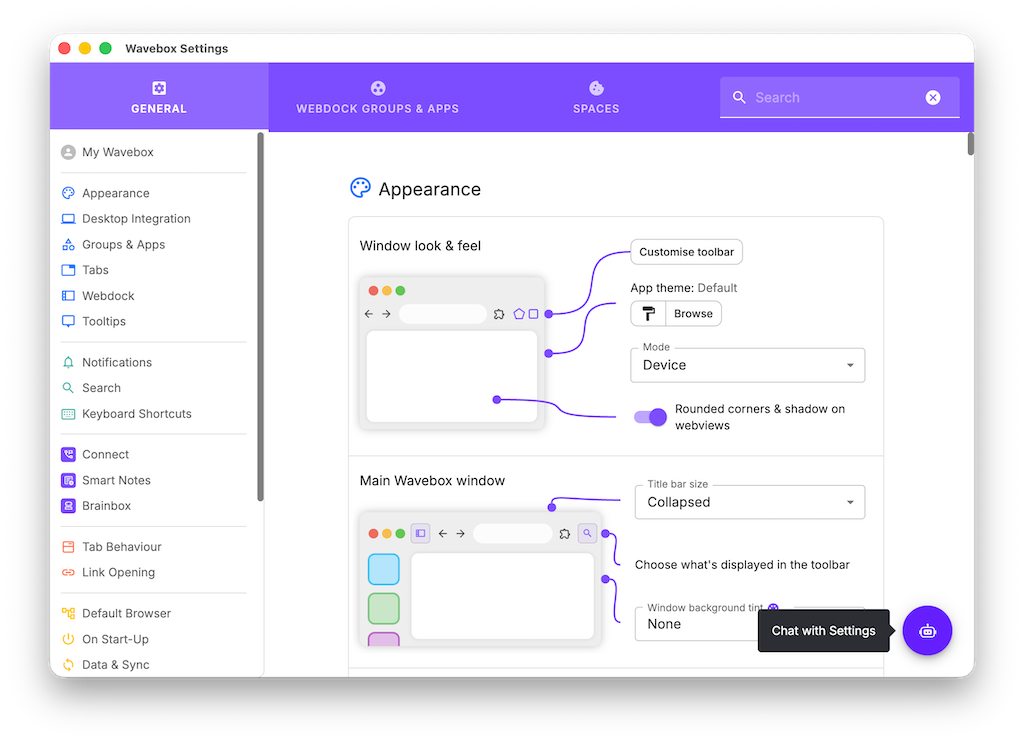
Since July, you’ve been able to ask the Wavebox Assistant to make changes to your setup for you. More recently, the Assistant was moved out of the chat box engine dropdown and into your chat history list and renamed 'Chat with Settings'.
Chat with Settings is a single, ongoing conversation, pinned to the top of your chat history. Think of it as a Slack channel between you and Brainbox—a place to change Wavebox settings, explore features, and make adjustments. It’s free to use and doesn’t count toward your Brainbox token allowance.
In this release, Chat with Settings is also available directly in the Settings window, so you can find the right setting and make changes on the fly. Learn more.
Try it: Click the ⚙️ Settings cog at the bottom of the webdock to open the Settings window, then click the purple Brainbox icon in the bottom-right corner to launch Chat with Settings.
🕦 New: Clock widget for your dashboards
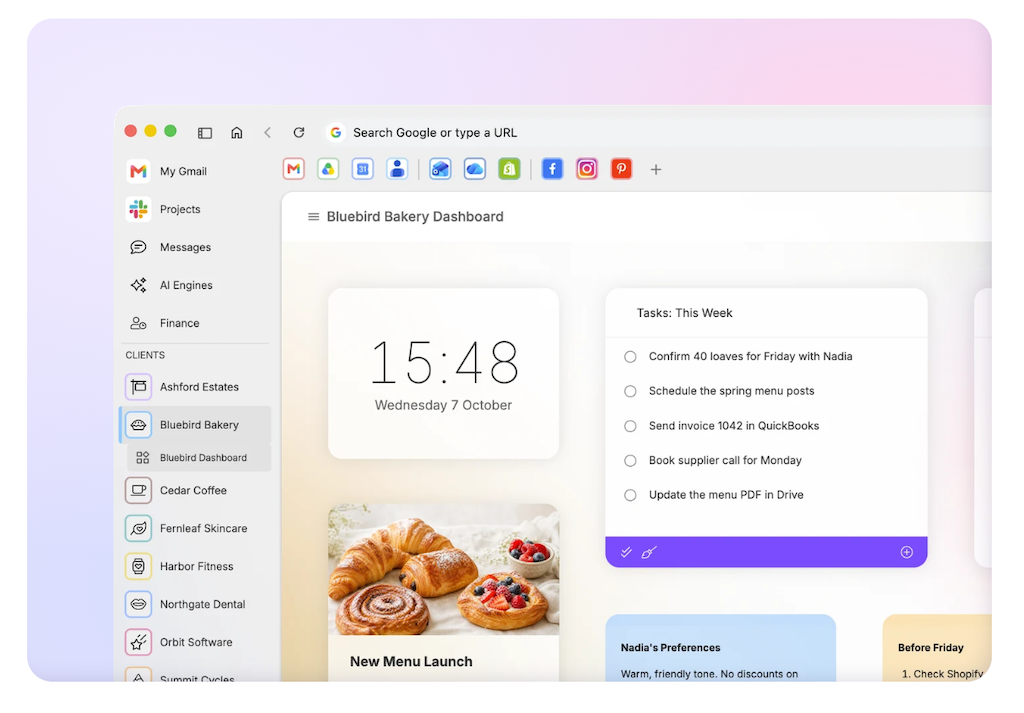
Dashboards get a new Clock widget with custom time zones and optional seconds. Put one on a client dashboard set to their city, or line up a row of them on your new tab page. You’ll know at a glance whether it’s a reasonable hour in Auckland before you hit send.
Try it: In any Dashboard, click Add Widget and select Clock from the widget library.
🧭 Navigator, redesigned
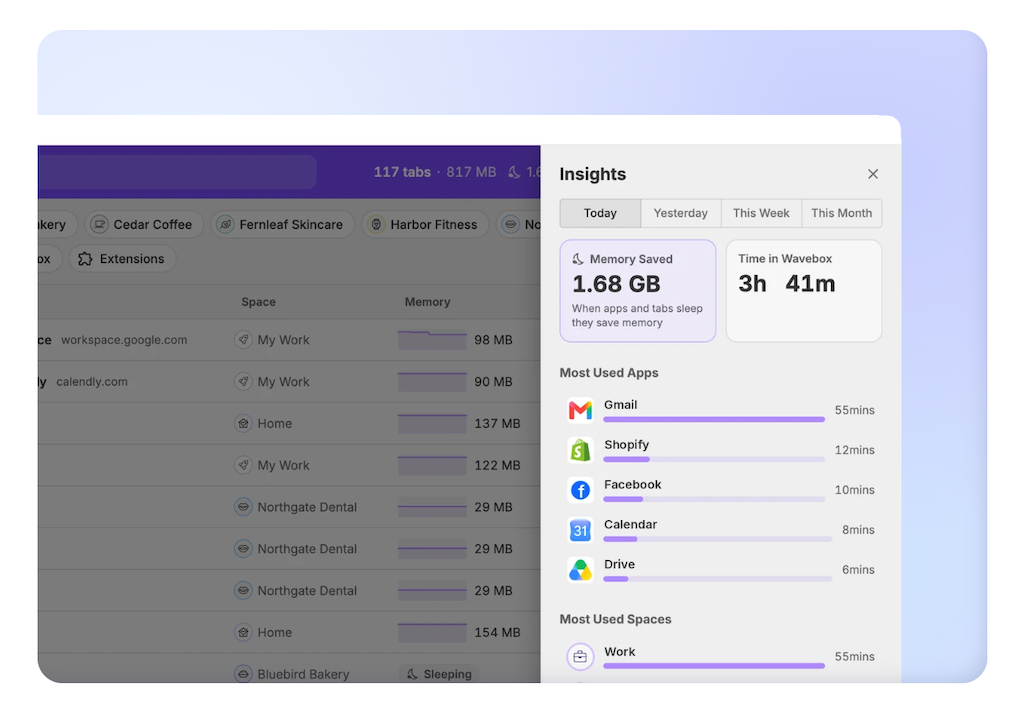
Navigator, the bird’s-eye view of everything open in Wavebox, has a new look and more depth. There are now three views:
- Spaces: Your webdock, laid out flat.
- List: Every tab, sortable by memory and CPU usage.
- Map: Each Space becomes a tile sized by the memory it’s using, so the thing using the most RAM is also the biggest thing on screen.
Extensions get their own tile, with per-extension memory usage. A new Insights panel shows where your time and memory went today, yesterday, this week, or this month, right down to your most-used apps and Spaces.
Try it: Click the 🧭 compass icon at the bottom of the webdock, or click the ☰ Wavebox menu in the top-right and choose Navigator.
🔍 Search reaches your dashboards
Dashboard shortcuts and tasks now show up in search results. If you have the Search widget on your dashboard, you can also start a search just by typing. No need to click into a box first—just type and go.
Try it: Click the 🔍 Search icon in the top-right and search for anything in a widget.
💤 Sleep, sooner if you want it
Automatic tab sleep now includes two- and three-minute options, for setups where memory matters and tabs shouldn’t stay awake for long.
Try it: Go to ⚙️ Settings > General > Sleep and adjust the number slider.
🔒 Privacy Lock, quicker on the draw
Privacy Lock now offers a 15-second inactivity option and simpler settings—handy for shared desks and side-of-stage demos where the lock needs to engage quickly.
Try it: Click the 🔒 padlock at the bottom of the webdock to set up Privacy Lock.
That’s what’s new in Wavebox 155.3.12: smarter Smart Notes, a handy Clock widget, a redesigned Navigator, and easier access to Chat with Settings in Brainbox. Update Wavebox to try these improvements and make your setup work better for you.
 Thomas Beverley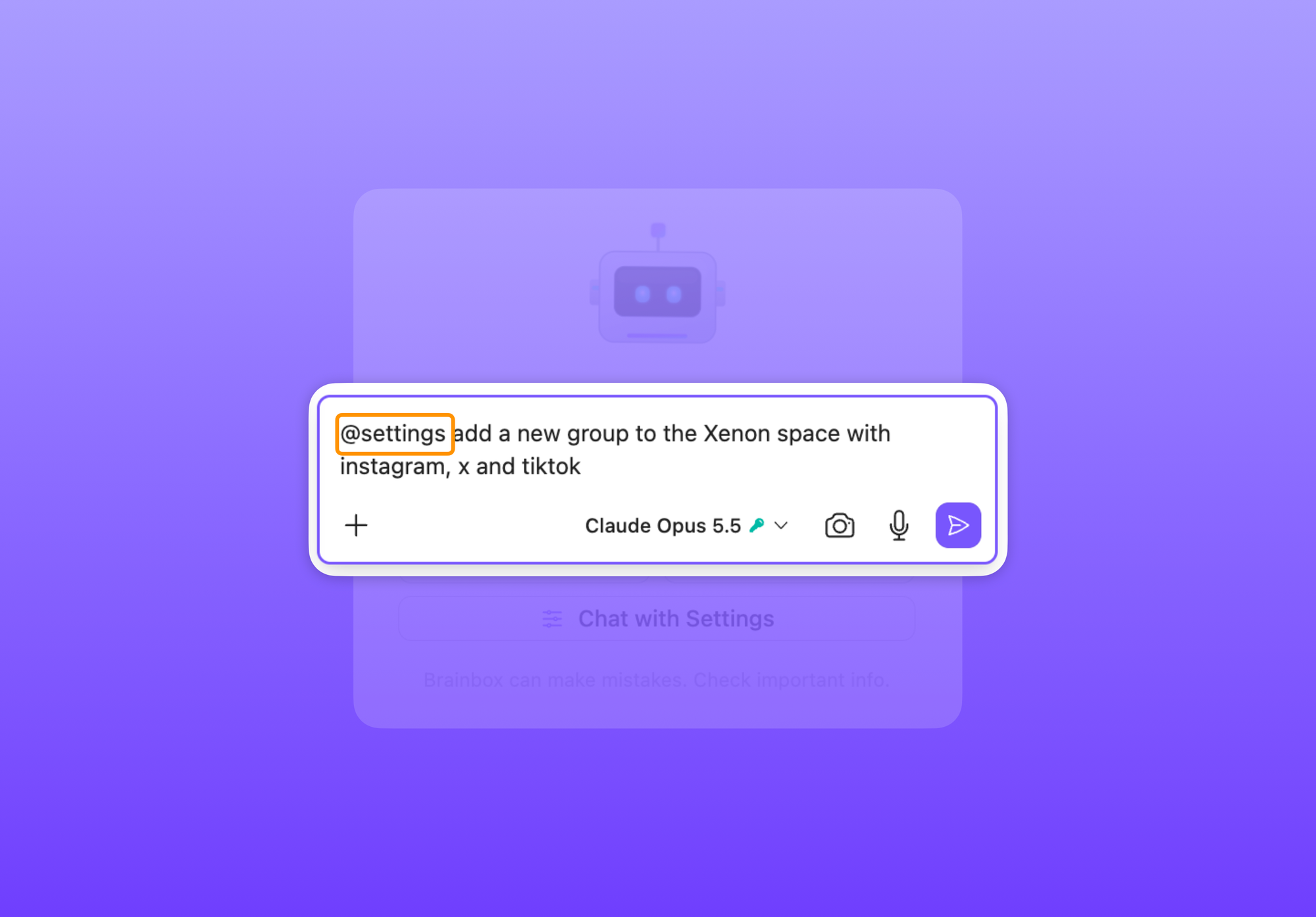
 Susan Davies