
Brainbox Skills: Create & Manage
Skills are reusable one-click prompts for the jobs you do every day. Use the built-in set, edit them to suit, or turn your own best prompts into Skills.
A Skill is a saved prompt with a name. Instead of typing “check the grammar in this but don't change my tone” for the hundredth time, you trigger the Grammar Skill and Brainbox applies your saved instructions to whatever you're looking at: the text you've selected, or the whole page.
Brainbox comes with a set of built-in Skills, including Chat with PDF, Draft Reply, Grammar, Meeting Notes, Rewrite, Simplify, Summarize, Task List, Tone Check and Translate, and every one of them is editable, so you can tune them to the way you work.
Three ways to trigger a Skill
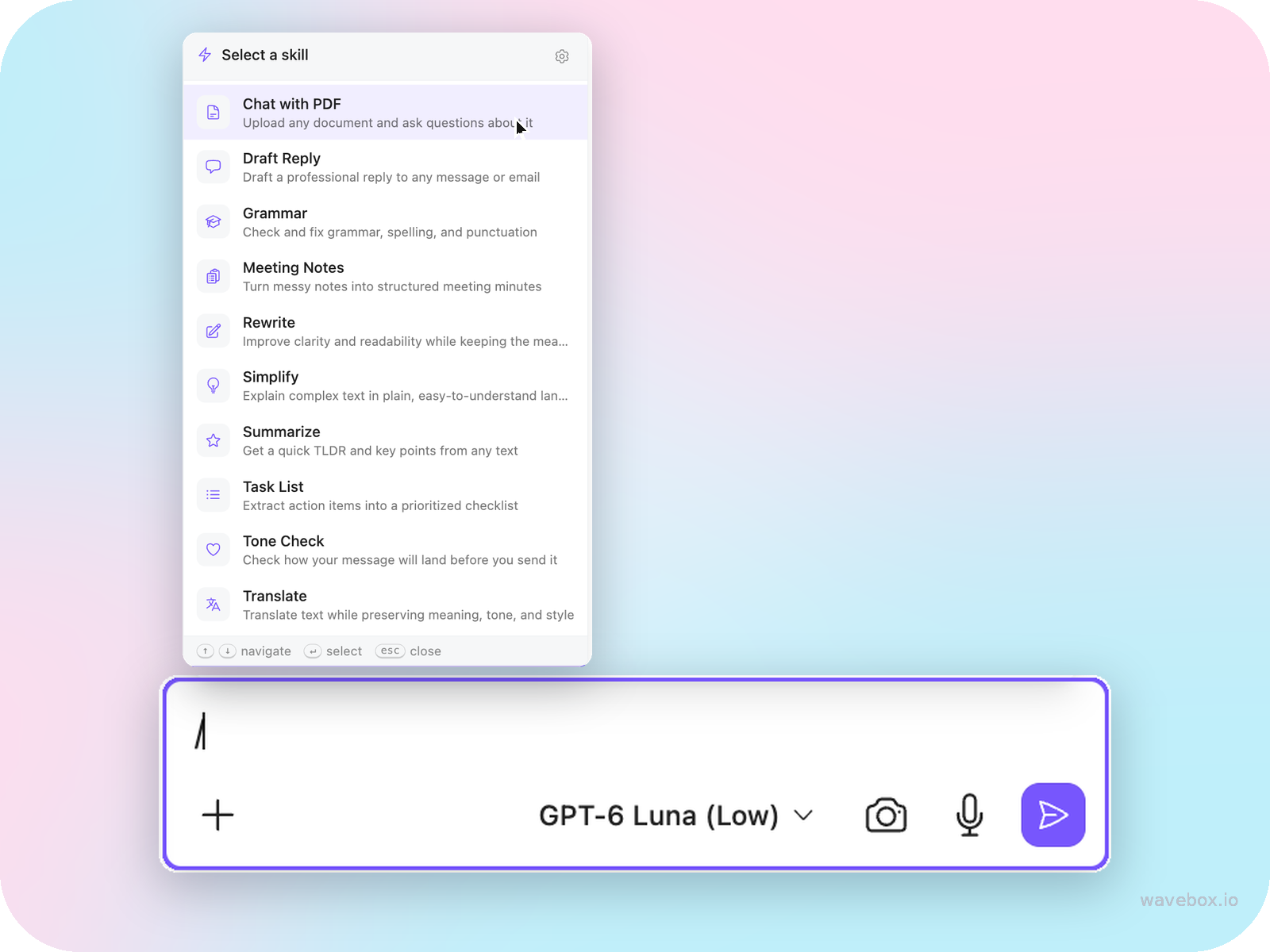
- Type / in any Brainbox chat. The Skill picker opens above the prompt box; keep typing to filter, then pick with the arrow keys and Enter. The Skill is added as a purple chip above the chat box – it doesn't run yet. Type a message to go with it if you like, then hit return to send. Your sent message shows which Skill it used.
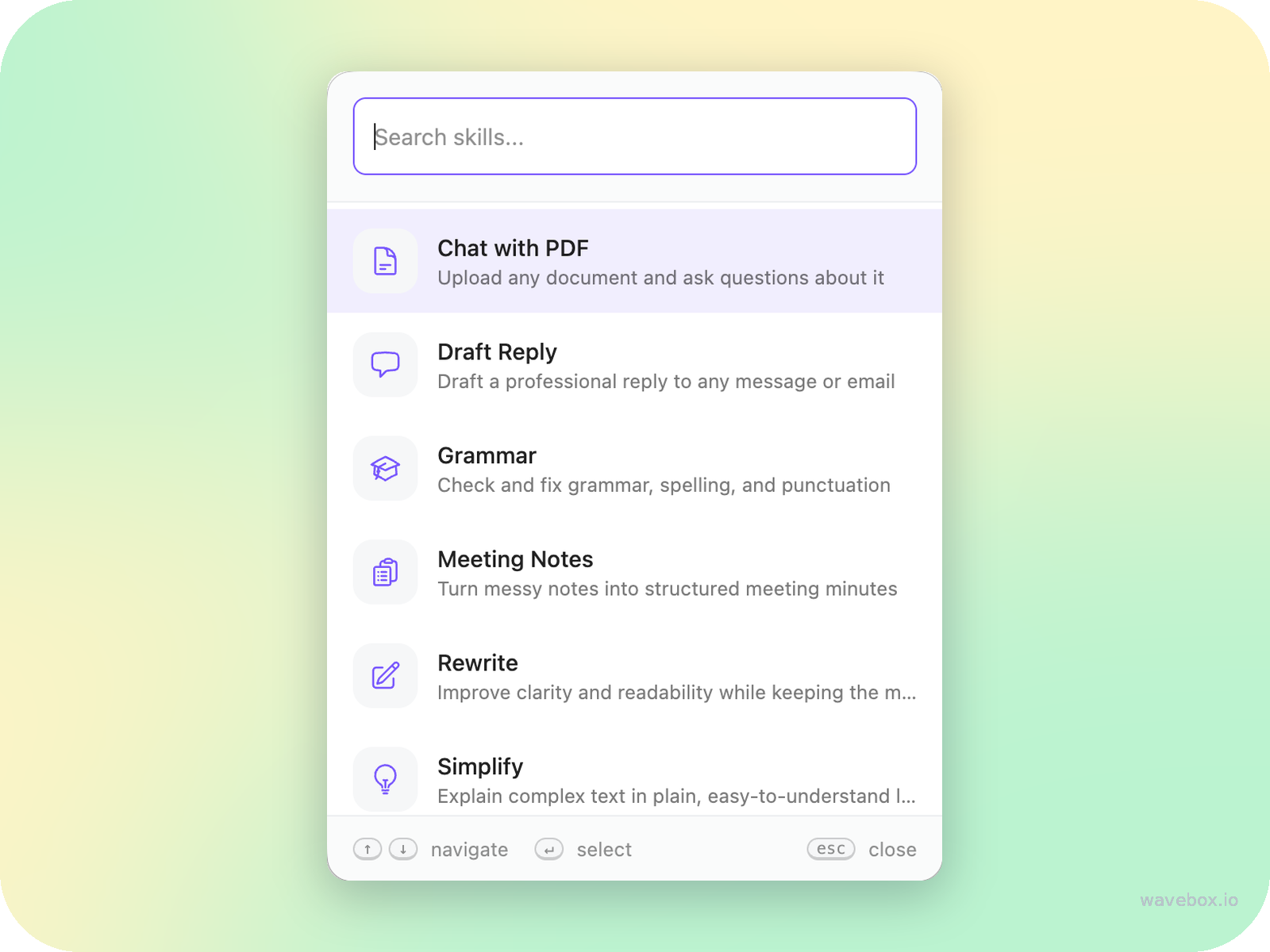
- Right-click on any page. Select some text first if you only want the Skill to work on that. Choose Brainbox from the menu and pick a Skill from the searchable list.
- From the Skills tab in the Brainbox Controls (below), which is also where you fine-tune what each one does.
Manage your Skills
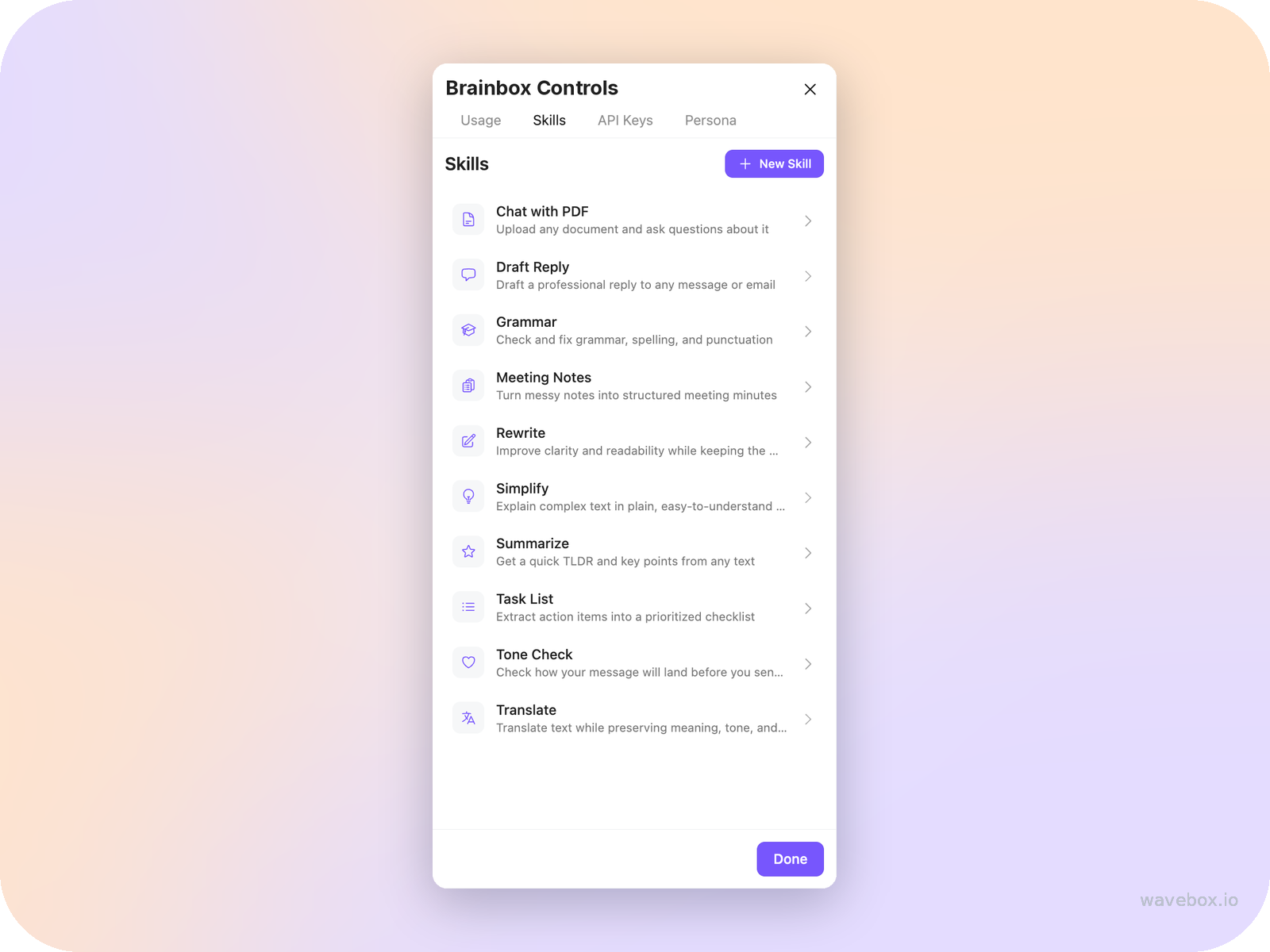
Click the sliders icon in the top right of the Brainbox panel to open the Brainbox Controls, then choose the Skills tab. Every Skill is listed here. Click one to edit it, or click + New Skill to create your own.
Create a Skill
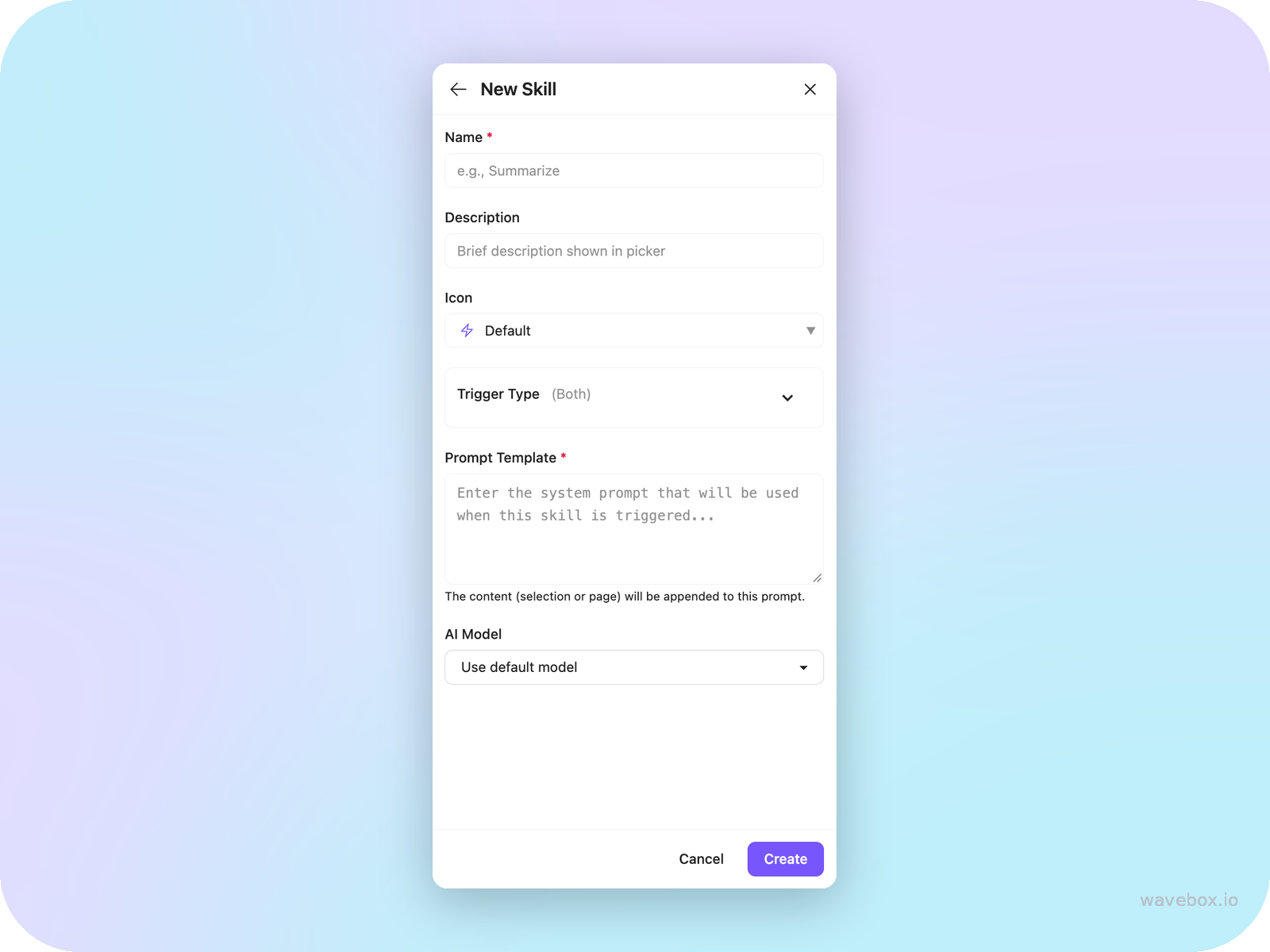
Click + New Skill and fill in:
- Name – what shows in the pickers, e.g. “Summarize”.
- Description – one line shown under the name in the picker.
- Icon – pick one so the Skill is easy to spot.
- Trigger Type – what the Skill works on when triggered: your selection only, the whole page, or both.
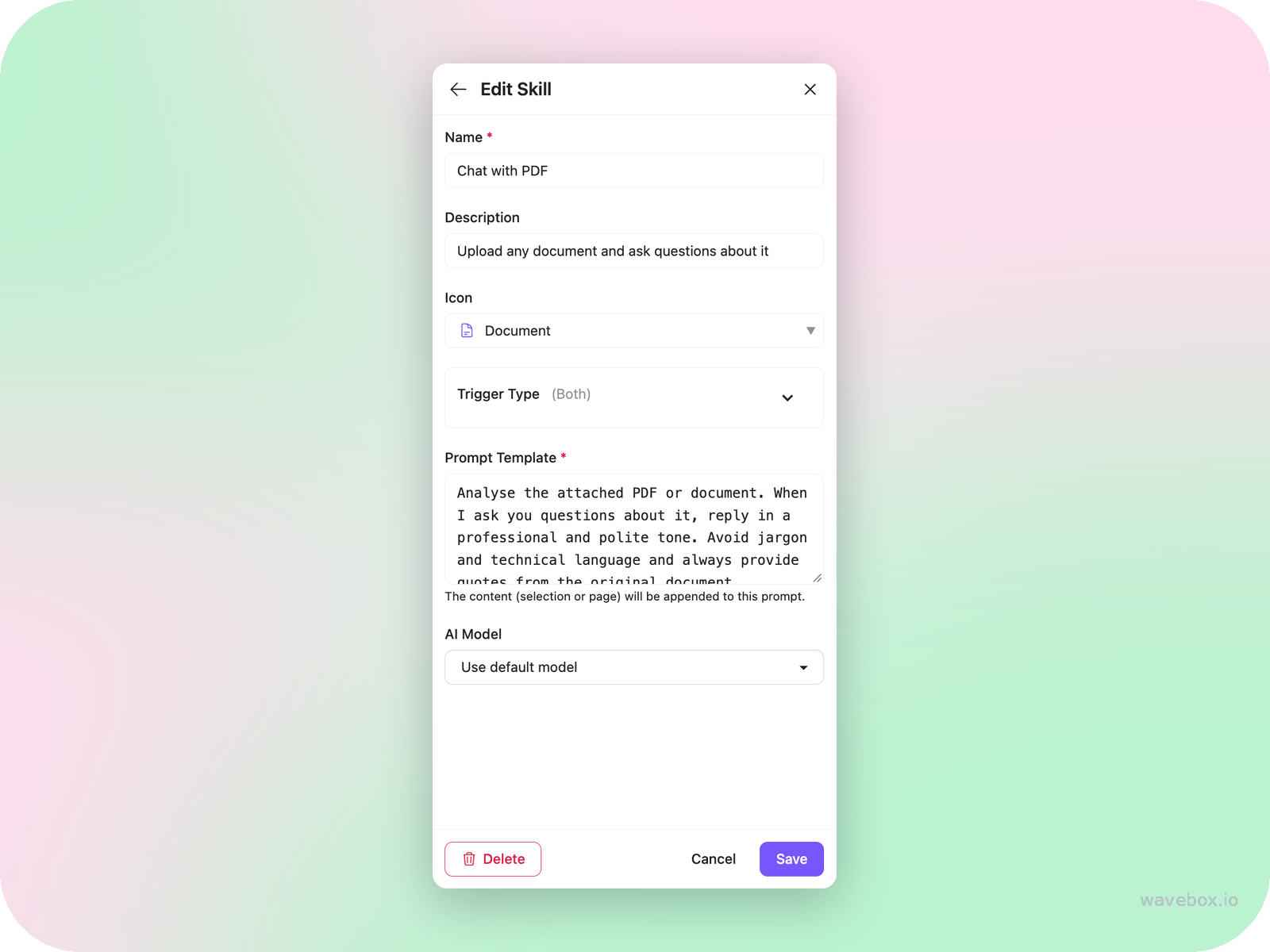
- Prompt Template – the instructions Brainbox follows when the Skill runs. The content (your selection, or the page) is appended to this prompt automatically, so write it like a standing instruction: “Analyse the attached document. Reply in a professional tone. Always quote the original.”
- AI Model – leave on Use default model, or pin the Skill to a specific engine.
💡 Prompt Templates can include variables like the current date or page title. See Brainbox (Skill Variables).
Edit or delete a Skill
Open the Skills tab, click the Skill, change anything – including the built-in ones – and Save. Delete removes it permanently.
Turn a great chat into a Skill
The best Skills usually start life as ordinary prompts. When a prompt in chat gives you exactly what you wanted, copy it into a New Skill so it's one click next time. Ideas to start with: a reply-drafting Skill in your voice, a “summarize for my team” Skill with your team's format baked in, or a translation Skill for the language pair you use most.
Related: Brainbox AI Overview · Brainbox: Quick Start Guide · Brainbox (Skill Variables)