Brainbox Can Now Change Your Settings, Not Just Explain Them.
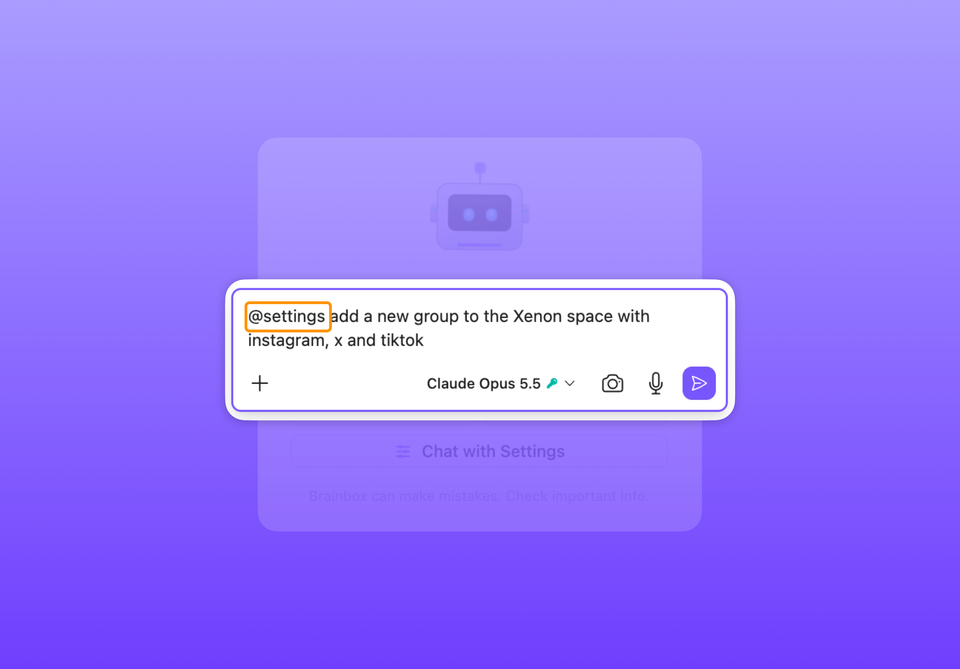
Chat with Settings creates new Spaces, adjusts sleep timings, activates Focus Mode and more.
TLDR: Brainbox can now change your Wavebox settings for you. Open Chat with Settings, the chat pinned to the top of your Brainbox chat history, and tell it what you want. It's the fastest way to set up Wavebox and discover what it can do, whether you're new here or a seasoned pro.
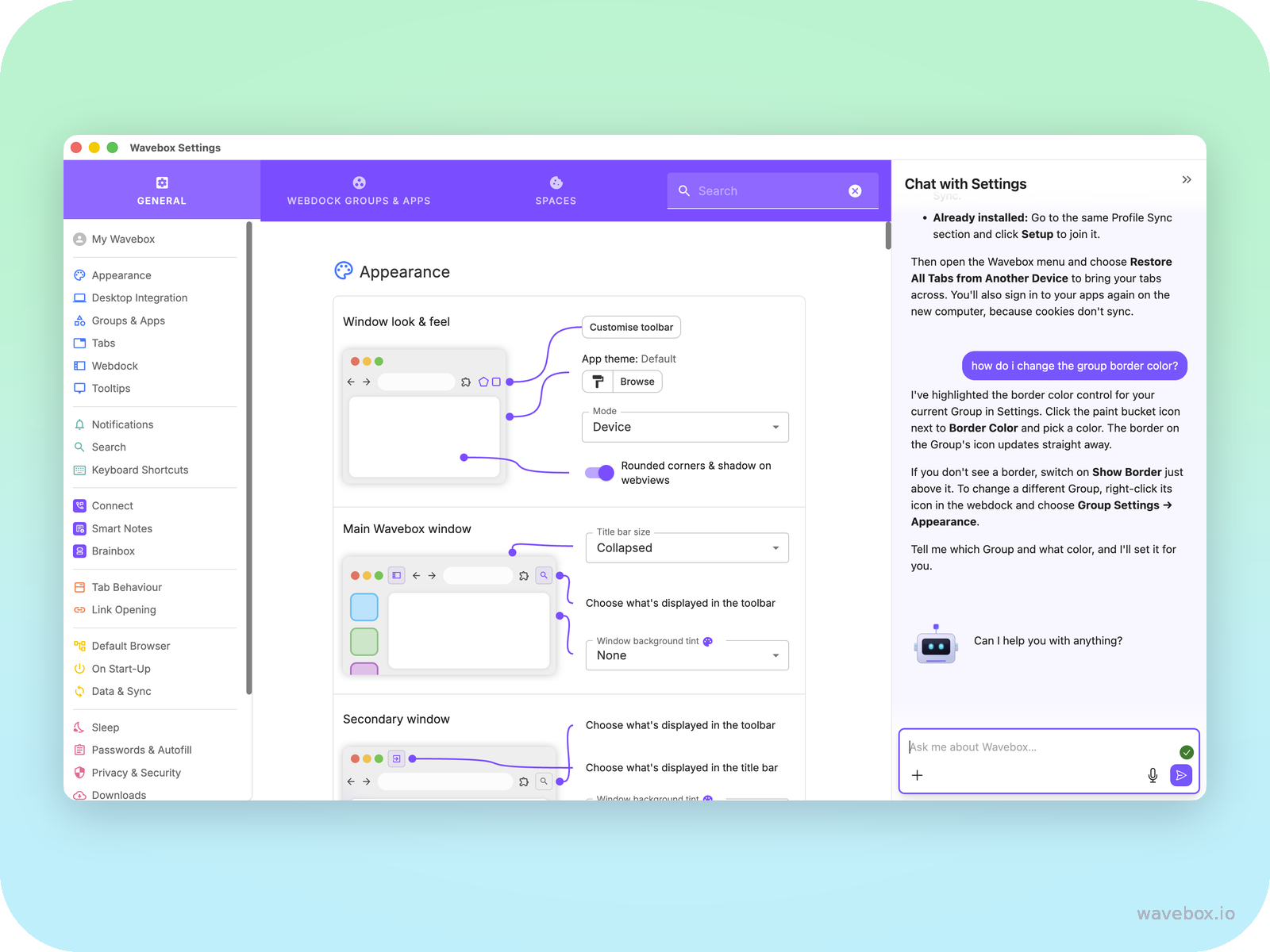
Get Instant Help at Every Stage of your Wavebox Journey
Brainbox could already answer your questions about Wavebox, and now it can also do the thing FOR you. Open Chat with Settings and tell it what you want to do.
If you're just starting out, you can describe your current browser nightmare and ask Brainbox to build it in Wavebox: your Spaces, Groups and Apps, organized the way you like.
If you're a seasoned Wavebox user, it's just as easy to reorganize, or change how something behaves. Either way, you ask and it's done, so you spend less time in menus and more time getting the most out of Wavebox.
This is tool calling: the point where Brainbox can change your settings as well as talk about them. Ask, and Brainbox does the work for you, right there in your browser.
- You don't need to know where anything lives. Ask for the change and Brainbox finds the right setting and makes it, so a buried toggle is now one sentence away.
- Stay in flow. Adjust your layout, theme, or how an App behaves without leaving the tab you're working in.
- Find features you didn't know were there. Ask what a feature does, then ask Brainbox to show it to you, and/or set it up.
Ask a Question, Then Ask It to Act
The best part is that it still explains things too.
You can learn and do in the same conversation. Ask “what's a Space?” and Brainbox tells you. Then, in the next message, say “create five Spaces for clients A to E” and it builds them.
That back and forth is what makes it so useful when you're new. You find out how something works, then have it set up for you, all without leaving the chat. It changes your theme, installs an App, creates a new Space. Just the thing you asked for, already done.
Add Spaces, Move Apps, Tweak Your Layout, and More
Open Chat with Settings and talk to it the way you'd talk to a capable colleague. There are six ways in:
- Click the Brainbox icon in the toolbar: there's a Chat with Settings link right on the new chat screen.
- Click the menu icon in the Brainbox panel: Chat with Settings is pinned at the top of your chat history.
- Type @settings at the start of a message in any Brainbox chat.
- Ask a Wavebox question in any chat: on any engine, and Brainbox suggests Chat with Settings with a link that takes you straight there.
- Hover over the Settings cog: in the bottom left and click Chat with Settings.
- Open Settings itself: Chat with Settings is built in.
A few we like:
- “Add the Incognito icon to the toolbar top right.”
- “Add Trello to X Group.” It finds the app in the store and sets it up. Got an internal tool? “Add a web app for app.ourcompany.com.” Done.
- “Create a new Space called Client A.” New Spaces, clone and rename Groups. The structural work, without the clicking.
- “Switch to the List layout.” See every client's Group in one list, with named dividers if you want them.
- “Set my default search engine to DuckDuckGo.” Switched.
- “How many Spaces do I have, how many tabs do I have open, and which one is Gmail in?” It reads your setup and tells you, which helps when your Wavebox has grown over time.
A good rule: if it's a setting you'd normally go looking for, there's a good chance you can ask for it instead.
If you'd rather see where something lives, ask it to show you: “Show me how to change an app's sleep settings” opens Settings in the right place.
But why go looking? Just ask it to make the change.
Under the hood that covers themes, the app store, Spaces and Groups, webdock layouts and dividers, extensions, App sleep and notification behavior, search engines, update preferences, and Chrome privacy settings like Safe Browsing.
One Chat for Your Setup
Changes to Wavebox happen in one place: Chat with Settings, pinned to the top of your Brainbox chat history. Your other Brainbox chats, on whichever engines you've picked, are there for writing and thinking through problems. Ask one of them to change a setting and Brainbox suggests Chat with Settings, with a link that takes you straight there.
That keeps every change to your setup in one conversation you can scroll back through, and it's the same Brainbox you already use, built into Wavebox and working across all your Spaces and accounts. Now it acts as well as answers. And conversations in Chat with Settings run on free tokens, so they never touch your Brainbox allowance.
Three Things to Try Right Now
Open Chat with Settings and give it something to do:
- Remove the color border from Group icons
- Hide the badge on the main Wavebox dock icon
- Sleep all apps in Group X
One small note: a few changes, dark mode included, need a quick restart to take full effect. Brainbox will let you know when that happens.
Want the step-by-step version? It's all in Brainbox Tool Calling. Newer to the redesigned Brainbox? Start with Meet the New Brainbox.
And if there's a setting you need or something isn't working quite right, tell us on Discord or on supahub. A lot of what Brainbox does today started as exactly that kind of request.
 Susan Davies