Getting Started with Wavebox: Set up your Browser by Chatting
Welcome to Wavebox! If you completed the AI installer, Chat with Settings will already be open in the Brainbox AI panel.
The chat knows a little bit about you from the installer, so you can just carry on chatting with it to get set up. Here are a few pointers:
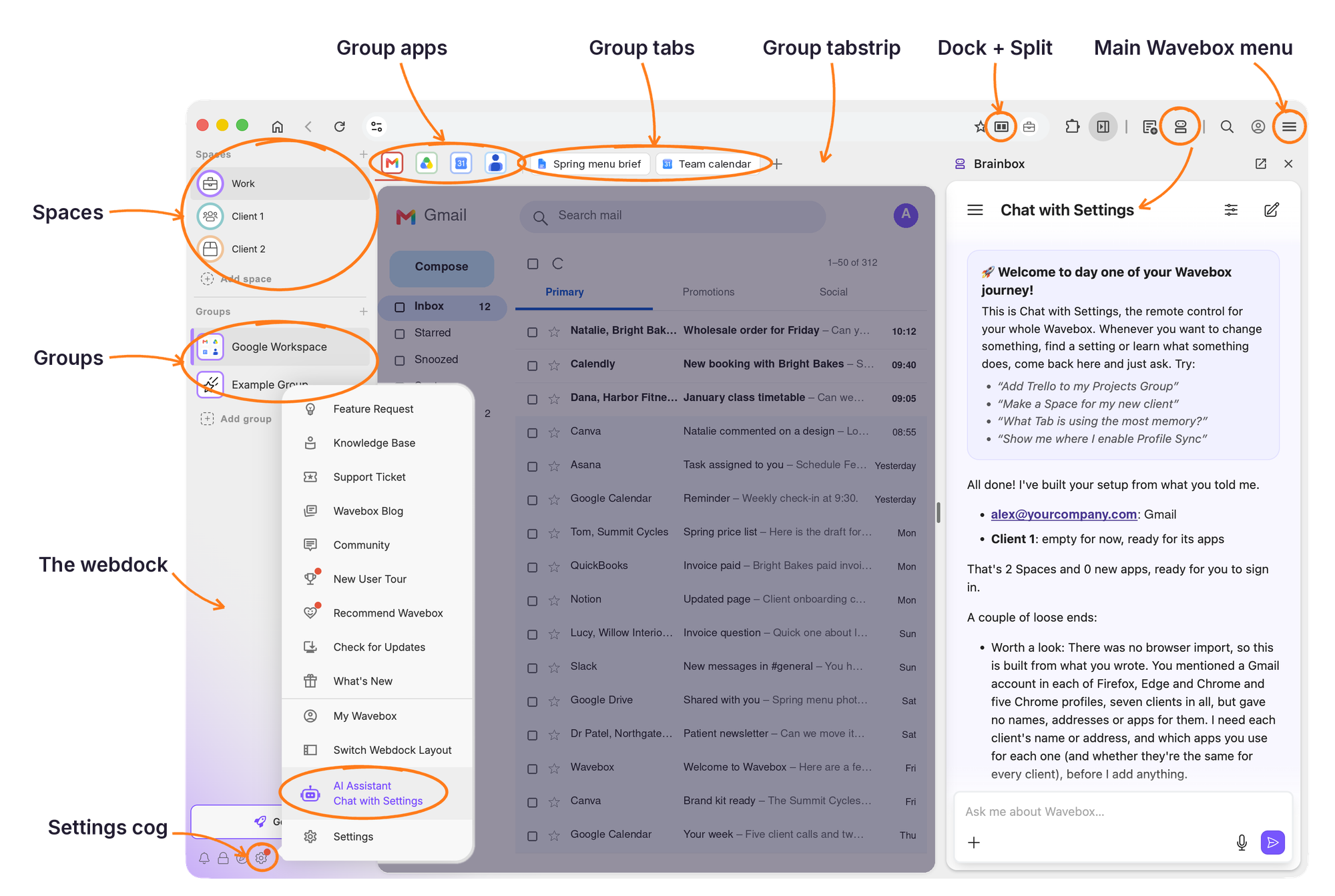
1. Finish Setting up your own Space
Click the first "Work" Space in the Webdock. Organize the Apps and websites you use every day. If you have lots of resources, you may want to add them as Apps in separate Groups. Each Group has its own Group Tabstrip, with Apps pinned on the left and Tabs on the right.
I use Gmail, Calendar, Slack, Xero, Excel, PayPal, Spotify, Asana, LinkedIn, ChatGPT, Claude and Reddit. Can you add them to my Work Space?
2. Sign in to your second account
Click the next Space in the Webdock and sign in to the webmail account for that Space. If you imported passwords during the install, the built-in Password Manager will open, ready for you to sign in.
Add the 1Password extension
How do I import my passwords?
3. Add more Spaces, Groups and Apps
If you've not done so already, create more Spaces for separate businesses, clients or digital worlds.
Create a new Space for Client A with Gmail, Calendar, PayPal, Spotify, Asana, LinkedIn, ChatGPT and Claude. Their email is clientA@gmail.com
4. Choose your Webdock layout
There are three Webdock layouts to choose from. You can Chat with Settings or hover over the Settings Cog and click on Switch Webock Layout.
Which Webdock layout is best for my setup?
More info on layouts
- Spaces Layout: displays Spaces at the top, and the Groups in that Space below them.
- List Layout: hides Spaces and shows all Groups from all Spaces in one list.
- Explorer Layout: similar to List Layout, but with a tree-style view. Tabs are shown in the Webdock, so there's no Group Tabstrip.
Popular layout choices with Waveboxers:
- If each Space has a lot of resources, use the Spaces Layout and Groups to organize everything.
- If you have lots of Spaces but only a few resources for each, use the List Layout with one Group for each Space.
- In any layout, use collapsing Dividers to organize Groups and make more room.
5. Try Dock (split screen)
This is easier to do manually than by chatting.
- Dock - use Apps or tabs from separate Groups or Spaces alongside each other in any window.
- Split - to join two tabs from the same Group together alongside each other in any window.
Dock in the Same Group e.g. Gmail & Calendar
- Go to your Gmail.
- Click the Dock and Split icon in the Address Bar and select "Dock app left/right in Webdock Group". It stays pinned in that position until you cancel it.
- Click the Calendar App in the same Group, so it appears alongside.
Dock across Groups and Spaces e.g. Gmail & Gmail
- Go to one Gmail.
- Click the Dock and split icon in the Address Bar and select "Dock app left/right in Window". It stays pinned in that position until you cancel it.
- Click another Gmail, so it appears alongside.
🎯 Tip: Webdock Spaces Layout - it's sometimes easier to use Search top-right to locate the app/tab you want alongside the docked app/tab.
6. Try Brainbox AI
Unique to Wavebox is the ability to @mention tabs from different Spaces.
- Click the Brainbox icon (robot) in the Toolbar, top right.
- Choose an engine from the dropdown menu.
- Click + in the chatbox and choose a tab, or type @ followed by the tab name.
- Type your prompt into the chatbox.
- Type / to choose a Skill from the library.
🎯 Tip: Brainbox chats are pinned to a tab, so if you click a different tab, the chat won't follow you. But you can get back to any chat by opening the Brainbox panel, clicking the Menu icon (top left) and choosing a chat from the history.
7. Multiple Windows
Wavebox has one main window, but you can open any number of secondary windows, with or without a Webdock.
Open a new window
Open Gmail from the Client A Space in a new window
Open my Finance Group in a new window
Manual
- To open a new secondary window (with Webdock):
- ☰ Wavebox Menu > New Webdock Window
- Webdock > right-click menu > New Webdock window
- To open a new secondary window (no Webdock):
- ☰ Wavebox Menu > New Window
- Webdock control icons (bottom left, if enabled): click the "globe" icon
- Toolbar (top right, if enabled): click the "open" icon
- Settings > General > Keyboard shortcut
- Drag a tab out of a window to create a new one
- Groups, Apps or Tabs > right-click menu > Open/move to new window
Now, over to you...
🥇Our best tip: just start working!
Pick a workflow, such as finance reports, support tickets or sales reports, create a new Group and add the Apps and websites you need to complete that task. Everything else, from custom icons to Focus Mode and the Link Engine, can wait until you need it.
How do I change a Space, Group or App icon?
Change the notification sound for Client A's Gmail
Show me Focus Mode
Remove the border colors from all my Groups
I have an hour to spare. Teach me 10 new things about Wavebox
How do I set up sync on another computer?
If you get stuck or have an idea, come and say hello on Discord.
 Susan Davies
 Susan Davies