Grammar Suggestions

Wavebox can check your spelling and grammar as you type and suggest fixes in any text field. It runs entirely on your device using on-device AI, so your text never leaves your computer. This article explains how to turn it on, use it, and manage its settings.
Grammar suggestions are provided by Brainbox Local AI — the on-device side of Brainbox — so everything runs on your machine and never uses your Brainbox tokens.
Grammar Suggestions are on by default for new installs. Been using Wavebox a while? You may need to turn them on once — in Settings, or just ask Chat with Settings — and Wavebox downloads the grammar model at that point.
Turn on grammar suggestions
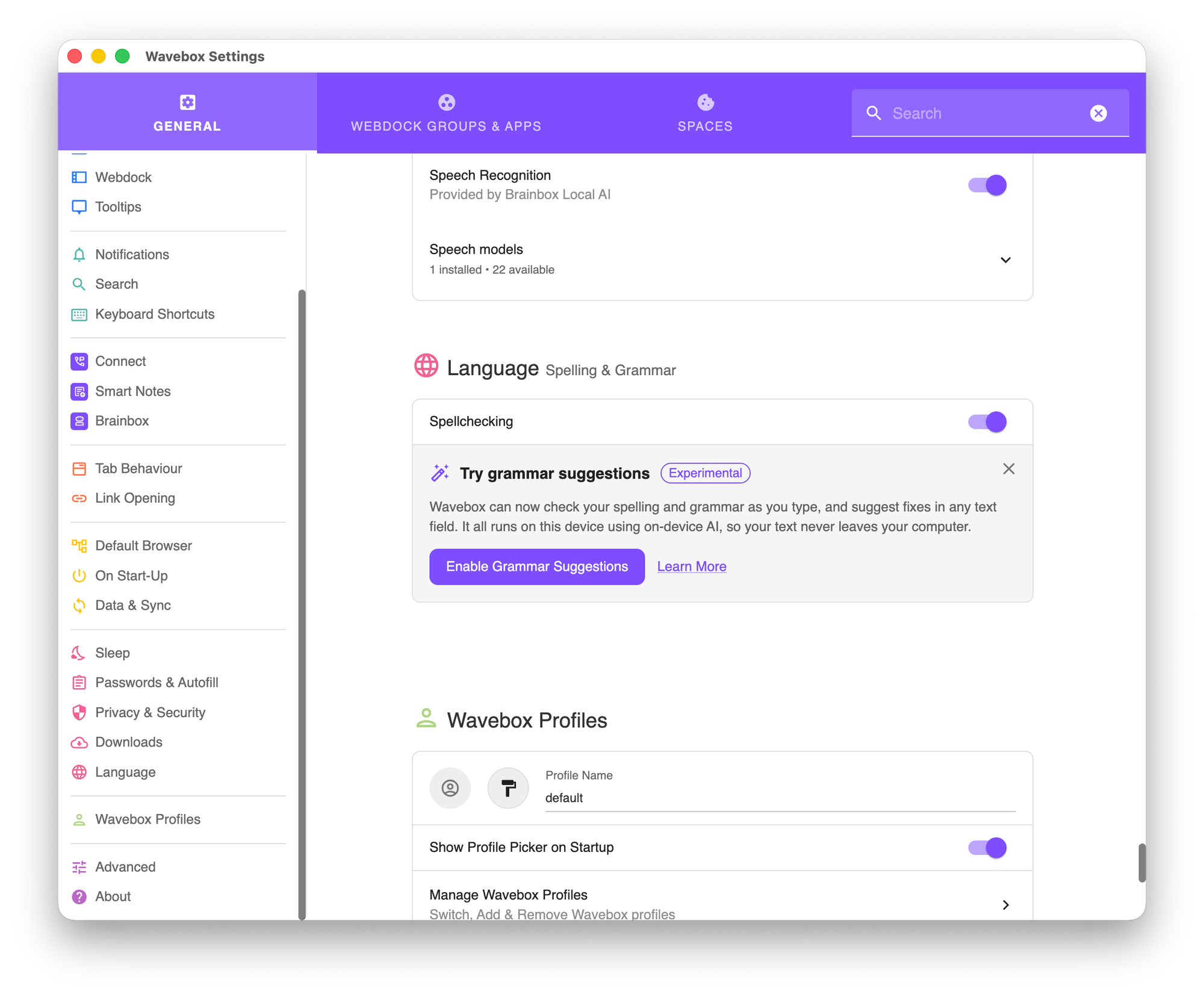
- Open Wavebox Settings.
- Go to the Language section.
- Under Spelling & grammar, click Enable grammar suggestions.
- Wavebox downloads a grammar model once. You can keep using Wavebox while it finishes.
- Or skip the clicks entirely: ask Chat with Settings to “turn on grammar suggestions”.
No restart is needed. Once the download completes, grammar suggestions work automatically across your text fields.
Use suggestions as you type
When Wavebox spots a possible issue, it adds an underline in the text input.
- Click or hover the underline to open the suggestion popover. The popover is labeled Spelling or Grammar depending on the issue.
- Click a suggestion to apply the fix in place.
- Click Dismiss to close the suggestion without changing your text.
- Click Ignore to stop flagging that issue for the rest of the page.
Indicator Badge
The indicator badge is a small green circle that appears in the corner of the field while a check is running, so you can see when its working.
Right-click on the badge to:
- Turn off Grammar: disable for the site that you're viewing
- Grammar Settings: open Grammar settings
- Send feedback: report bugs or suggest improvements
Review a whole field at once
Click the indicator badge to start a guided review. Wavebox moves through each issue in turn, scrolling to it and opening the suggestion, and advances as you accept or ignore each one until the field is clear.
Right-click controls
Right-click a text field to reach the quick controls:
- Check grammar re-runs the check on the current field.
- Grammar settings opens the grammar options in Settings.
- Turn off grammar for this site disables grammar suggestions on the current website only.
Manage settings
Open Settings, then Language, then Spelling & grammar to manage grammar suggestions:
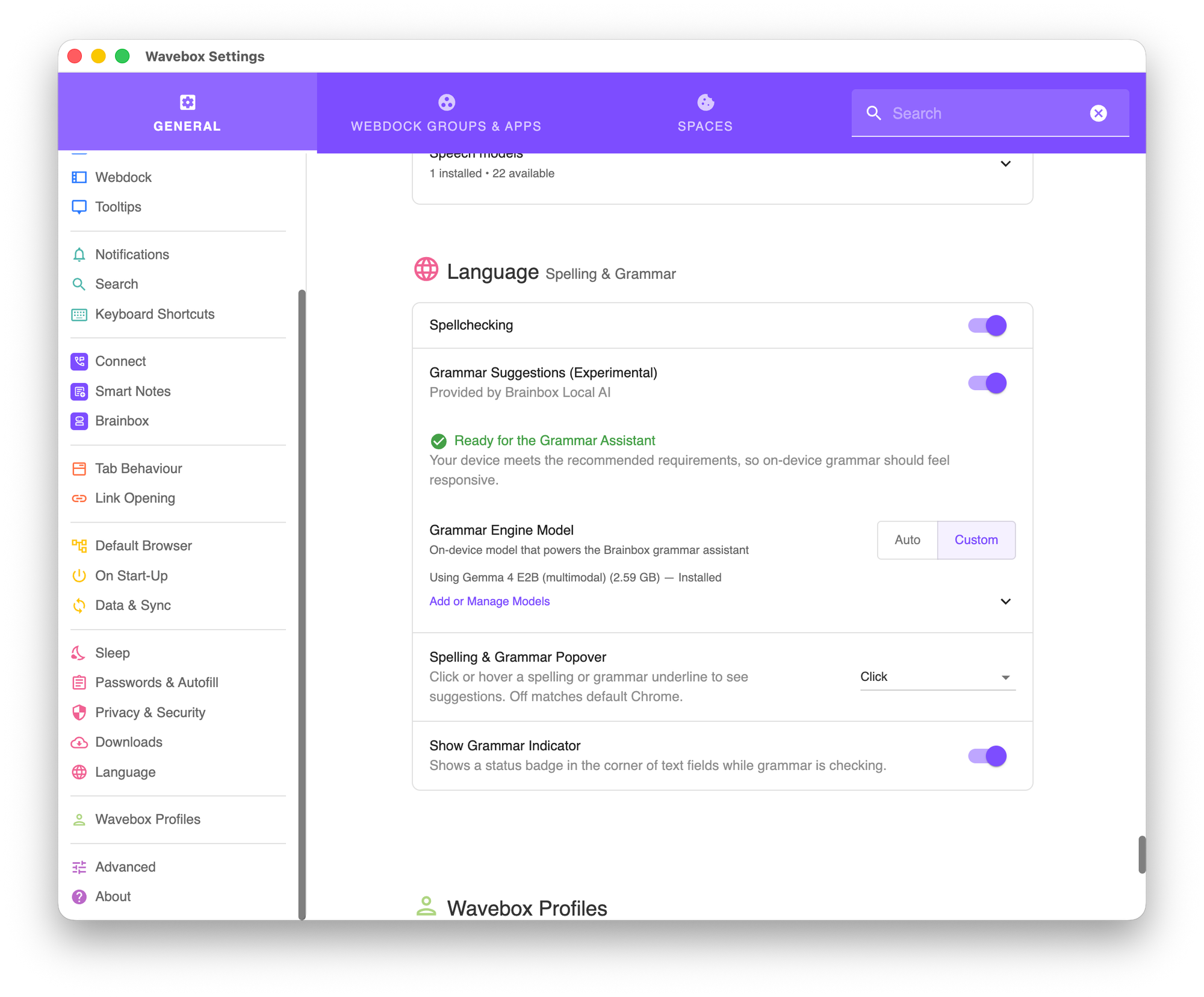
- Grammar Suggestions turns the feature on or off.
- Spelling & grammar popover sets how suggestions open: Click, Hover, Right-click, or Off. Off matches default Chrome behavior.
- Show grammar indicator shows or hides the status badge that appears in text fields while grammar is checking.
- Grammar engine model shows the on-device model that powers the feature.
Hardware requirements
Because everything runs on your device, grammar suggestions work best on a reasonably capable machine. We recommend at least 8 GB of memory and 8 CPU cores, or a supported graphics card. Wavebox checks your hardware and shows one of three states in the grammar settings:
- Ready for the grammar assistant: your device meets the recommended requirements and should feel responsive.
- May run slowly on this device: your device can run grammar suggestions but is below the recommended requirements, so it may feel slow.
- Not supported on this hardware: your processor is missing required CPU features (AVX), so the on-device grammar engine cannot run on this device.
Grammar suggestions are available on macOS, Windows, and Linux. The feature is focused on English writing to start with.
Troubleshooting
- The model won't download. The one-time model download needs a working internet connection.
- First, check you're online.
- If the setup card is still showing and has a Try again button, click it.
- If you've already moved past the setup card, turn Grammar suggestions off and back on in Settings > Language > Spelling & grammar to restart the download.
- Grammar isn't checking on a particular site. Grammar can be turned off per site, so it may have been disabled for that page (for example, from the Turn off grammar for [site] option on the grammar badge).
- Open the site's settings by clicking the site information icon at the left of the address bar, find Grammar assistant, and set it back to Allow.
- Suggestions feel slow. Check the hardware state in Settings > Language > Spelling & grammar. If it shows May run slowly on this device, your device is below the recommended requirements. Closing heavy tabs or apps can help.
- I don't see any underlines. Confirm grammar suggestions are on in Settings > Language > Spelling & grammar, and that the popover option isn't set to Off. The check runs after a short pause once you stop typing.
- The feature isn't available. Grammar suggestions are available on all Wavebox channels. If you don't see them, make sure Wavebox is up to date. If your hardware shows Not supported on this hardware, your processor is missing the CPU features (AVX) needed to run the on-device engine.
 Thomas Beverley
 Thomas Beverley