📝 New: Grammar Suggestions That Never Leave Your Machine.

Wavebox now offers spelling and grammar suggestions that run entirely on your computer. Unlike most writing helpers that send everything you type to a remote server in the cloud, these checks are performed locally, so your words stay private. This built-in extension is free for all Pro and Teams users, and here's a run down of what it can do;
🔍 In-line checks across every input field
Wavebox can now proofread as you type in any input field — email, web form, chat box — and surface one-click fixes without copying and pasting into a separate tool. It’s experimental and off by default; enable it in Settings → Language and Wavebox will download a small model once to power the feature.
🥸 Private proofreading by default
Because the model runs on-device, nothing you type is sent to the cloud. That matters for work email, client notes, and any sensitive writing you’d rather not sure with third-party servers.
🟢 Turn it on, and you get:
- Inline fixes everywhere: Spelling and grammar are underlined in any text input; click to apply suggested corrections.
- Local-only processing: All checks run on your machine, preserving privacy.
- Free and built in: No subscription or extra apps—enable it and let the model download once.
📝 How Suggestions Work
Once enabled, Wavebox quietly reviews your writing as you move through a paragraph. Issues get a subtle underline; click or hover to open a small popover and accept the change in place. You can dismiss suggestions and choose ignore to stop flags for that page. Spelling suggestions can also add a word straight to your personal dictionary.
The checks are designed to keep up with your flow rather than interrupt every keystroke. A small indicator badge appears when a check is running so you always know what’s happening.
🚀 Review in One Pass
Finished a draft and want a fast pass? Click the indicator badge to start a guided review. Wavebox steps through each flagged item, scrolling to it and opening the suggestion until the field is clear. Right-click options let you re-run a check on the field, jump to grammar settings, or disable grammar on the current site.
✅ How to Enable It
Grammar suggestions are experimental and off by default so you need to opt-in to try it. You'll also need to download a small AI model to your computer. Here's what to do:
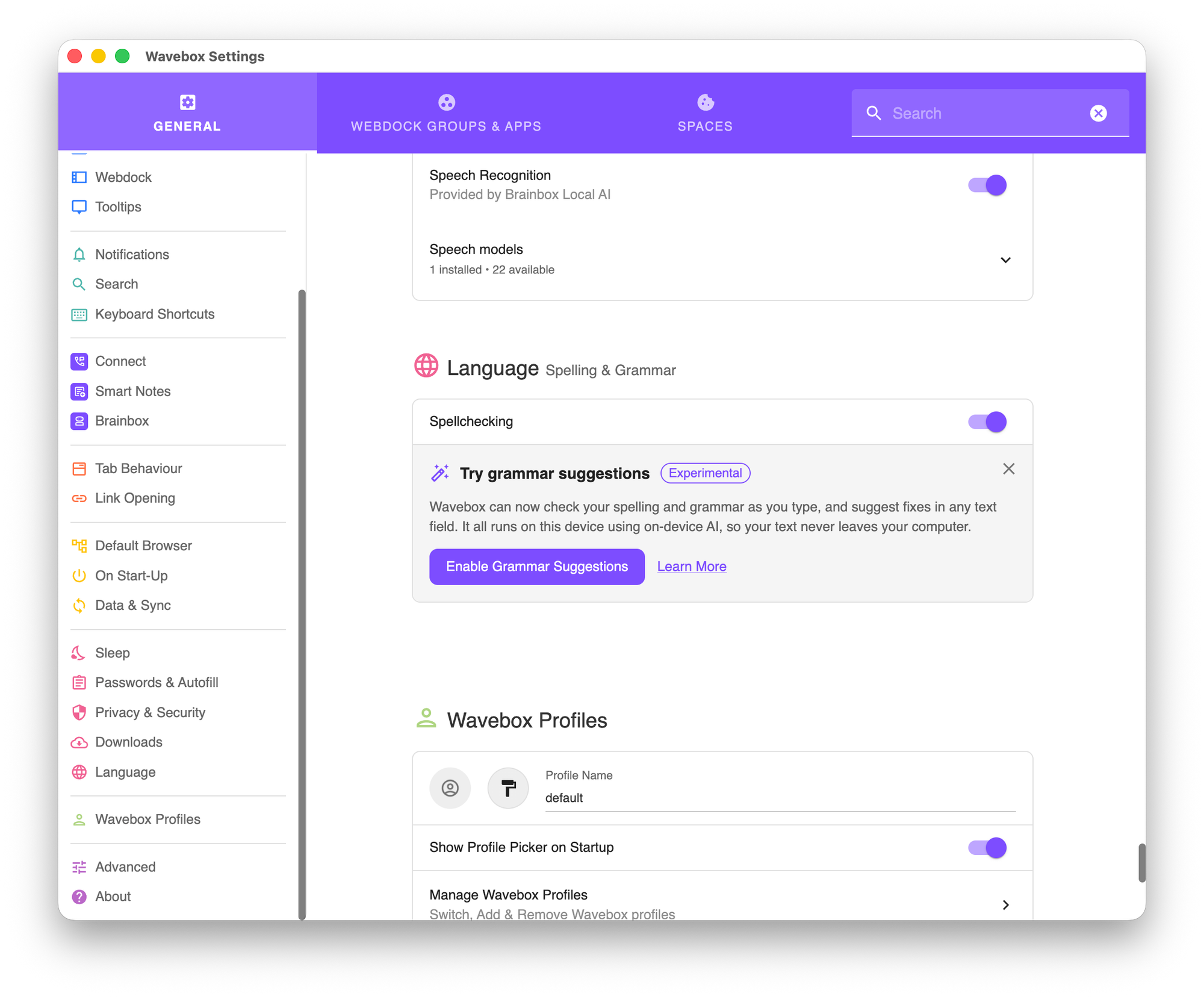
How to Opt in:
- Go to ⚙️ Settings → Language → Spelling & Grammar
- Click the Enable Grammar Suggestions button
- Wavebox downloads the grammar model once; you can keep working while it finishes and no restart is required.
- Fine-tune behavior (click vs hover to open suggestions, show/hide the indicator) from the place in Settings.
Before you Start:
- Experimental: you may encounter rough edges — that feedback is wanted.
- Hardware: on-device AI works best on capable machines. We recommend ~8 GB RAM and 8 CPU cores, or a supported GPU. Wavebox checks your hardware and lets you know if your machine is compatible and what speed you can expect.
- Language: initial support focuses on English.
- Download once: the model download requires an internet connection.
Tell us What you Think!
Grammar suggestions are still experimental, so you may hit rough edges, and that's exactly the feedback we want right now!
So, turn it on, put it through a few real emails and messages, and let us know how it feels. The full step-by-step lives in Grammar Suggestions in Wavebox.
 Thomas Beverley
 Susan Davies