How to Stay Signed In to Every AI Account You Have

A work ChatGPT, a personal ChatGPT, a client's Claude, a Gemini somewhere, and a Co-pilot somewhere else. Keeping them all signed in has quietly become one of the messiest parts of the working day. Wavebox solves it.
If you use AI at work, you probably have more than one login: your employer’s workspace, a personal subscription you keep private, and maybe a client seat under a different email. Most services expect you to be one person, so swapping accounts means extra steps and guesswork.
What actually happens!
Folks improvise. They make a Chrome profile for each account, keep one AI in a desktop app and another in a tab, use session-switcher extensions, or run scripts. Some try browsers that hide their fingerprint, which can go against a service’s terms. These hacks work sometimes, but they take time and leave you unsure which account you’re typing into.
How Wavebox makes this easier
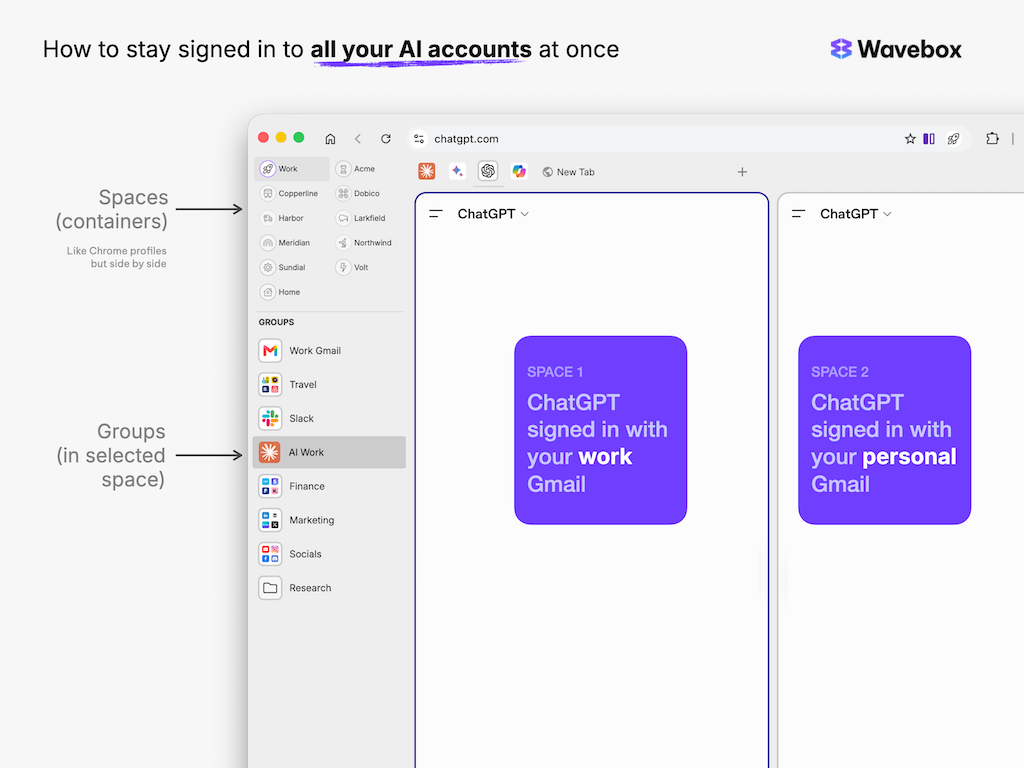
In Wavebox, each AI login is an app you add to a Space. Every Space keeps its own cookies and logins, so your work ChatGPT sits in your 'Work' Space, your personal ChatGPT in your 'Home' Space, and each client’s Claude or Gemini lives in that client’s Space next to their email, Slack, and other apps.
Everything stays signed in at once, and you can use them side by side in one window. You can have as many signed-in accounts as you need.
Note! A quick word on the name, because several browsers now use "Spaces" for organizing tabs into tidy workspaces: a Wavebox Space is a signed-in container. Each one holds an account's own cookies and login, which is exactly what makes the multi-account part work. It stays fast, too, and this is the part the profile-per-account workaround doesn't work: 10 profiles is effectively 10 browser windows running at the same time, all eating memory. Wavebox runs one window and only what you're using right now; every other app sleeps until you click it, waking signed in and ready. That's why a setup with 30 Spaces for 30 client accounts still feels quick.
More than convenience
Keeping accounts separate also keeps data separate. Your personal prompts, saved chats, and history stay with the right account. The Space around the app makes it clear which account you’re in before you type. You can split-screen two accounts of the same AI to compare answers. Browser extensions can also run per Space, so a Claude extension signs in to the account for that Space.
A quick aside
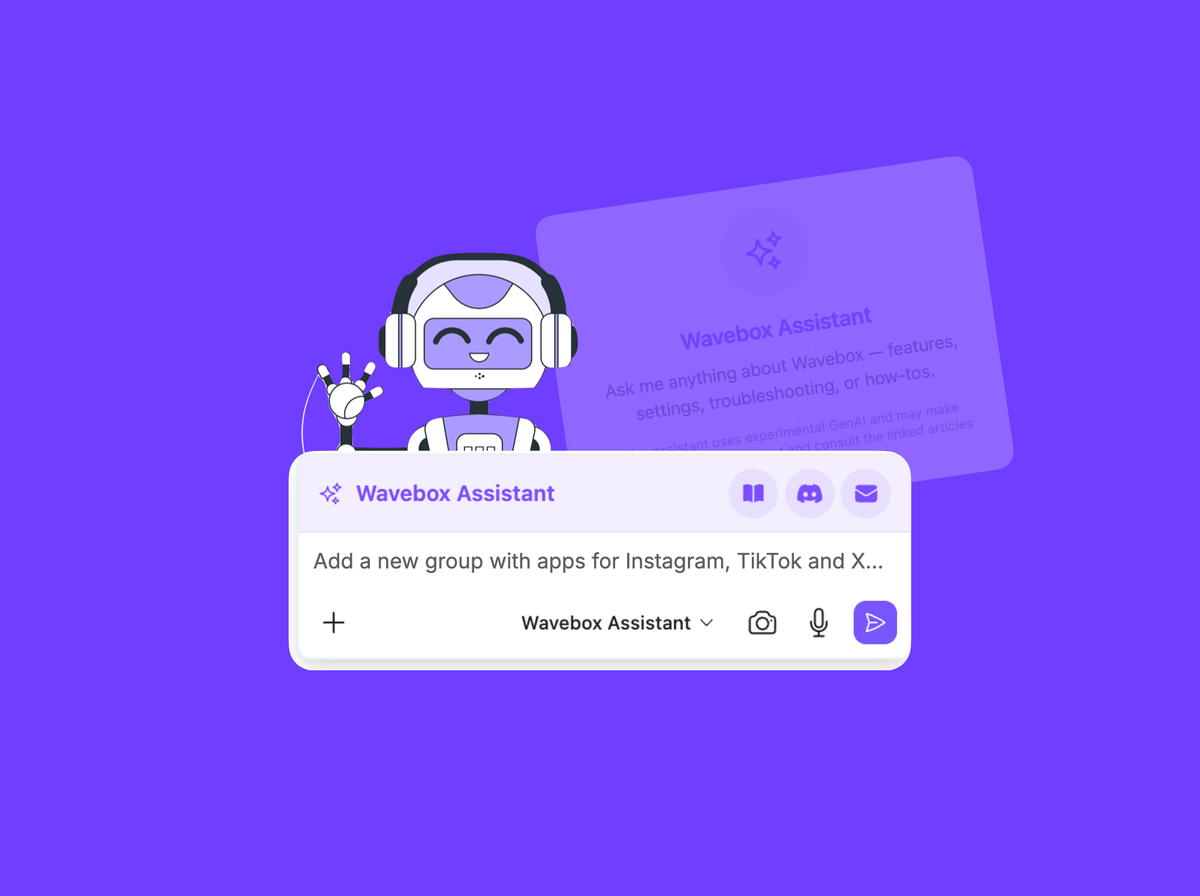
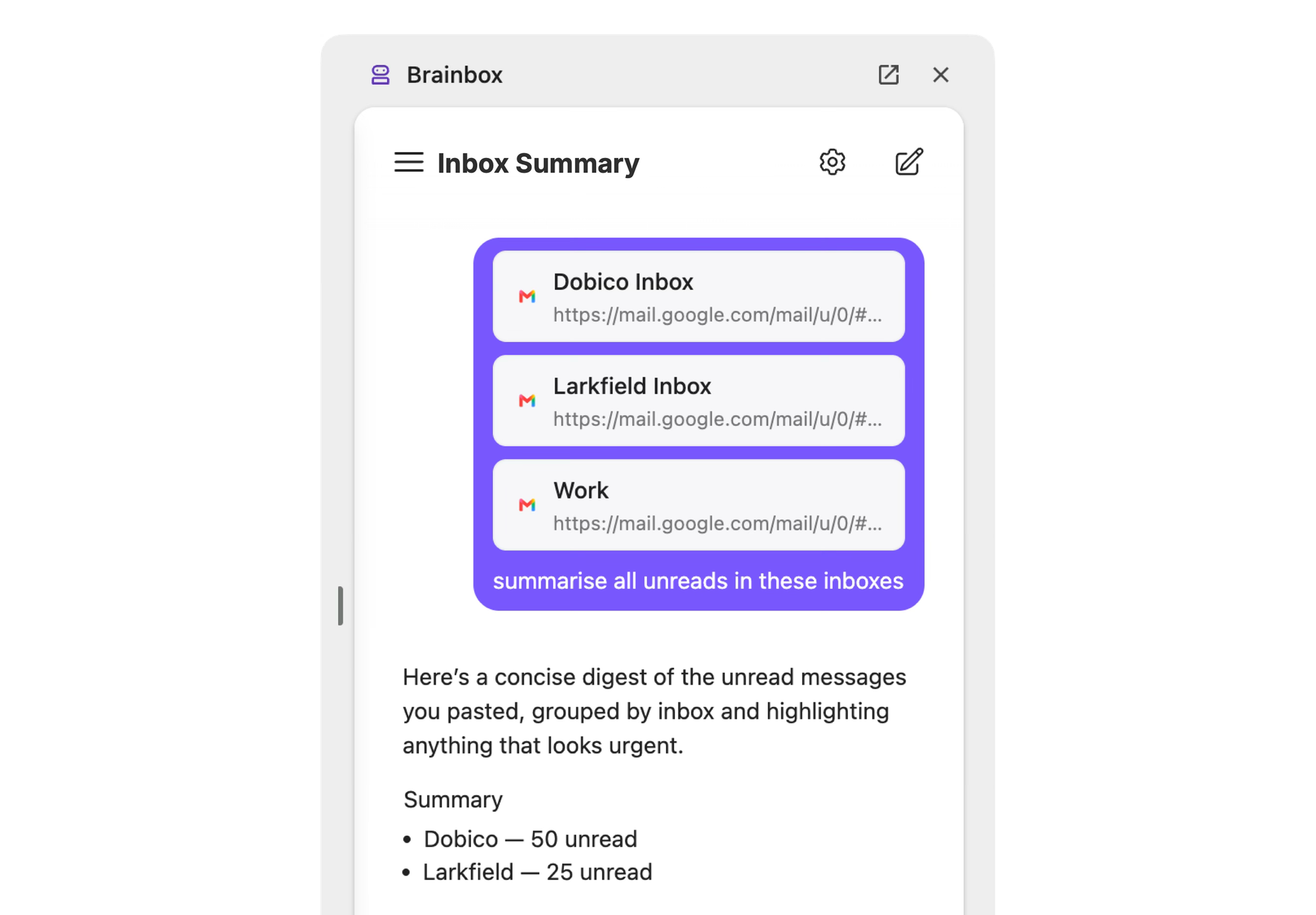
Brainbox is Wavebox's built in AI, and you can add vendor apps and extensions alongside it, using your own API keys if you prefer for OpenAI and Anthropic. Every account, every model, one window. Brainbox includes a Wavebox Assistant that will help you get setup correctly and answer any questions you have about the browser's features. There's also a Brainbox side panel extension that runs across all your Spaces, allowing you perform tasks like summarizing specific inboxes.
Who this helps
If you have a single AI login, a built-in switcher might be enough. If you juggle work, personal, and client seats under different emails, Wavebox was made for that. There’s a 7-day free Pro trial, no card needed.
Try Wavebox free →
 Susan Davies
 Susan Davies
 Thomas Beverley