What's the Difference Between Snapshots, Profile Sync, and Wavebox Live (Teams)?
All three features involve your Wavebox setup living somewhere beyond one computer, which is why they're easy to mix up. The difference is the job each one does.
A quick way to hold it in your head; imagine that Wavebox is a filing cabinet. A Snapshot is a photocopy of your filing cabinet kept in a safe place, Profile Sync puts the same cabinet in your home office too, and Wavebox Live (Teams plan) is the shared company cabinet your team works from, and only admins can change its contents.
🧑💻 Your Wavebox Pro
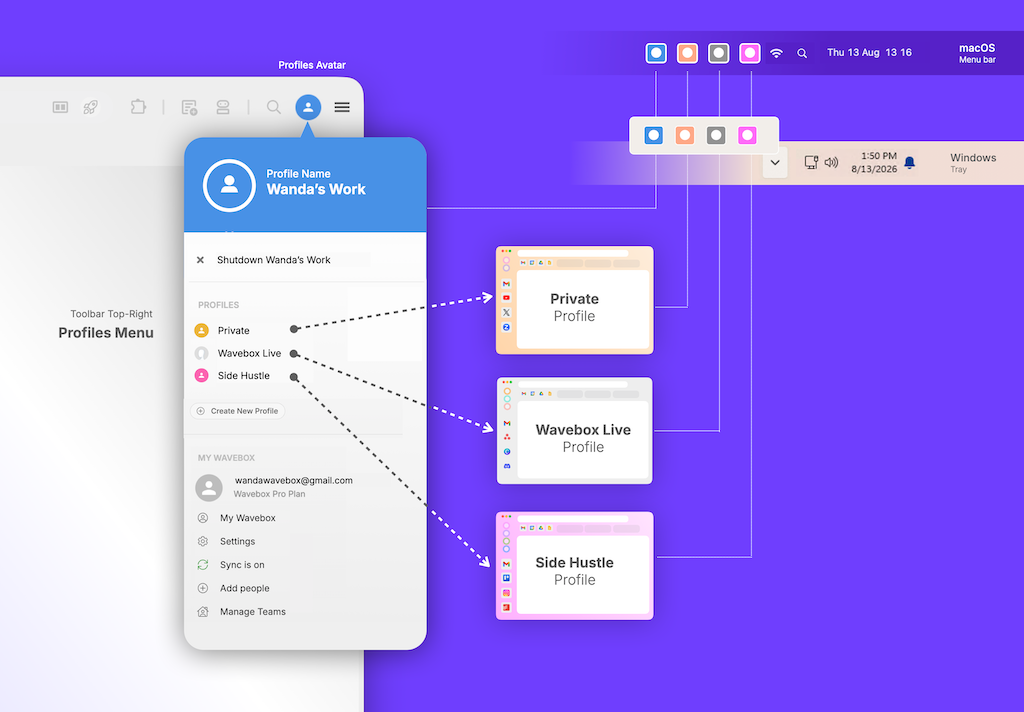
Snapshots and Profile Sync both live inside your own subscription. They're yours alone, and no other subscription can connect to them.
📸 Snapshots: your backup
Snapshots make a periodic, encrypted backup of your Profile to the cloud. They're enabled automatically for all users, with nothing to switch on, and you'd use one to recover your setup after a mishap or to restore it on a new computer (to get set up quickly). A snapshot is a point-in-time copy, so it isn't live, and it belongs to your subscription alone: nobody on another subscription can connect to your snapshots.
☁️ Profile Sync: your setup mirrored on other computers
Profile Sync keeps one Profile mirrored across your own computers in real time, desktop at work, laptop at home. It's there to let you sync another computer that's signed in with the same subscription. That shared subscription is the connection: Wavebox on both machines, you signed in on both.
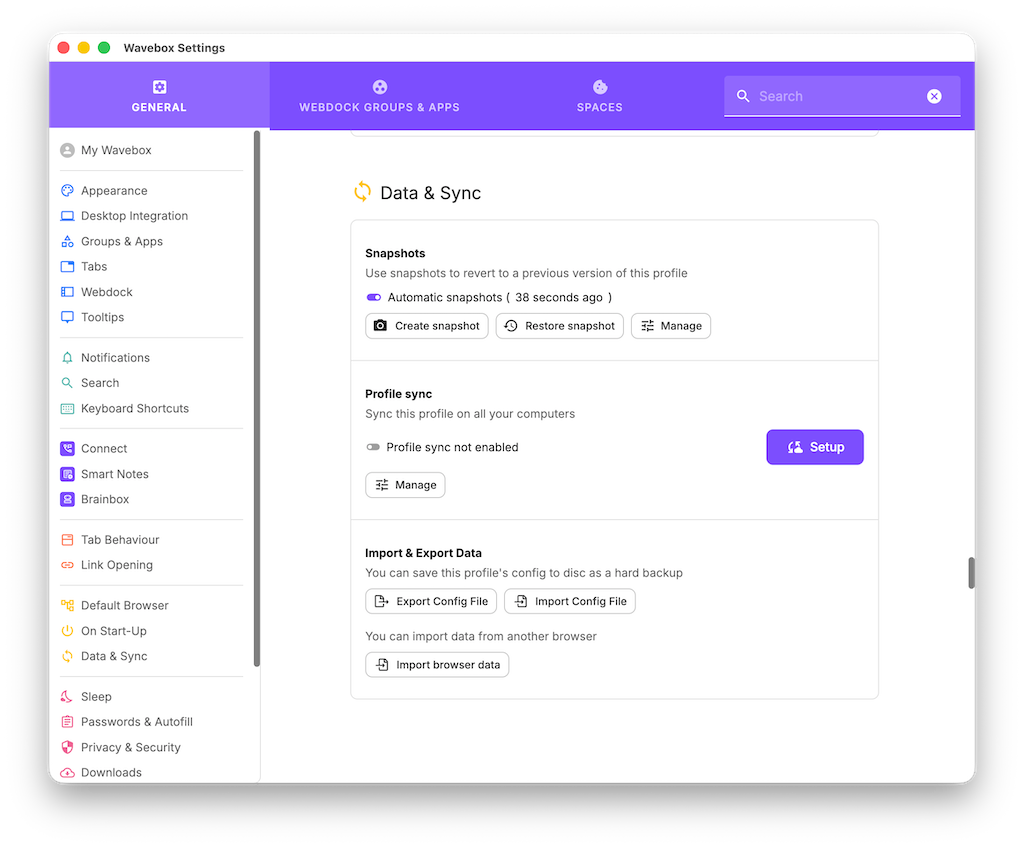
To set it up, switch on Profile Sync on your first computer in Settings > Data & Sync > Profile Sync, which creates a cloud copy of your Profile. Then install Wavebox on the second computer, sign in with the same subscription, and then join the sync—the Profile will appear on the second computer.
The part that catches people out: like Snapshots, Profile Sync is for your subscription only.
For example, a colleague is signed in with their own subscription, so they can never connect to your Profile Sync (or your Snapshots), and your Profile will never appear on their computer. Sharing the same setup with other people is a different job, and it belongs to the Wavebox Live section below.
👥 Wavebox Live (Teams Plan)
Sharing a setup across people, and across subscriptions, is what the Teams plan is for. Moving to the Teams plan changes nothing described above: your Snapshots and your Profile Sync still apply to your own Wavebox, exactly as described. Teams adds an extra option on top, a separate Profile you can share with your whole team, update remotely, and locked down if needed.
Wavebox Live: your team's shared setup
Wavebox Live gives your team a pre-configured Profile that works across subscriptions, and it's managed by Team admins only. The Team admin is normally the person who setup the team initially and they can manage the team in My Wavebox > People and My Live Profiles.
How the Wavebox Live Profile arrives depends on timing.
- If admin has added a user to the Live Profile before they install, they will be onboarded straight into it, with nothing to set up, and it's the only Profile they have (unless the admin also allows personal Profiles (the "Local profiles" option).
- If a user already uses Wavebox and has a Profile of their own, the Live Profile will simply appear as another Profile in their Profiles Menu (top-right) as soon as it's shared by the admin.
Note that there is no sync switch to find in settings, and nothing for team members to enable, because staying in sync is what a Live Profile is. Admins make the changes in My Wavebox > My Live Profiles > Edit, and use the publish button to send changes to team members. They can test what team members can see by clicking on the Use button.
Side by Side Comparison
| Your subscription | Teams subscriptions | ||
|---|---|---|---|
| Snapshots | Profile Sync | Wavebox Live | |
| The job | Back up a Profile | Mirror a Profile on your other computers | Share a managed Profile with your team |
| Who can connect | Only your subscription | Only your subscription, on your own computers | Everyone an admin adds, across subscriptions |
| How it's enabled | Automatic, for all users | Manually on your first computer, then join the sync when installing on the second | Automatic, nothing to enable |
| Managed in | Settings > Data & Sync | Settings > Data & Sync | My Wavebox > Wavebox Live (admins only) |
| Lives on | Your plan | Your plan | Teams plan |
So, to summarize: Snapshots and Profile Sync stay inside your own subscription, one backing you up and one following you between your computers, while Wavebox Live is the locked-down profile that's built for sharing, managed by admins.
FAQ
🤖 Tip: When viewing this tab, click on the Brainbox icon and you can "chat" with this page to answer any more questions you have.
Can I join my Profile Sync from someone else's Wavebox?
No, not if they are signed in to Wavebox using their own subscription. Profile Sync only connects computers that are signed in with the same subscription, yours.
Can a colleague see or restore one of my Snapshots?
No. Snapshots belong to your subscription, and they're encrypted with keys tied to your own sign-in, so another subscription can never connect to them.
I'm on a Wavebox Live Profile. Do I need to turn on sync?
No. There's nothing to enable, for you or anyone on your team. A Live Profile is already a sync: admins manage it in My Wavebox > Wavebox Live > Edit, and their changes reach everyone on the Profile. Team members provisioned before their first install are onboarded straight into it automatically.
So how do I get my setup onto a colleague's Wavebox?
Profile Sync isn't the tool for that, because their subscription can't join yours. To hand them a one-off copy of a setup, share a template. To share a setup that stays in sync for the whole team, use Wavebox Live on the Teams plan.
Could I just let someone sign in with my subscription, so Profile Sync shares my setup with them?
There's nothing stopping you: sign in with your subscription on their computer and Profile Sync will happily mirror your setup there. Just be sure you know what you're sharing. They'll see everything you can see, in real time, and they'll also have access to your My Wavebox account pages and any other Profiles you've created. For sharing with a colleague, a template or Wavebox Live keeps your own Wavebox yours.
Can I use Profile Sync on my second computer?
Yes, that's exactly what it's for. First, switch on Profile Sync on your current computer in Settings > Data & Sync > Profile Sync, which creates a cloud copy of your Profile. Then install Wavebox on the second computer, sign in with your same subscription, and join the sync during install. If your setup ever isn't where you expect it to be, check which of the three jobs you actually need, and the answer usually falls out.
 Susan Davies
 Susan Davies
 Susan Davies
 Susan Davies