🤖 Brainbox Tool Calling: Change Your Wavebox Just by Asking

Most of Brainbox answers questions and works with text. Tool calling goes a step further: instead of telling you how to change a setting, Brainbox makes the change for you. Ask it to switch to dark mode, add an app, create a Space or change your webdock layout, and it does the work inside Wavebox.
Tool calling happens in Chat with Settings, a single chat with memory that's pinned to the top of your Brainbox chat history. This article explains how to get there, what it can do, and what to try.
Brainbox works in two ways — tab chats, and Chat with Settings, the only chat that can actually change your Wavebox setup. The Brainbox Overview shows how the two fit together.
What you need
Brainbox turned on. It's on by default with a Wavebox Pro trial or subscription (Settings → General → Brainbox). Chat with Settings itself is free to use and doesn't touch your token allowance.
How to use it
- Open Chat with Settings in any of these ways:
- Click the Brainbox icon in the toolbar to open the Bainbox panel. The new chat screen has a Chat with Settings button.
- From the Brainbox panel, click the ☰Menu icon top left to open your chat history, and Chat with Settings is pinned to the top of the list.
- Type @settings at the start of a message in any Brainbox chat.
- Ask a question about Wavebox in any Brainbox chat, whichever engine it's running on, and Brainbox suggests Chat with Settings with a link that takes you straight there.
- Hover over the Settings Cog in the bottom left and click Wavebox Assistant Chat with Settings.
- Open Settings itself: Chat with Settings is built in, so you can ask for a change right where the settings live. In the Settings window, click the purple circle icon bottom left.
- Type what you want in plain words, for example “Make Wavebox dark mode”, and press Return.
- Brainbox makes the change and tells you what it did. For bigger changes, such as a new Space with several apps, it tells you the plan first and waits for your go-ahead.
Some changes, like switching between light and dark mode, need a restart to take full effect. Brainbox will tell you when.
What you can ask it to do
Appearance and themes. Switch between light and dark mode, apply a built-in theme, generate a custom theme from a color you name, or reset to the default Wavebox theme.
Apps. Search the Wavebox app store and add an app, or add a custom web app from any URL.
Spaces and Groups. Create a new Space, clone a Group, or change a Group's name, color, icon, sidebar and tab settings.
The webdock. Switch between the Spaces, List and Explorer layouts, and add named dividers to organize your Groups.
Extensions. Add an extension from the Chrome Web Store, such as your password manager.
App settings. Adjust an app's sleep and wake behavior, badges, notifications, auto-reload and pinned items.
Search and updates. Set your default search engine, or change your auto-update settings (macOS and Windows).
Browser preferences. Read and change Chrome preferences such as Safe Browsing and translation options.
Your own setup. Ask questions like “How many Spaces do I have?” or “Which Group is my Gmail app in?” and it looks through your Wavebox to answer.
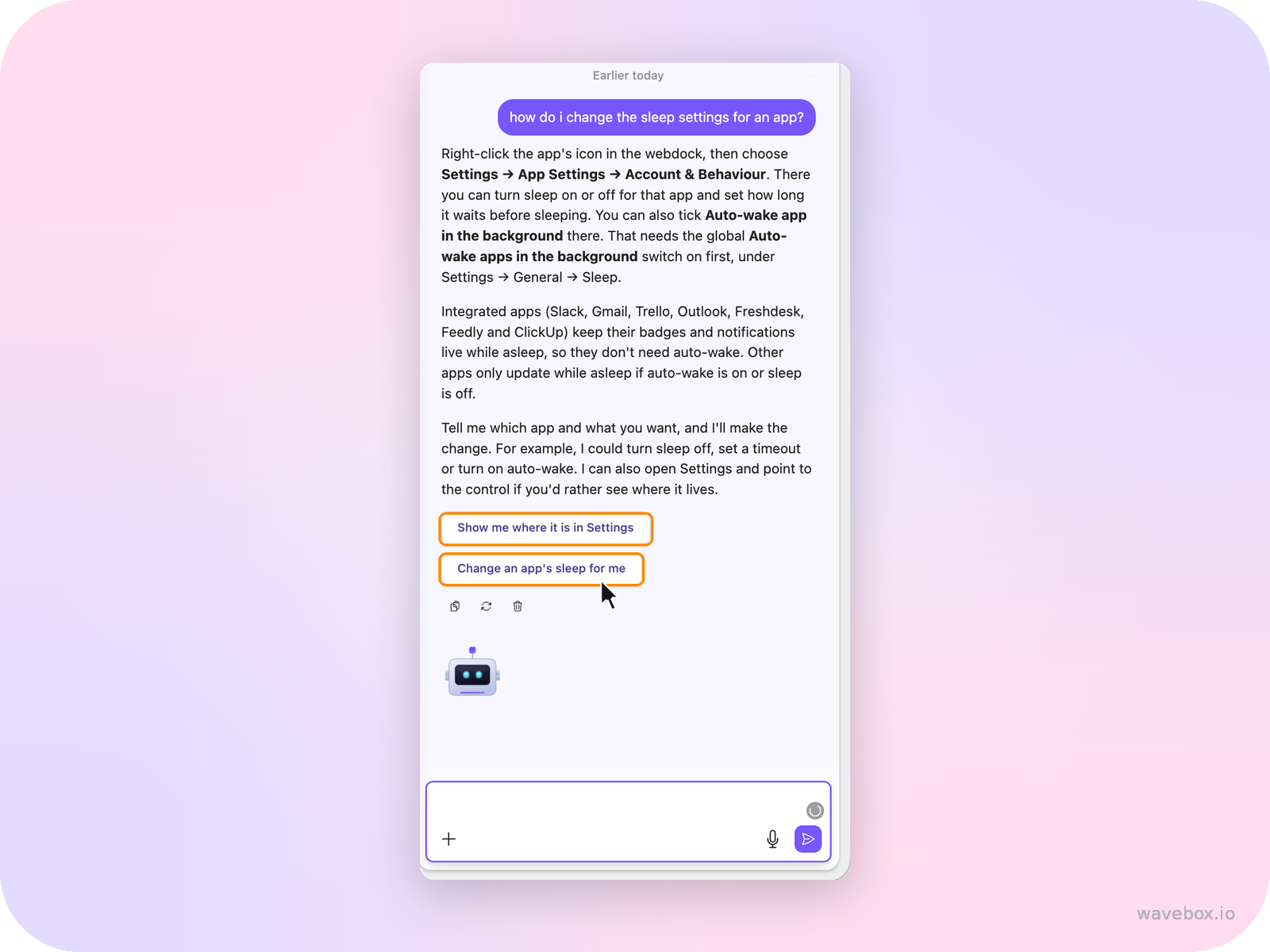
Show you where. Ask “Show me how to change an app's sleep settings” and it opens Settings in the right place, so you can see where it lives. But you'll usually save time by asking it to do it: “Set my Gmail app to sleep after 30 minutes.”
Examples to try
- “Make Wavebox dark mode.”
- “Apply a theme based on the color #6C4BF4.”
- “Add Trello to my Projects Group.”
- “Create a new Space called Clients.”
- “Switch to the List layout.”
- “Add a divider called Clients above my client Groups.”
- “Set my default search engine to DuckDuckGo.”
- “List all my Spaces and the apps in each one.”
Good to know
- It's free to use. Conversations in Chat with Settings don't use your Brainbox token allowance.
- Some changes need a restart. Switching light or dark mode, for example, only takes full effect after you restart Wavebox.
- One chat for your setup. Chat with Settings is where Wavebox gets changed. Your other Brainbox chats are for writing, summarizing and working with your tabs, and they'll point you to Chat with Settings when you ask for a change.
- It works on your own Wavebox. Tool calling acts on your Spaces, apps and settings, the same things you'd change by hand in Settings.
- It checks before big changes. A single clear request, like “add Slack”, happens straight away. Anything bigger, it runs past you first.
Troubleshooting
Brainbox says it can't change a setting. Not every setting can be changed by chat yet. Brainbox will tell you if it can't, and you can change it by hand in Settings, or ask support@wavebox.io.
The change didn't appear. Some settings, including light and dark mode, need a restart. Restart Wavebox and check again.
I can't find Chat with Settings. Open the menu at the top left of the Brainbox panel: it's pinned at the top of your chat history. If Brainbox itself is missing, check you're on a Wavebox Pro trial or subscription and that Settings → General → Brainbox is turned on. If it's still missing, contact support@wavebox.io.
 Thomas Beverley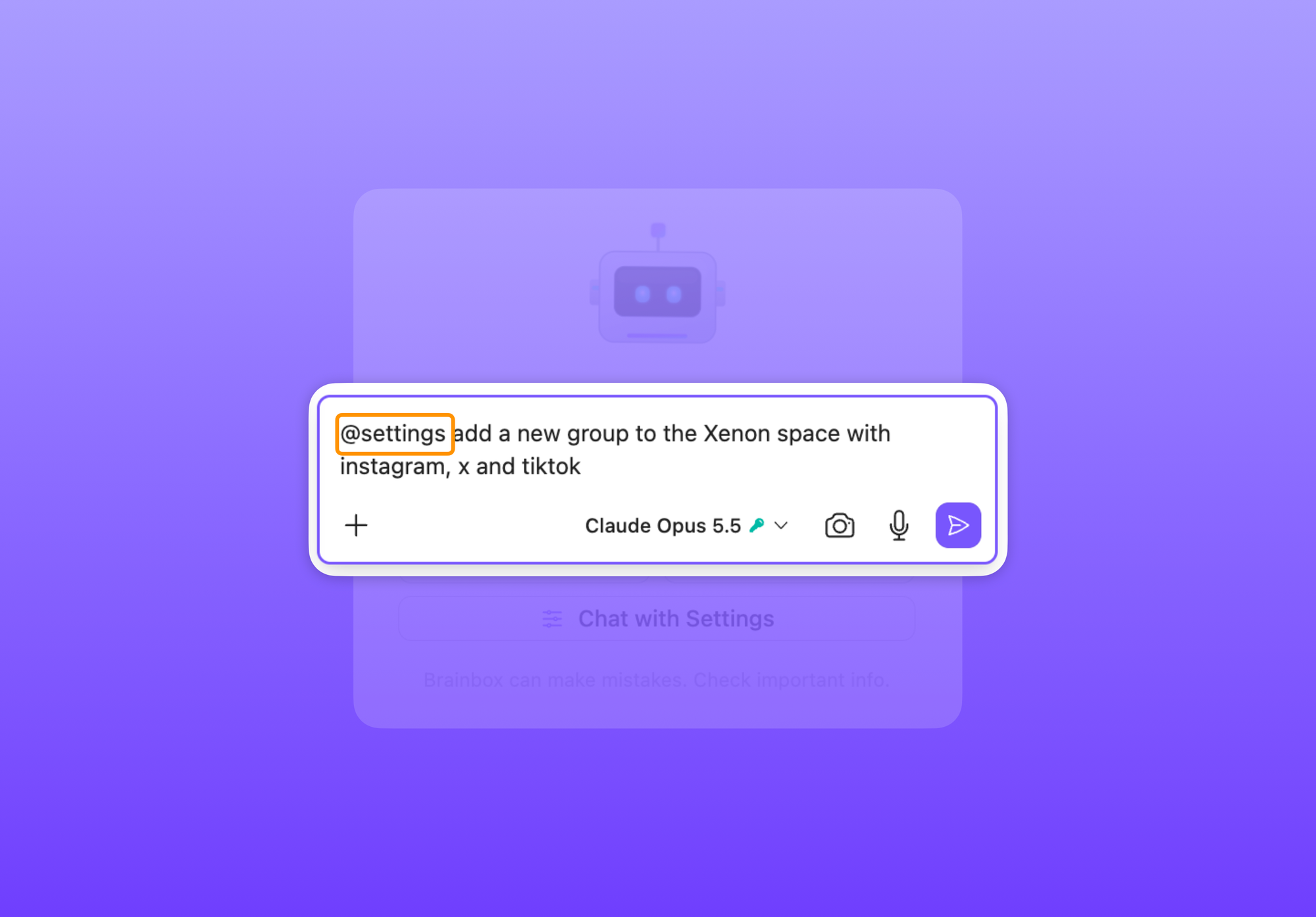
 Susan Davies