Spaces vs Profiles: Which One Should You Choose?
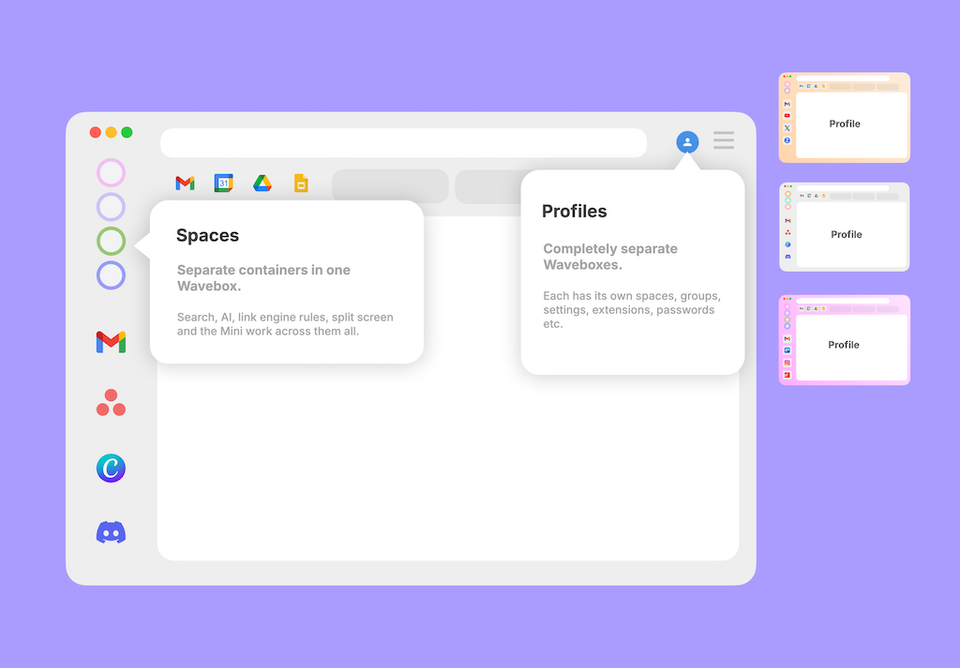
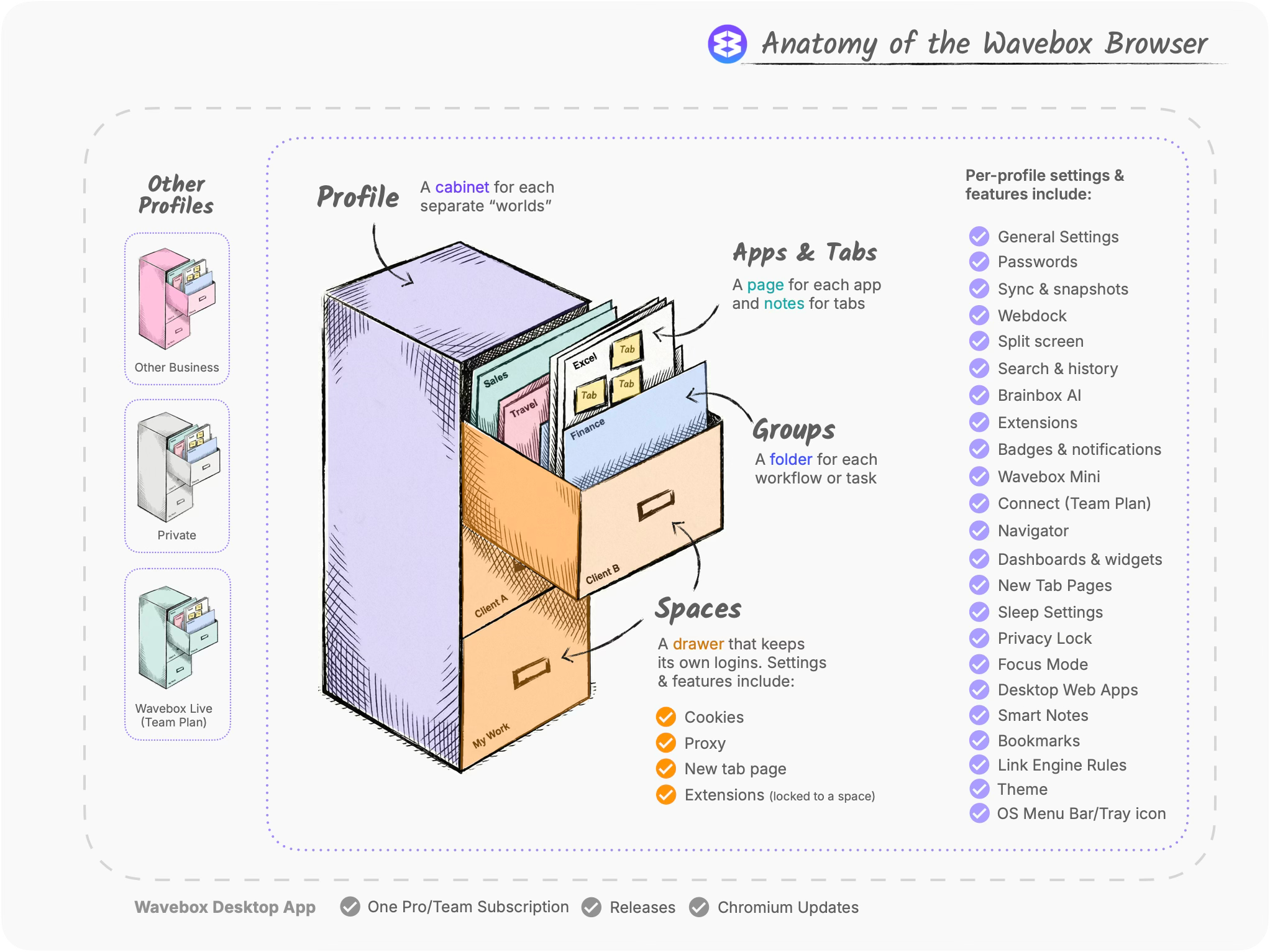
In Wavebox, Spaces and Profiles both separate parts of your digital worlds, which is exactly why people mix them up. The help explain the difference, it's easiest to picture Wavebox as a room filled with filing cabinets:
- A "room" is the Wavebox Desktop app installed on a machine.
- One "cabinet" is your main Wavebox Profile, the one you installed first which may be the one you use every day.
- In the cabinet are separate "drawers" which are your Spaces, for clients and workflows.
- Other cabinets in the room are completely separate Wavebox Profiles for private projects, and creating templates.
What a Space gives you
A Space (a cabinet drawer) keeps its own logins, so Client A's Gmail and Client B's Gmail stay signed in at the same time without ever mixing. But all your Spaces live in the same cabinet. That's the point of them: one search across everything, every unread badge rolling up into one view, apps from two Spaces side by side in split screen, and the Mini gathering every account into a single list. Separate, but working together.
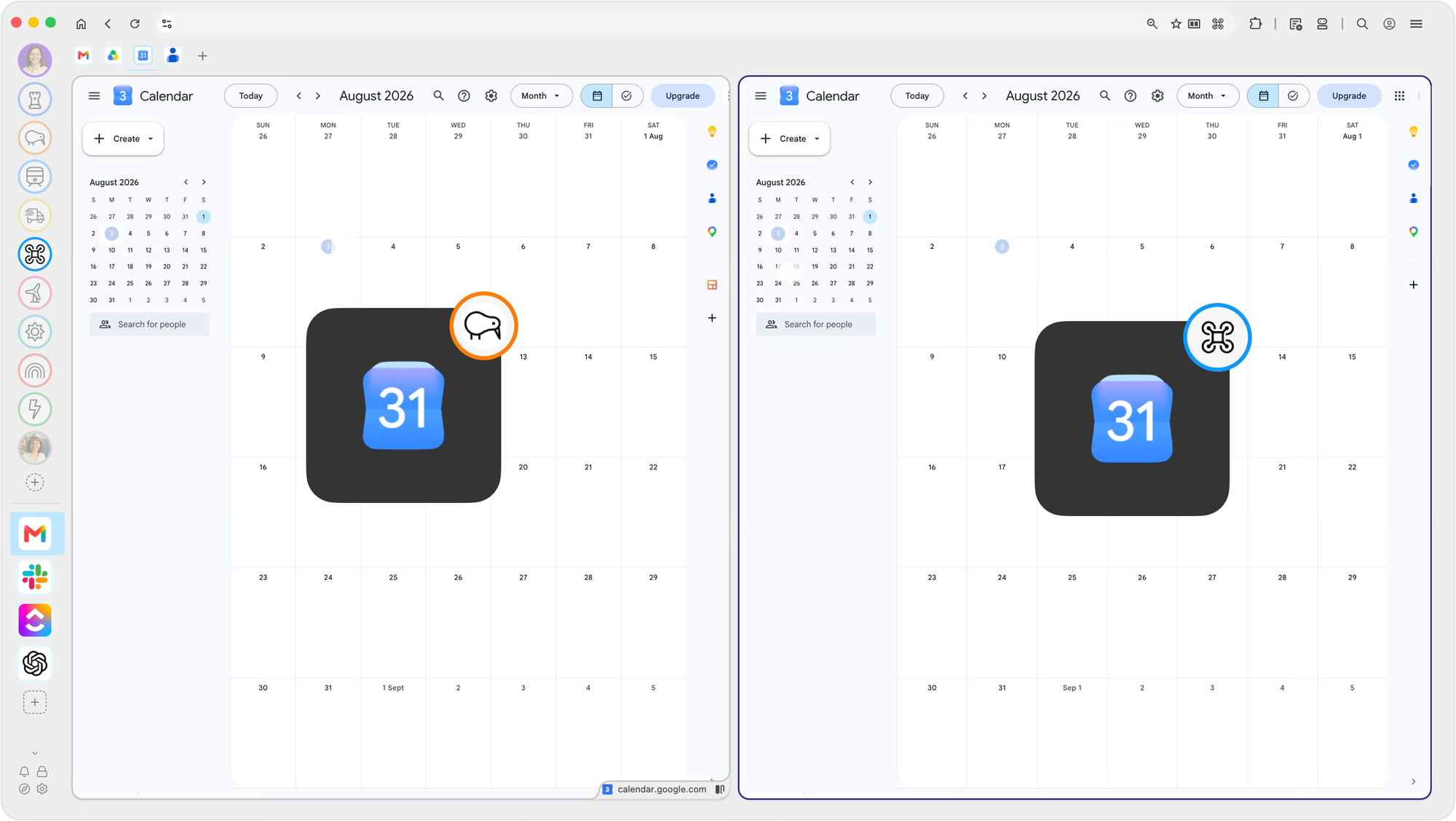
For example, a "Client - Larkfield" Space holds Larkfield's Gmail, Instagram and Buffer, all signed in with their accounts, while your own "Work" Space sits one click away with your Gmail and Slack. You can put Larkfield's inbox next to yours in split screen, search across both in one go, and see both sets of unread badges in one window.
The accounts never mix, but the workday flows.
What a Profile gives you
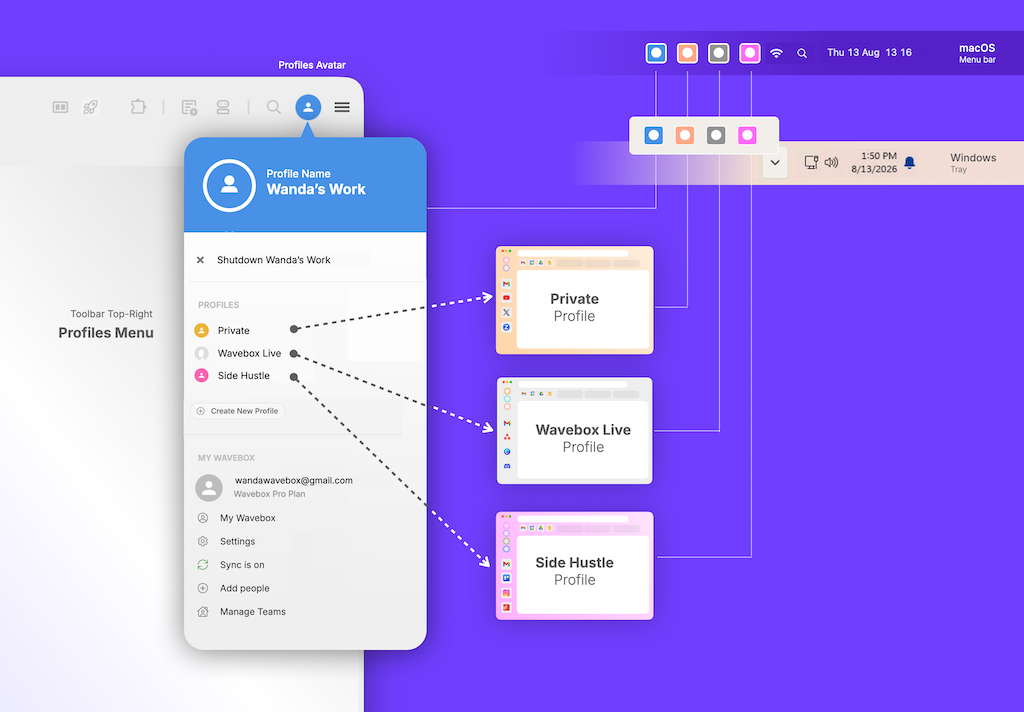
A Profile (a cabinet) is a completely separate Wavebox. Its own Spaces and Groups, its own settings and extensions, its own passwords, webdock, search and snapshots etc. Nothing crosses between Profiles, in either direction. You switch between them using the Profiles icon in the top-right corner, and each Profile opens as its own world.
For example, a "Finance" Profile for doing the company books: its own passwords, its own Xero and banking logins, its own extensions, and nothing shared with your everyday Profile. You switch into it when it's time for the accounts, and when you switch back, none of it follows you. The same idea covers a teammate using Wavebox on your computer (the room) with a Profile (cabinet) of their own.
The accounts in each cabinet never mix.
Choose a Space when...
You want accounts separate, but the workday unified. This is the default, and it covers most situations: multiple Gmails, a Space per client, work and home apart but in the same window. If the separation you need is "never mix these logins," Spaces do this with all the cross-account benefits intact.
Choose a Profile when...
You want a harder boundary. Spaces separate logins; a Profile separates everything. For work that deserves extra security, a sensitive client, company finance, anything you'd rather keep in its own sealed environment, give it a Profile of its own.
You're setting up Wavebox for someone else. If someone else uses Wavebox on the same computer, they should have their own Profile, with their own passwords, extensions and setup. Drawers in your cabinet are for your things; another person gets their own cabinet.
You want a project's unified view to be truly its own. Badges, search and the Mini unify everything inside one Profile. Usually that's the magic, but for a big project it can be the noise. Put the project in its own Profile and its unified unreads, badges and notifications become a clean, self-contained view with nothing else leaking in.
You're setting up a locked-down Profile for your team. On the Teams plan, Wavebox Live uses a special kind of Profile for exactly this: a Live Profile is a pre-configured, locked-down Wavebox that admins manage centrally, share with the whole team, and update remotely. Team members often have their own Profile, plus a shared Wavebox Live Profile.
The quick test
Ask yourself the following question to decide which option is best for you:
- Do I want my accounts separate but in the same cabinet? Use Spaces.
- Do I want my accounts in completely separate cabinets? Use a Profile.
And you can happily use both, most people run one main Profile full of Spaces, and add another Profile with Spaces for another business or when setting up Wavebox for someone else.
Mini FAQ
Can I use Spaces and Profiles together? Yes. Every Profile contains its own Spaces, so many Waveboxers have one main Profile with all their client Spaces, plus a separate Profile for anything that needs a harder boundary.
Do Profiles share logins, passwords, or extensions? No. A Profile is a completely separate Wavebox, so nothing is shared between Profiles.
How do I switch between Profiles? Click the Profiles Avatar top-right user icon in the top-right corner of any Wavebox window and pick the Profile from the menu. Or you can use the OS Menu Bar (macOS) or Tray icons (Windows).
 Susan Davies
 Susan Davies
 Susan Davies
 Susan Davies