Other Browsers Are Learning to Spot What Needs Your Attention - Wavebox Already Knows

Every browser maker is thinking about attention. One is building tab groups around "what needs your attention." Another is testing an assistant that watches pages for you. Both are trying to solve a real problem: a tab is anonymous. The browser can't tell your most urgent client email from a recipe you'll never read, so it guesses — and the guessing is where things go wrong.
Wavebox doesn't guess. It knows, because every app in your webdock is already signed into a specific account in a specific Space.
That's the foundation everything else is built on. Here are the six features that sit on top of it:
- 👀 Notice it (badges)
- 👂 Hear it (sounds)
- ✅ Gather it (the Mini)
- 🗓️ Place it (Dashboards)
- 🤖 Read it (Brainbox)
- 🔕 Mute it (Focus Mode)
🚀 Apps already know they're important!
Wavebox starts from a different place to tabs. The things in your webdock are apps: this one is Gmail for Client X, that one is the team Slack, each signed in to its own account in its own Space. An app doesn't need the browser to guess what it is or whether it matters.
So attention has been part of the furniture here for years. Every app shows its own unread badge — and those badges roll up through three levels.
- An app badge tells you something's new there.
- The Group badge rolls up everything across all the apps inside it.
- The Space badge rolls up everything across all its Groups.
So a single number on a Space icon in your webdock (vertical sidebar) means something, somewhere in one of its Groups, needs your attention — and you can turn badges on or off, and change their colour, at each level independently.
Desktop notifications come through with the right account attached, so you always know which inbox is calling. And if a particular app is too noisy, you can suppress its notifications entirely, or set them to persist on screen until you actively dismiss them rather than fading away — both available per app from its settings.
Sound does its part too. Every app can have its own notification sound, picked from the built-in set or uploaded yourself, so you know who's calling without looking up. Give one client Darth Vader's theme and another Yoda's giggle, and your ears learn to triage before your eyes get involved.
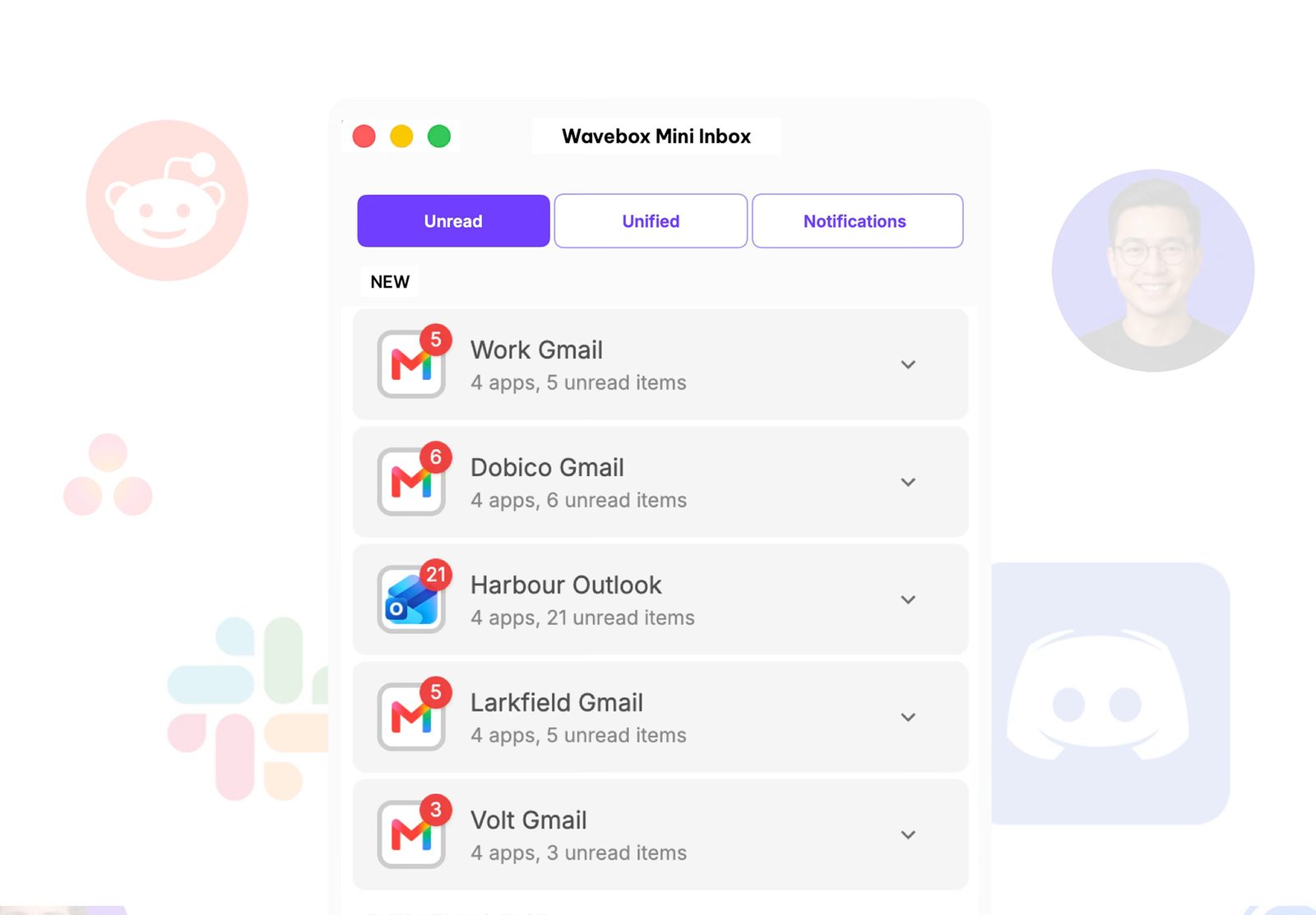
🔔 The Wavebox Mini, your answer to "what's new?"
The Wavebox Mini is the unified inbox for all of it. One list of every unread item and notification across all your Spaces and Groups, across every account you're signed in to, with new items at the top. Click anything and you land directly on it, in the right account. Open it from the ☰ Wavebox Menu (top-right) and pop it out to your desktop, or show it any time from the menu bar icon (macOS) or tray icon (Windows).
📅 Put it on your new tab page
This is where it gets fun. Mini widgets can live on any Dashboard, and any Dashboard can be a new tab page. There are three widgets to place:
- Unified Unreads, one list drawn from the Groups you select
- Unreads, every unread item across all your accounts
- Notifications, recent desktop notifications from everywhere.
So a Dashboard for one client can carry a Unified Unreads widget pointed at just their Groups, set as the new tab page for their Group. Open a new tab while working on Client A and the first thing you see is what Client A needs from you. Meanwhile a dashboard for everything can carry Unreads and Notifications side by side — one view across every client and account — and your Home Space keeps a Mini of its own that's nothing to do with work.
That's attention triage you compose yourself: per client, per project, or everything at once, always sorted by account because every item already knows which Space it belongs to.
🤖 Or ask Brainbox for the summary
And when a list isn't enough, ask for prose. Open Brainbox, pick your assistant from the dropdown, type @ to mention each inbox you care about, and ask: "Summarize what's new across these inboxes and order it by priority." Because every account is already signed in, 10 inboxes are no harder than one. The chat stays put, so revisit it and run the same request whenever you want the next briefing.
Scheduling is coming soon — and then the morning summary will be waiting before you've opened a single inbox, across all your accounts.
🔕 And when it's all too much
Attention works both ways: sometimes the kindest thing a browser can do is go quiet. Click the bell icon at the bottom of the webdock to turn on Focus Mode.
By default it silences everything — every notification, badge and in-app audio — for however long you choose, then switches back on automatically. But Focus Mode also lets you target specific Groups, so you can go quiet on one project while the rest of your day carries on uninterrupted.
If it's one persistently noisy app rather than a whole Group, you can silence it individually — suppress its notifications, mute its badge, or disable its notification sound — from its right-click settings in the webdock.
🗂️ The quiet ingredient
The reason this works without any guesswork is the container-first structure. When every app is signed in to the right account in the right Space, "what needs your attention" stops being a prediction problem and becomes something your browser simply knows.
Try Wavebox free → · Free 7-day Pro trial, no credit card · macOS, Windows, Linux
 Susan Davies
 Susan Davies
 Susan Davies
 Susan Davies