Tutorial: How to use Wavebox Translate on any web page.

Using Wavebox to communicate with clients and using international websites has got a whole lot easier. Wavebox’s new real-time AI translator tool works in a similar way to Google Translate, and supports over 100 languages.
Translation often becomes an essential part of daily workflows when:
- 📚 Managing international clients who send documentation in their native language
- 🌎 Researching competitor websites based in other countries
- 💬 Coordinating with remote teams across different language regions
- 📈Reviewing global market data published in local languages
- 🗺️ Supporting multilingual customer bases where you need to understand inquiries quickly.
If you already use Wavebox to manage multiple accounts across regions, our new instant translation means you don’t need to switch contexts or open separate tools to get work done.
Here's how it works...
On-Page AI Translation
This option replaces the page’s existing text (🌱 source) with the language of your choice (🎯 target).
Manual Translation
Demo: Translate from German to French
- Navigate to the page you want to translate; the translate pop-up appears.
- Click the detected 🎯target language to start translation.
- The existing text on the page is replaced in-situ with the translation.
Auto Translation
Demo: Save a language so it's automatic next time
- On your first use of translate, tick the checkbox in the pop-up to enable automatic translation for that language.
- After that, translations will start automatically without you having to click the pop-up.
Choose Another Language
By default, Wavebox uses your OS language as the target, but you can choose from 100+ languages and set other preferences.
Click the ☰ Menu icon in the translate pop-up:
- Select 'Choose another language'
- Pick from the dropdown list
- Save behaviours for specific languages or sites:
- Always translate '[language]' - get automatic translations every time
- Never translate '[language]' - disable translation for that language
- Never translate this site - turn off translation for the entire domain
- If the source language is wrong:
- Select "Page not in [X]"
- Choose the correct source language.
Manual Activation
If the translate pop-up doesn't appear, launch it manually:
- ☰ Wavebox Menu (top-right) > Translate
- Or click the Translate icon on the right-hand side of the address bar, next to the split & dock and spaces indicator icons.
Brainbox Panel Translation
These options use Brainbox tokens and give you more control.
Use Brabinx
Full Page Translation via Brainbox Panel
You can translate the whole page and run additional AI prompts such as summarize or rewrite:
- Click the Brainbox icon (top-right) to open the panel
- Select 'Include Page' at the bottom
- Type 'Translate into [Language]' in the chat box
- The translation appears in the panel.
Paragraph Translation using Skills
Sometimes you only need a paragraph translated. Highlight the text, then choose one of the options. In all three scenarios, the translated text appears in the panel:
- Right-click and choose Brainbox > Translate
- In the panel, select 'Include Selection' and type 'Translate into [Language]'
- In the panel, open 'Skills' and choose 'Translate'
🤖 Default Translate Skill
The default translation skill uses your operating system as the 🎯target language. You can edit the Skill to change the language or create custom Skills with specific style guidelines or a brand voice etc.
Adding Translation to Your Workflow
Auto on-page translation works best for quick reference when you’re reading documentation, reviewing competitor sites, or checking client materials. It doesn’t use Brainbox tokens, so you can translate freely throughout your workday.
For situations where you need more control—like translating specific paragraphs with precise phrasing—the Brainbox panel method gives you extra flexibility by using custom Skills.
 Susan Davies
 Susan Davies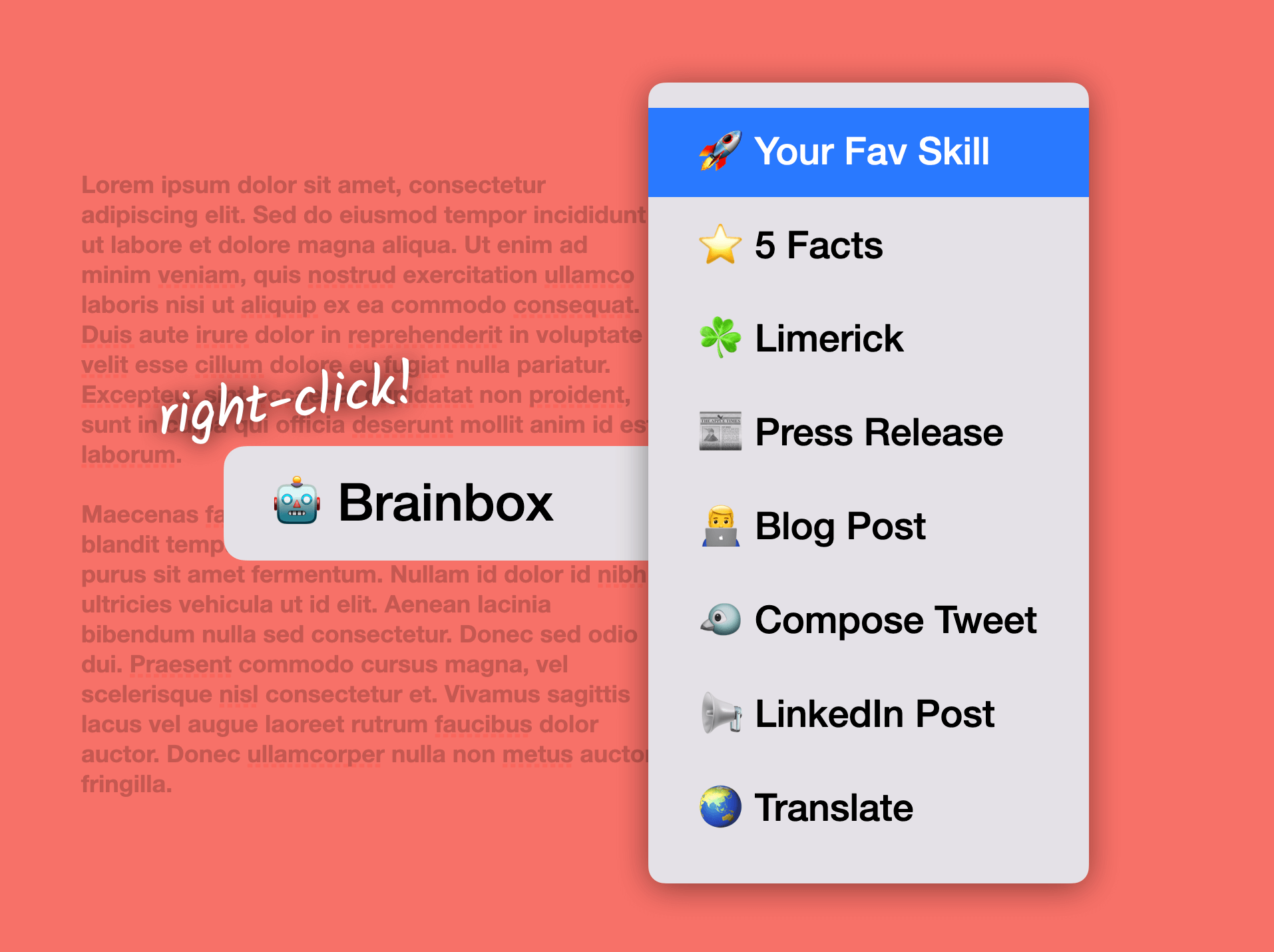
 Susan Davies