Tutorial: How to Add an App to the Same Space Twice
Spaces are a core feature in Wavebox, designed to keep your accounts organized and secure. While the concept can seem complicated at first, it really comes down to three simple rules.
Note: This article is about using two accounts of the same app, like two Slack accounts, inside one Space. If what you want is one account you can reach from every Space, for example a single Trello board you use while working on any client, that is a different setup: how to use the same app in every Space.
The 3 rules of Spaces
- Apps and websites that share login credentials should be in the same Space.
Example: Put Gmail, Outlook, and Slack for your work accounts in a “Work” Space. - Apps and websites you want to keep private should be in a separate Space.
Example: Put Netflix, WhatsApp, and other personal accounts in a “Home” Space. - Apps of the same type, but with different login credentials, must be in separate Spaces. Example: Put a Gmail app for 3 different clients in 3 different Spaces e.g "Client A" Space, "Client B" Space, "Client C" Space. Worth knowing: the Space decides which account an app is signed in to, and the Group decides where the app sits in your webdock. Those are two separate things, so an app can sit in a Group in one Space while staying signed in to another Space's account.
These rules are important because most users rely on Wavebox to keep accounts securely separated. Wavebox also has built-in safeguards to help you stay signed in to the right accounts.
Watch the Walkthough
How Wavebox keeps you secure
For example, if you already have Slack in your “Work” Space and try to add another Slack account, Wavebox won’t allow it. Instead, you’ll be prompted to create a new Space for the additional Slack account.
What if you need the same App in two Groups in the same Space?
But sometimes, you might want to access the same app (like Slack) in different groups within the same Space, for example a "Projects" group and a "Tasks" group. For this, Wavebox offers an Advanced Space Configuration option.
If instead you want one account available to you while you work in other Spaces, you do not need this setting. See how to use the same app in every Space.
How to enable advanced Space configuration
It's quite straightforward and you only need to do it once in any Profile and it will apply to all Spaces.
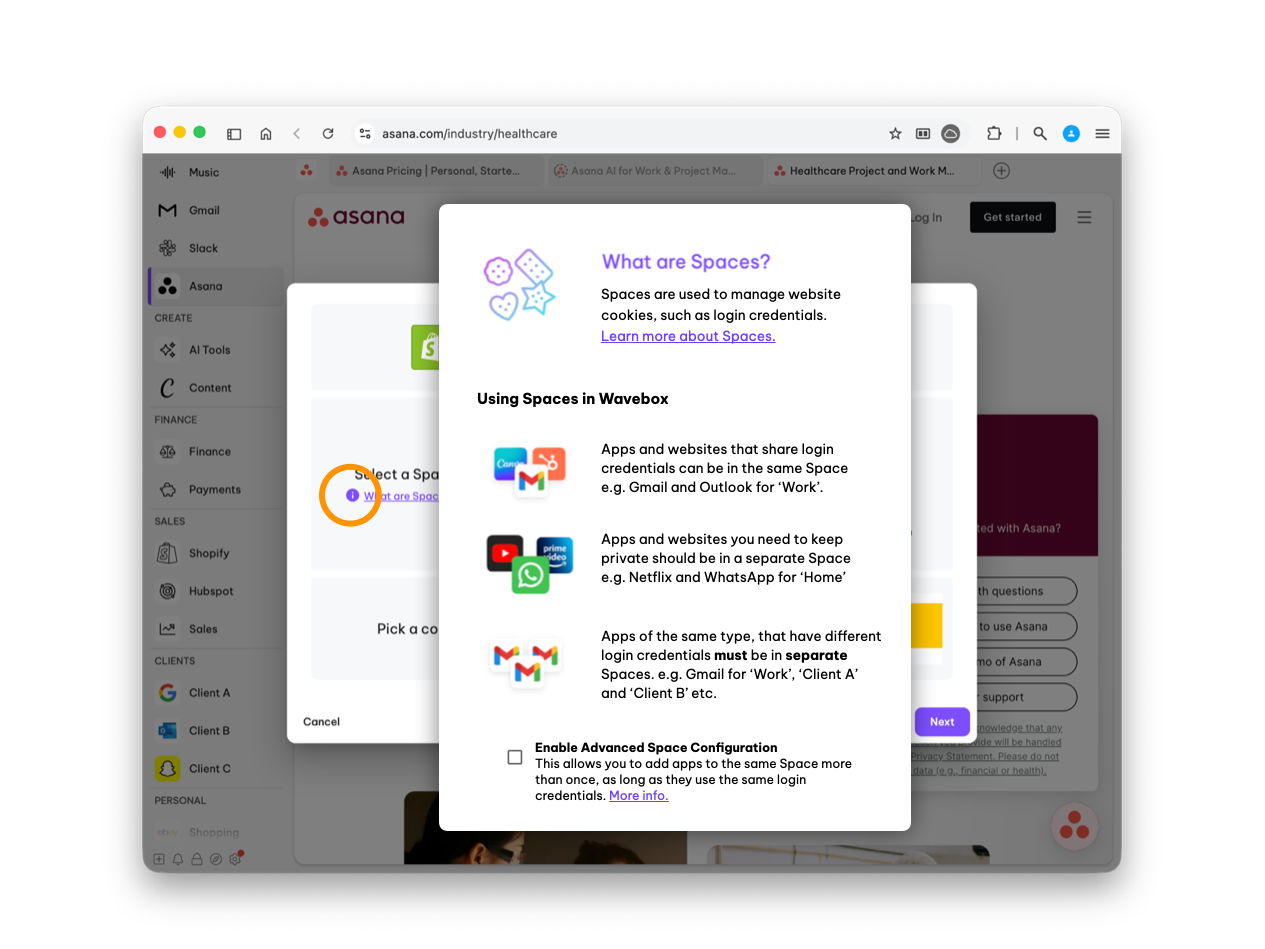
- Add an App
In any Space, click the + button to add an app you’ve already added. - Click the "More Info' Icon
In the “Add App” pop-up, click the i (information) icon under the “Select a Space” title. - Read & Check the Box
In the pop-up, read the information and check the box to confirm you understand the rules. Close the pop-up. - Click the Dropdown
In the "Add App" pop-up, click the “Select a Space” dropdown and choose “Use the Same Space” from the list.
That’s it! You can now add multiple apps of the same type to the same Space!
By following these rules and tips, you’ll become a Spaces expert in no time—keeping your work, personal, and client accounts organized, secure, and easy to manage! If you have any questions or need more help, feel free to reach out to support@wavebox.io or ask our AI Agent.
👍 Tip: If you don’t need all the features of an app (like tooltips, link engine rules, or badges), you can simply add a tab of any type to any Space without this extra setup.
More info and advanced Space features:
 Susan Davies
 Susan Davies
 Susan Davies