Spaces Drag & Drop Manager

Use the Spaces Drag & Drop Manager to quickly organize your apps, groups, and tabs between different Spaces. This helps keep your workflow tidy, especially when you have multiple accounts in separate Spaces.
Open the Manager
- Go to Settings (the cog icon).
- Select the Spaces tab at the top.
- Click on the purple button to launch the Drag & Drop Manager.
Overview
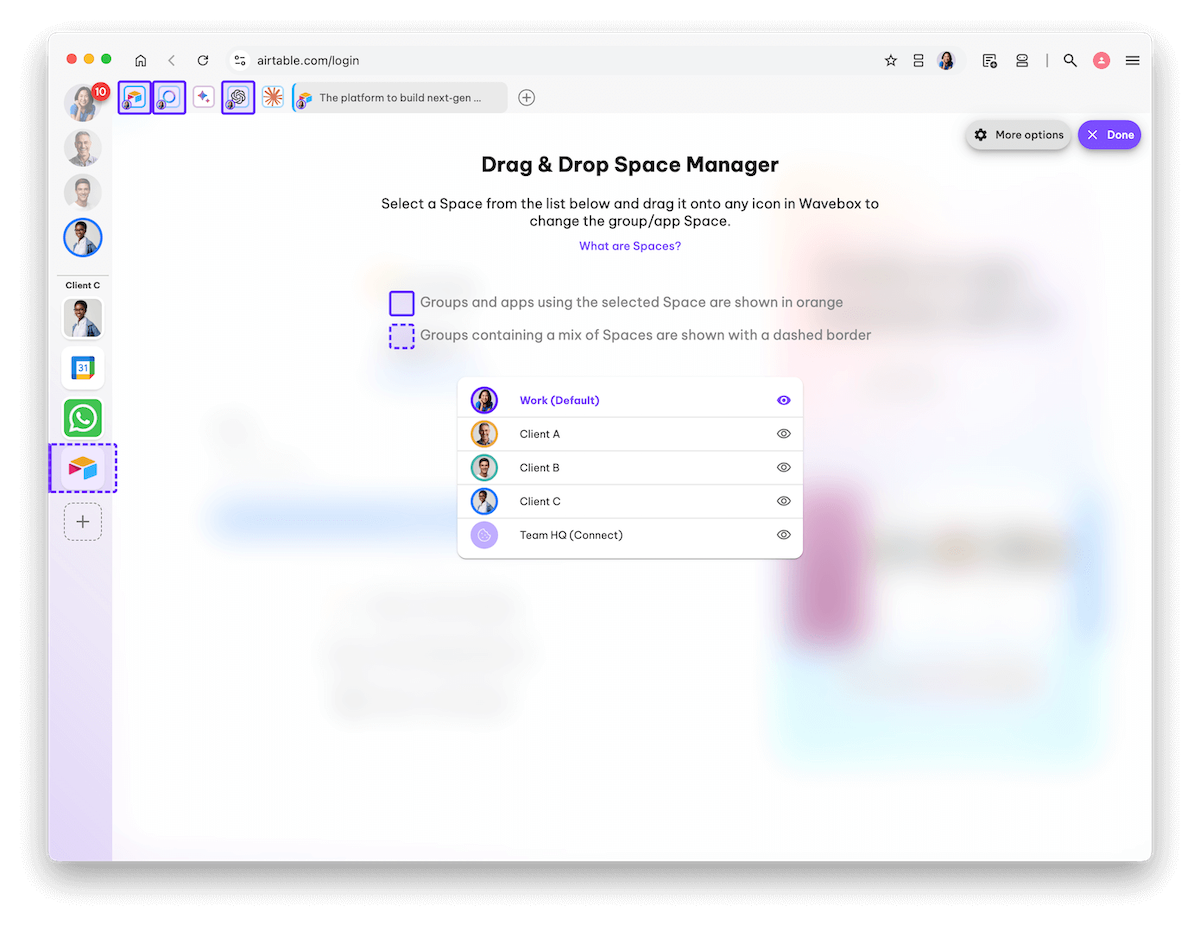
- The manager will open as an overlay on your main Wavebox window.
- In the centre of the window is a list of all your Spaces.
- Click on a Space in the list to highlight the groups and apps in that Space.
- Any changes you make are applied immediately.
- To exit the Manager, click on the 'Done' button in the top-right.
Change a Group/App or Tab's Space
You can use the Manager to move a group, app, or tab to a different Space.
An app and tab belonging to the CXP Group space is moved to the BICO Ltd space.
- Find the Space you want to assign in the central list.
- Drag the Space icon and drop it on the group, app, or tab icon in the main window.
- It will immediately switch to the new Space.
- Click Done (top-right corner) to close the Manager.
Check an item's Space:
- App — Hover over any app to show the tooltip. The app's Space indicator is in the top-right corner.
- Group — Right-click on any group icon and select "Settings". Then scroll down to "Spaces".
- Tab — Look for the Spaces indicator icon at the far right of the address bar. Click on it to see which Space the tab belongs to.
Other Ways to Move Items Between Spaces
The Drag & Drop Manager isn't the only way to change an item's Space. Here are two other methods:
Spaces Webdock (Groups only)
If you're using the webdock in Spaces Layout, you can drag a group directly onto a different Space icon at the top of the webdock. The group and everything in it will move to the new Space. You may need to sign in again for your credentials to be remembered in this Space.
Manual Settings
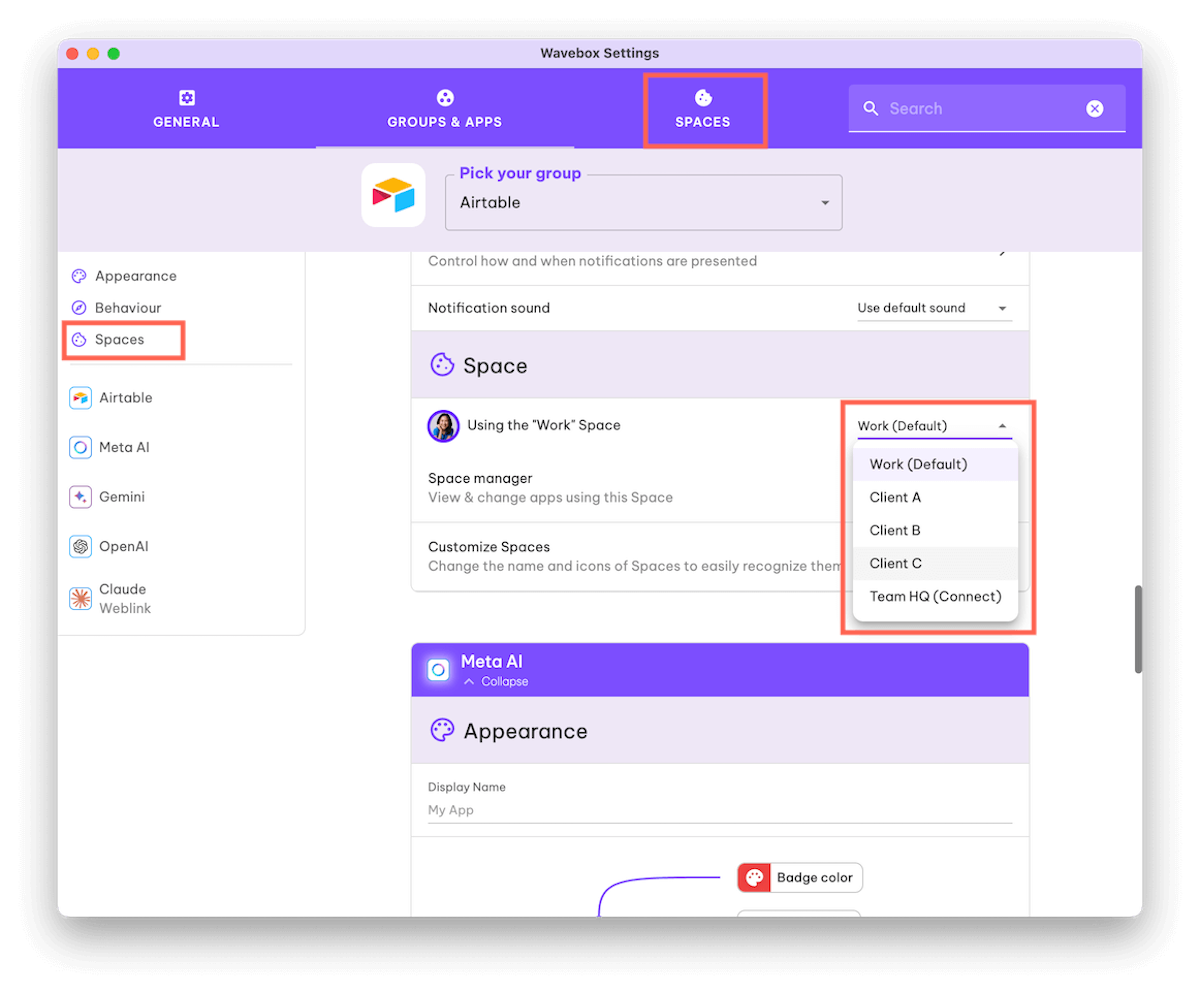
For a more precise approach, you can change the Space for individual apps and tabs through their settings.
Moving an App:
- Right-click on the app icon in the group tabstrip.
- Select "App Settings" from the context menu.
- Scroll to the Spaces section — it will show which Space the app currently belongs to.
- Use the dropdown menu to choose a different Space.
- The app will adopt the new Space immediately.
Moving a Tab:
- Look for the Spaces indicator icon at the far right of the address bar.
- Click on it to open the menu — it shows the current Space at the top.
- Choose the "Open in Space" option.
- Select the Space you want the tab to move to.
💡 Note! Groups cannot be moved via manual settings. Use the Drag & Drop Manager or the Spaces webdock instead.
📖 For a full step-by-step walkthrough with video examples for each method, see our tutorial:
 Susan Davies
 Susan Davies
 Susan Davies