Proxy Servers
Wavebox lets you set a custom proxy configuration for each Space — a fixed server address or a PAC file URL — useful for region-specific apps, client networks, or separate networking needs.
By default, Wavebox uses the proxy configuration set up on your computer, so everything just works as expected.
Sometimes, though, you'll want certain apps to use a different route. For example, you might manage apps in the Google Play or Apple App Store across different regions and need a local IP address for each — or work with a client whose tools sit behind their own company proxy.
Because every app and tab in Wavebox belongs to a Space, the fix is simple: set a proxy per Space, and everything in that Space uses it automatically. You can enter either a fixed server address (e.g. proxy.example.com:8080) or 🆕 a PAC file URL (e.g. https://yourcompany.com/proxy.pac) — Wavebox fetches the PAC file and follows its rules for that Space.
Here's how to set it up…
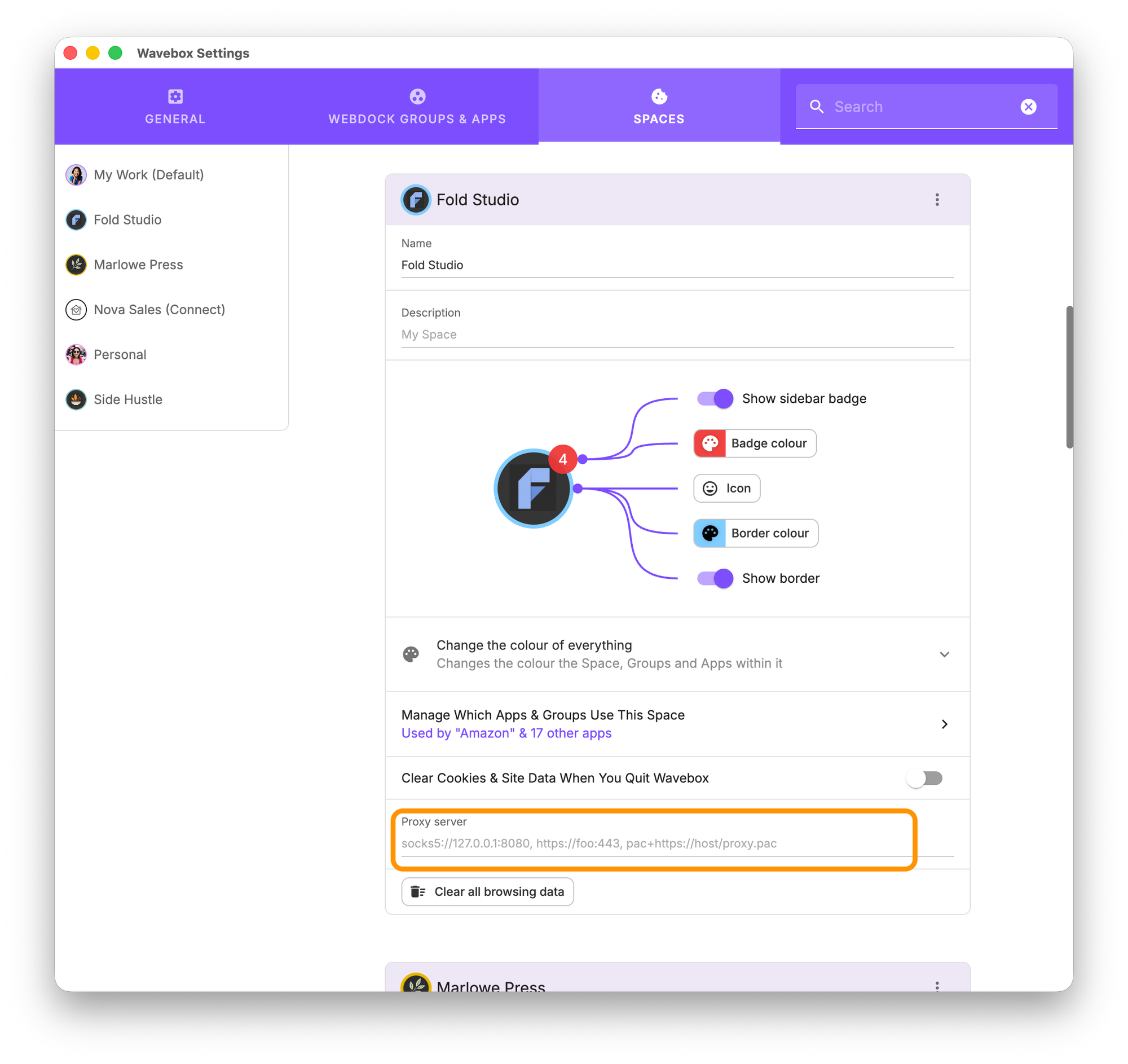
- Click on the Settings Cog in the bottom-left of the Wavebox window
- Click on the Spaces tab at the top
- Locate the Space you want to change the proxy server for and enter your proxy configuration string into the Proxy server field.
- Restart Wavebox.
- To validate that the configuration works correctly, open any app or tab in the Space to check that pages load correctly.
What you can enter in the Proxy server field
Each Space's proxy field accepts either:
- A fixed server address — your proxy's host and port, e.g.
proxy.example.com:8080 - A PAC file URL 🆕 — a link to a proxy auto-config file, e.g.
https://yourcompany.com/proxy.pac. Wavebox fetches the PAC file and follows its rules for that Space — handy when your company or client publishes one, or when different sites in the same Space need different routes.
As always, restart Wavebox after changing the configuration, then open any app or tab in the Space to check pages load correctly.
 Susan Davies


 Susan Davies