New: On-Page AI Translation, plus Updates to Quick Switch and Spaces Manager.

Our latest release is a major productivity boost for Wavebox — faster navigation, smarter workspace controls, finer‑grained space management for tabs, automatic picture‑in‑picture, and built‑in on‑page AI translation for 100+ languages.
These updates reduce friction across multiple accounts and apps so you can switch, search, and focus more efficiently. Read on to see what’s new and how to try each feature.
On-Page AI Translation
⭐️ What's New?
Wavebox now includes built‑in on‑page translation powered by our Brainbox AI engine. Wavebox automatically detects the page’s source language and initially uses your OS language as the target; you can change the target to any of 100+ languages.
🚀 Try it!
- Open the page you want to translate.
- Click the translate pop-up that appears at the top‑right.
- Select the target language — the page text updates in place.
- Check 'Always translate [Language]' to auto-translate next time.
Learn more: Tutorial: How to use Wavebox Translate on any web page.
One-Click Expand/Collapse Webdock
⭐️ What's New?
You can now expand or collapse all items in the webdock at once when using the List or Explorer layouts — this applies to dividers, groups, apps and tabs. Explorer layout now also auto-scrolls to show Global Search results that are off-screen.
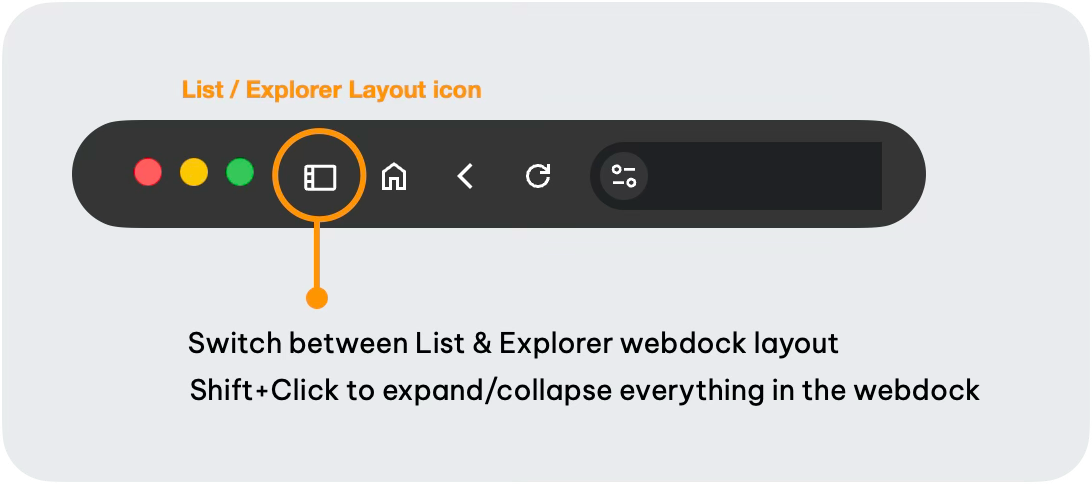
🚀 Try it!
Expand/Collapse
- Go to Settings Cog > Webdock Layout
- Click on 'List' or 'Explorer' and accept the pop-up⚠️
- (
Shift+Click) on the webdock layout icon top-left to expand/collapse the contents.
⚠️ Important! If you usually use the Spaces layout and are new to List/Explorer, avoid moving groups/apps/tabs until you’re familiar with each layout.
Search Scrolling
- In Explorer layout, click the 🔍Global Search icon (top-right) and type a keyword.
- Click any result—the webdock will scroll to bring the item into view.
Tab Support in Drag & Drop Spaces Manager
⭐️ What's New?
The Drag & Drop Spaces Manager now supports tabs. You can visually move apps, groups and tabs into different Spaces, allowing you to isolate cookies and logins at the tab level.
🚀 Try it!
- Go to Settings > Spaces Tab.
- Click the [Drag & Drop Space Manager] button.
- Click a space in the central list to view its groups/apps/tabs.
- Drag the space icon over any tab to reassign it to that space.
Auto Picture-In-Picture Video
⭐️ What's New?
Picture-in-Picture (PiP) opens playing video into a small, always‑on‑top window that you can resize and move. When you navigate away from any playing video, it automatically pops out into PiP so you can keep watching while you work.
🛠️ Enable it
- New users: enabled by default.
- Existing users: Go to Settings > General > Tab Behaviour > Auto Picture‑in‑Picture and toggle ON. Then restart Wavebox.
🚀 Try it!
- Go to any video and hit play (try https://youtu.be/eJs4aKXX0yM).
- Let the video run for a few seconds, then navigate away from the it—the video will pop-out into a PiP window.
- Hover over the PiP window and click on 'Back to tab' to close it.
👍 Tip: You need to have 'engaged' with the video (clicked play, or watched for around 20 seconds) before navigating away from it to activate the PiP.
New Settings for Quick Switch
⭐️ What's New?
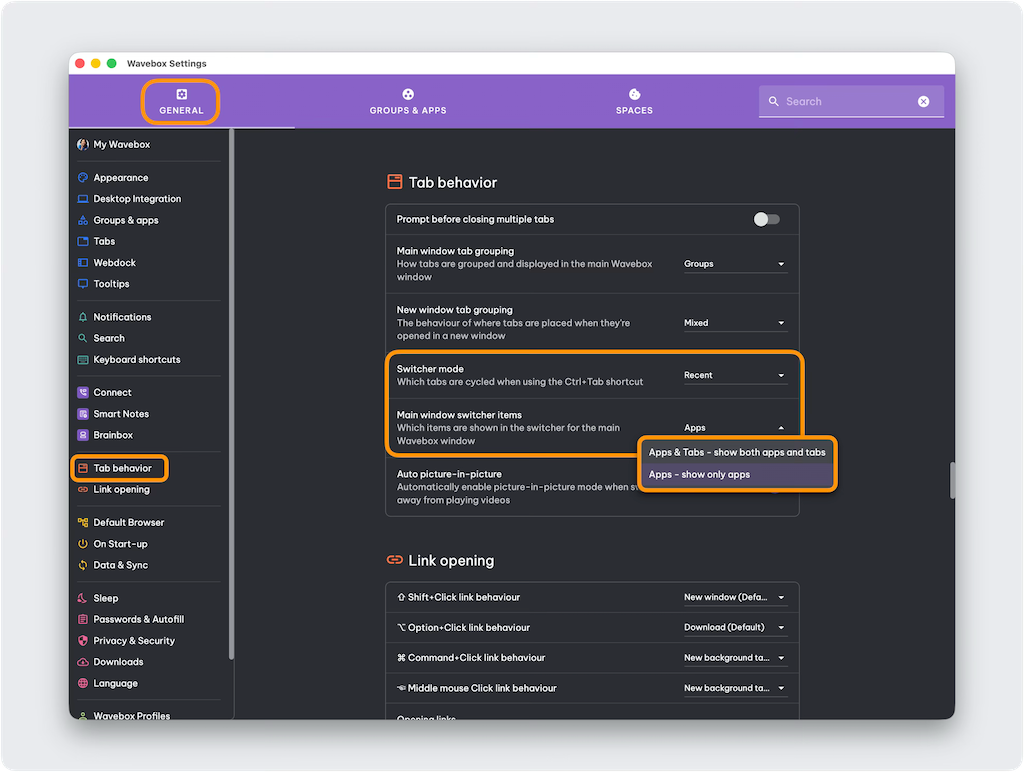
The Quick Switch (Ctrl+Tab) helps you cycle between recently used groups, apps and tabs. We’ve added more display and filtering options in Settings.
🚀 Try It!
- Settings > General > Tab Behaviour.
- Switcher Mode: choose Recent (most recently used), Group or Window (tabs in the current group/window).
- Main Window Switcher Items: choose Apps & Tabs or Apps only.
Updated Group Sleep/Wake Menu
⭐️ What's New?
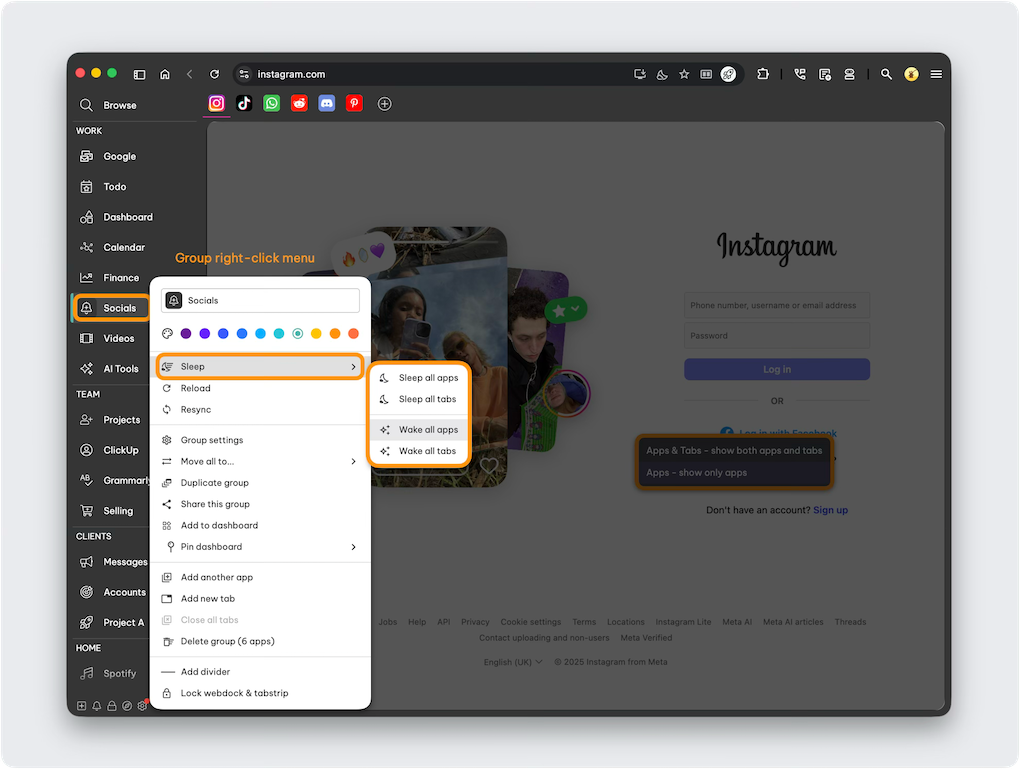
Sleep pauses apps/tabs you’re not using to save resources. We’ve added granular Sleep/Wake actions for Groups. Manually sleeping apps and tabs on the fly helps to maintain optimum performance.
🚀 Try It!
- Right‑click a group in the webdock.
- Hover over 'Sleep' in the menu and choose:
- Sleep all apps
- Sleep all tabs
- Wake all apps
- Wake all tabs.
And that's all folks.
This release gives you faster, smarter control over your workspace so you can focus on the work that matters. Update your Wavebox today to try these improvements.
Many of these new features started out as requests on Superhub, so join our community on the Hub or on Discord, to share feedback, request features, or get help.
 Susan Davies
 Susan Davies
 Susan Davies
 Susan Davies