
New! Lock an App to its Site or Domain
You can now lock a Wavebox app to a specific site or domain. When an app is locked, any link that would normally navigate outside of a certain scope, opens in a new tab instead of taking the app away from its home. It’s an easy way to keep single-purpose apps — like your email, CRM, or project tool — always focused on the correct page e.g. Inbox.
Why lock an app?
All Wavebox apps have a "home" URL. You can return to it at anytime using the "house" icon in the navigation bar top left.
But it's easy for a stray link - a shared document, an external site, a tracking redirect - to navigate your away from that home URL, thus breaking context and also your workflow.
Locking an app keeps it focused. The app stays on its own site or domain, and anything outside that scope is automatically opened in a new tab (with your app as the opener), so your workflow isn't interrupted.
How to lock an app
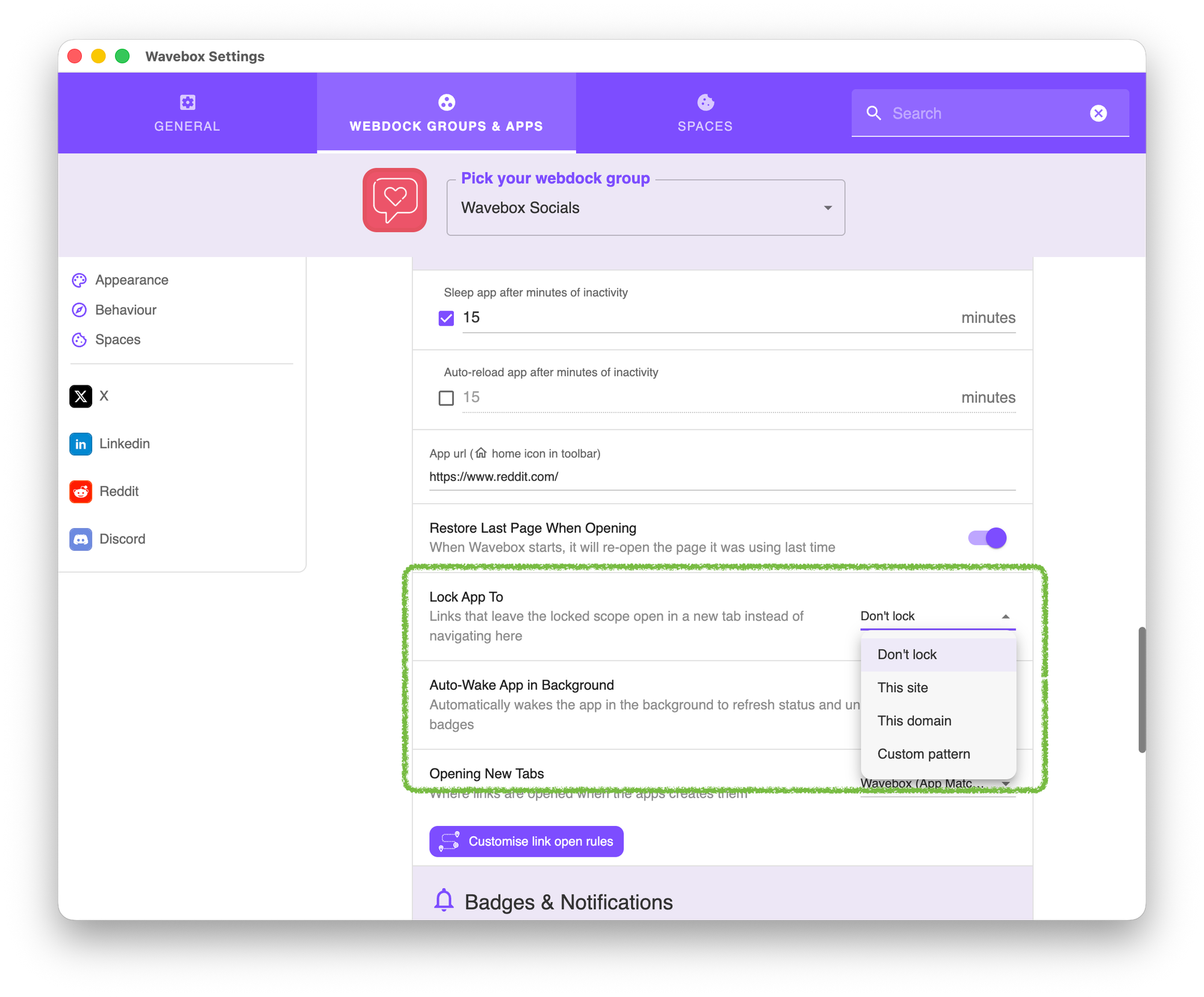
- Right-click the app in the Webdock and choose Settings
- Scroll to the "Lock app to" option.
- Choose the locking mode you want - see the above screenshot.
- Check the "Locked to:" preview to confirm the scope, then close settings. The lock applies straight away.
Locking modes
You'll find four options under "Lock app to":
- Don't lock: (default) The app behaves normally — navigation isn't restricted.
- This site: Locks the app to its exact site host. For example, an app whose home is
mail.google.comstays onmail.google.com. Links to anywhere else — including other Google subdomains — open in a new tab. - This domain: Locks the app to its whole registrable domain, including every subdomain. For example,
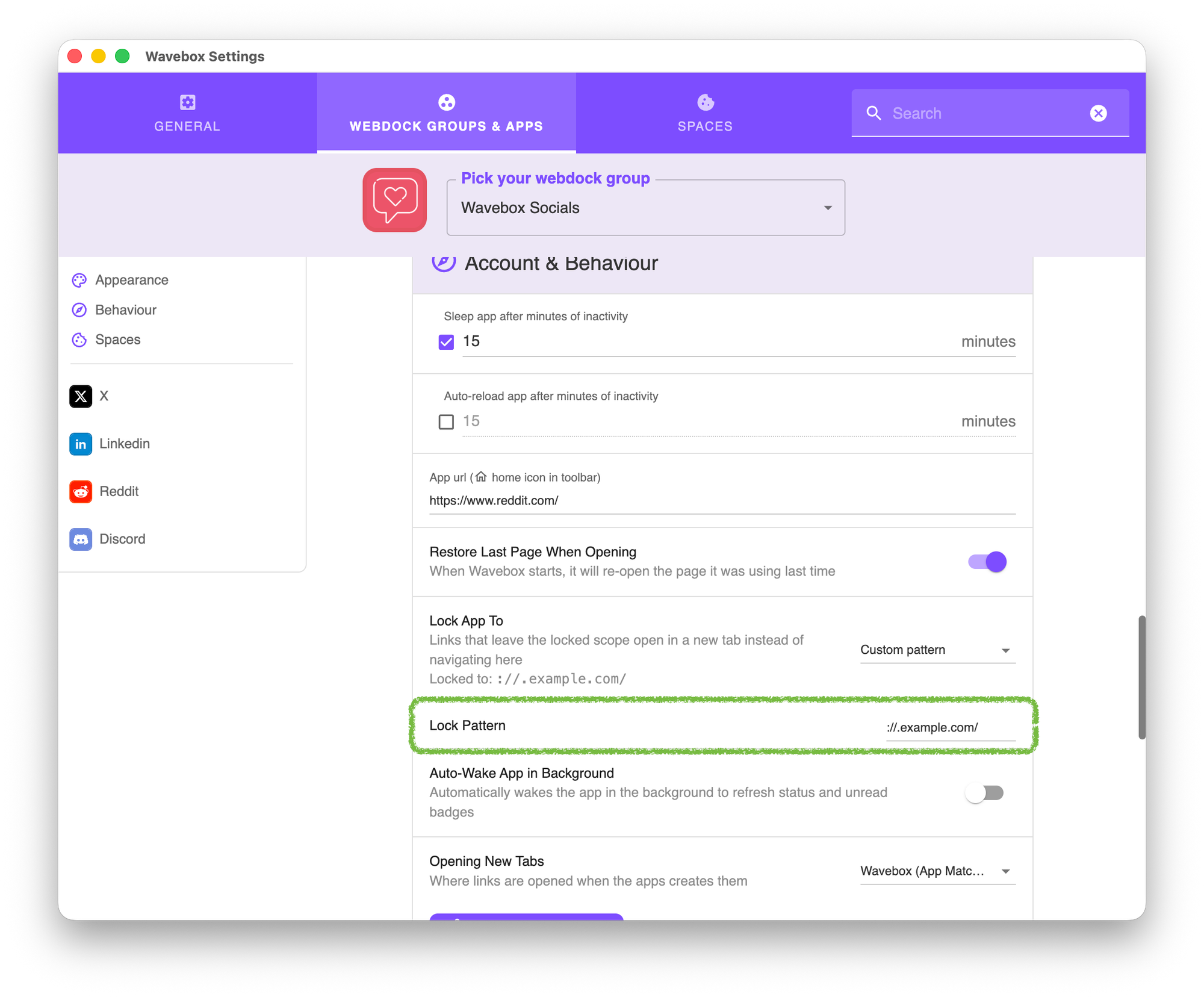
google.comcoversmail.google.com,calendar.google.com,drive.google.comand the rest. This is the best choice for suites of related tools that share one domain. - Custom pattern: Locks the app to a URL pattern you define, for full control. Enter a pattern in the Lock pattern field — for example
://.example.com/. The Locked to:" line shows you the resolved pattern so you can check it's right.
What happens to off-scope links?
When an app is locked, a link that points outside the locked scope open in a brand new tab.
The new tab opens with your locked app as its opener, so it slots neatly into your normal link-handling flow. Your app stays exactly where you left it.
Troubleshooting
I see "Not locked — check the app URL is valid".
This appears when a lock mode is selected but Wavebox can't work out a pattern from the app's URL — usually because the app's home URL is blank or invalid. Open the app's settings, make sure its URL is correct, and the lock will resolve.
My custom pattern isn't matching what I expect.
Patterns follow the standard Chromium URLPattern format, e.g. ://.example.com/ to match a domain and all its subdomains. Use the"Locked to:" preview to confirm the resolved pattern, and remember *:// matches both http and https.