Webdock (Vertical Sidebar)

Wavebox’s webdock is the vertical sidebar on the left of your Wavebox window. It’s your primary place to organize and access spaces, groups, and apps—all in one spot.
This article walks you through setting it up, customizing it, and solving common issues.
Getting Started
- Locate the Webdock:
- After installing Wavebox, the webdock appears on the left in the main Wavebox window only.
- If it’s hidden, go to ⚙ Settings > General > Webdock and switch the toggle ON.
- Choose from 3 Layouts:
- Spaces layout is the default for new users. Select a space using the circle icons top left and see only groups (rounded squares) for that space.
- List layout displays all groups from all spaces in one list.
- Explorer layout is similar to List, but has a tree-style layout and no tabstrip. It also offers tab folders.
- What's in the Webdock:
- Spaces are shown as circular icons at the top of the webdock.
- Add Space (+) icon is shown beneath the spaces icons at the top.
- Groups are shown as rounded-square icons.
- Add Group (+) icon is shown beneath the last Group.
- Apps can be shown in the webdock as smaller icons below the group icon.
- Tabs are only shown in the webdock when in Explorer Layout.
- Dividers are small horizontal lines available in all layouts.
- Webdock Icons are located at the very bottom of the webdock in all layouts. They include the main Settings Cog, plus desktop lock, navigator and focus mode.
💡
Which layout is for me? If you like to keep your home-web stuff visually seperate choose Spaces. If you have lots of clients and want to quickly switch between them, choose List. If you like tree-style organizing with tab folders, choose Explorer.
Customizing the Webdock
0:00
/0:23
Changing Layouts
- Hover over the ⚙ Settings icon bottom left
- Click on Webdock Layout to show the switcher, then choose between:
- Spaces Layout: (Default) Shows each space with their groups below.
- List Layout: Shows all groups from all spaces in a single list.
- Explorer Layout: Expand Spaces > Groups > Apps in a tree-style view.
Reordering & Dividers
- Drag & Drop icons up/down to reorder them (spaces, groups, apps, tabs).
- Use Dividers: Right-click a group and select Add/Remove Divider.
- Collapse dividers: Click on a Divider to hide any groups below it.
- Learn more about Dividers.
Settings
For most settings, go to ⚙ Settings > General Tab > Webdock
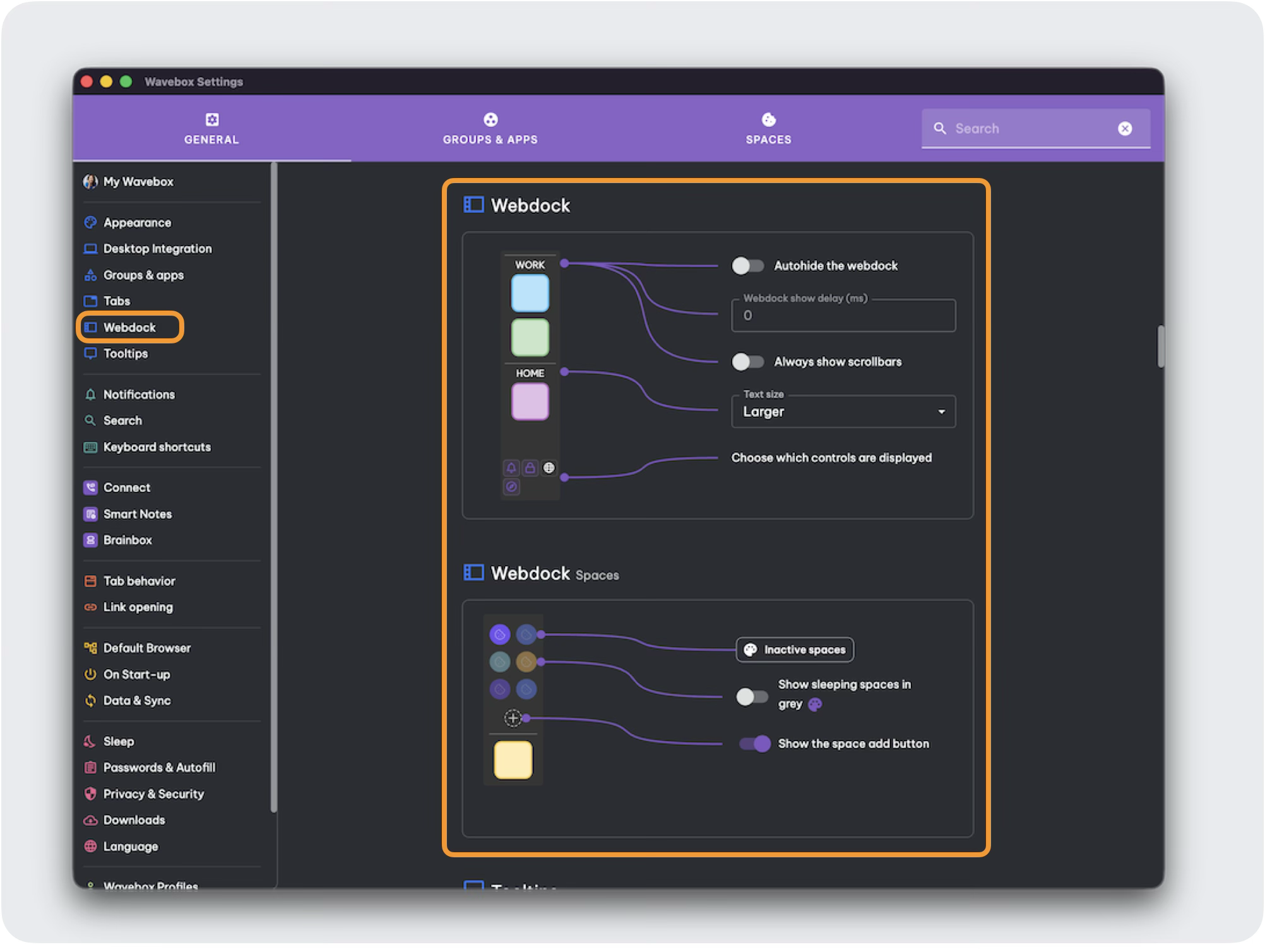
Appearance
- Change color/theme - This can be done by changing the main theme under ⚙ Settings > General > Appearance > App Theme.
- Width - When in List or Explorer layout, you can adjust the webdock width by dragging its right edge.
- Text size - Change the webdock text size under ⚙ Settings > General > Webdock: Text Size. Then choose an option from the dropdown menu:
- Smallest
- Smaller
- Regular
- Larger
- Largest
Space & Group Icon Appearance
- Spaces Opacity - Adjust the appearance of inactive spaces under ⚙ Settings > General > Webdock > Inactive Spaces (button).
- Spaces Add (+) icon - Hide the Spaces + icon under ⚙ Settings > General > Webdock > Spaces > Show the Space Add Button > Toggle ON or OFF.
- Inactive (Sleeping) Groups - Choose to show sleeping groups and apps in grey under ⚙ Settings > General > Appearance > Groups & Apps > Show Sleeping Groups & Apps in Grey > Toggle ON or OFF.
- Group Icon Layout - Choose the layout of app/tabs in the group icon under ⚙ Settings > General > Appearance > Groups & Apps > Grid View Dropdown:
- Disabled - shows first app icon only, or default icon for tab only groups.
- Show Apps - shows the first 4 app icons, with blank spaces when there is less than 4 apps.
- Show Apps and Tabs - shows the first 4 things, whether they are apps or tabs.
Behaviour
- Autohide - Show or hide the webdock on mouseover under ⚙ Settings > General > Webdock > Toggle ON or OFF.
- Webdock Delay - Adjust the timing of the show/hide under ⚙ Settings > General > Webdock > Webdock Delay (ms).
- Scrollbars - Unhide the webdock scrollbar under ⚙ Settings > General > Webdock > Always Show Scrollbars > Toggle ON or OFF.
- Lock / Unlock the Webdock - Right-click on any group icon and select 'Lock Webdock and Toolbars' from the bottom of the menu.
Troubleshooting
- Webdock Missing
- Check Settings > General > Webdock to ensure the webdock is not hidden.
- Divider Placement Issues
- A divider can’t sit directly above another divider. Make sure there’s at least one group below each divider.
- Cannot Move, Delete or Edit Groups
- It could be that the webdock is locked. To unlock it, right-click on any Group in the webdock and select 'Unlock Webdock and Toolbars' at the bottom of the menu and try again.
Webdock: Spaces Layout
Default layout for new users. Displays groups and apps for the selected Space only.
 Susan Davies
Webdock: List Layout
List Layout unifies all your Groups and Apps from every Space into one scrollable sidebar for easy access, organization, and switching.
 Susan Davies
Webdock: Explorer Layout
Use a tree style layout with nested folders for apps and tabs.
 Susan Davies
Dividers
Dividers in Wavebox help visually organize your webdock and tabstrip—separating groups, collapsing sections, and reducing distractions for a tidier, focused workspace.
 Susan Davies