Voice to Text
Voice-to-text, or speech-to-text, is supported in Wavebox, powered by our Brainbox AI engine. This feature lets you dictate text hands-free, which is great for accessibility, speed, and multitasking workflows.
 Susan Davies
Using Voice-to-Text on Websites
Lots of websites support voice-to-text. For example, many of the Chrome extension tools also provide an equivalent service on their website.
To use on a website:
- Click the 🎙️microphone icon to start
- Allow site permissions in the pop-up, if not done so already
- Start speaking—you'll see your dictated text appear on the page.
Using Voice-to-Text with Chrome Extensions
You can install a voice-to-text extension to enhance your workflows. Search the Chrome Web Store using terms like "speech to text" or "voice to text" to find an extension.
To install an extension and use:
- On the extension's Chrome Store page, click the 'Add to Wavebox' button and follow the installation steps.
- Click the 🎙️microphone icon to start.
- Allow site permissions in the pop-up if not done already.
- Start speaking—you'll see your dictated text appear on the page.
🤖 Using Voice-to-Text in Brainbox (in Beta)
You can also use voice-to-text in the Brainbox chat panel.
- Click the Brainbox icon in the toolbar to open the chat panel
- At the bottom of the panel, click the 🎙️microphone icon
- Allow site permissions in the pop-up, if not done so already
- Start speaking—you'll see your dictated text appear on the page.
🌏 Using Voice-to-Text with Languages
Wavebox downloads English by default and then others on first use. When using a new language for the first time, please wait a moment for the language to be identified and downloaded. It will then be ready for use.
To check which models you have downloaded:
- Go to Settings > General Tab > Language.
- Under the heading Speech Models > Installed there's a list of installed languages.
- To install a new language, find your language under the header 'Available for Install' and click the download button.
Troubleshooting
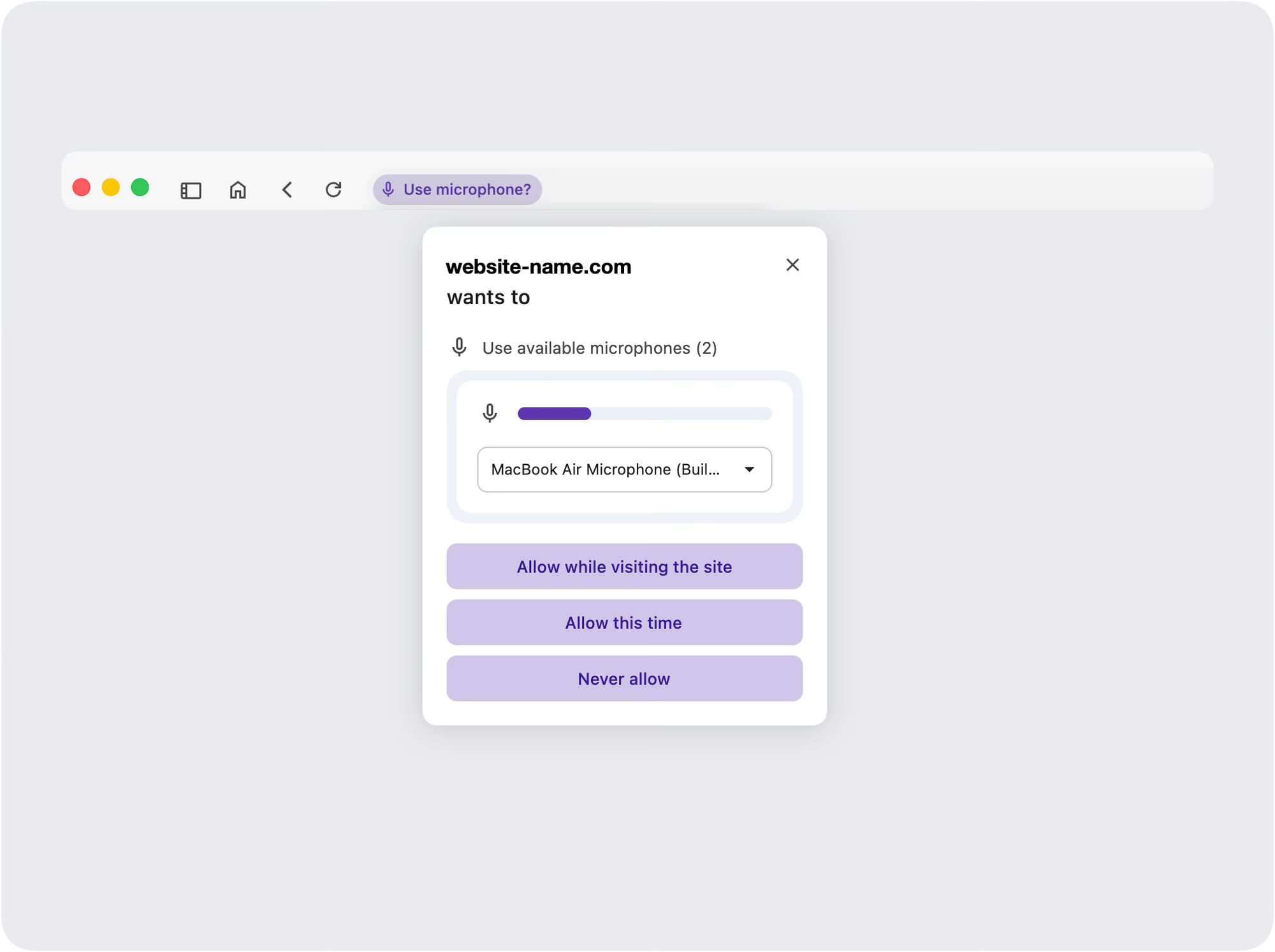
If voice-to-text isn't working, try the following:
- Check OS permissions – Ensure Wavebox has microphone access in your system settings.
- Check site permissions – Click the Site Settings icon in the address bar to verify microphone is allowed.
- Restart Wavebox – After changing permissions, a restart may be required.
- Test in Brainbox – Use Brainbox to confirm voice-to-text is working in Wavebox.
For more help with microphone issues, see: Microphone & Camera Permissions
 Susan Davies
 Susan Davies
 Susan Davies