🗂️ Tutorial: From Chaos to Clarity: How to Organize your Chrome Tabs in Wavebox.
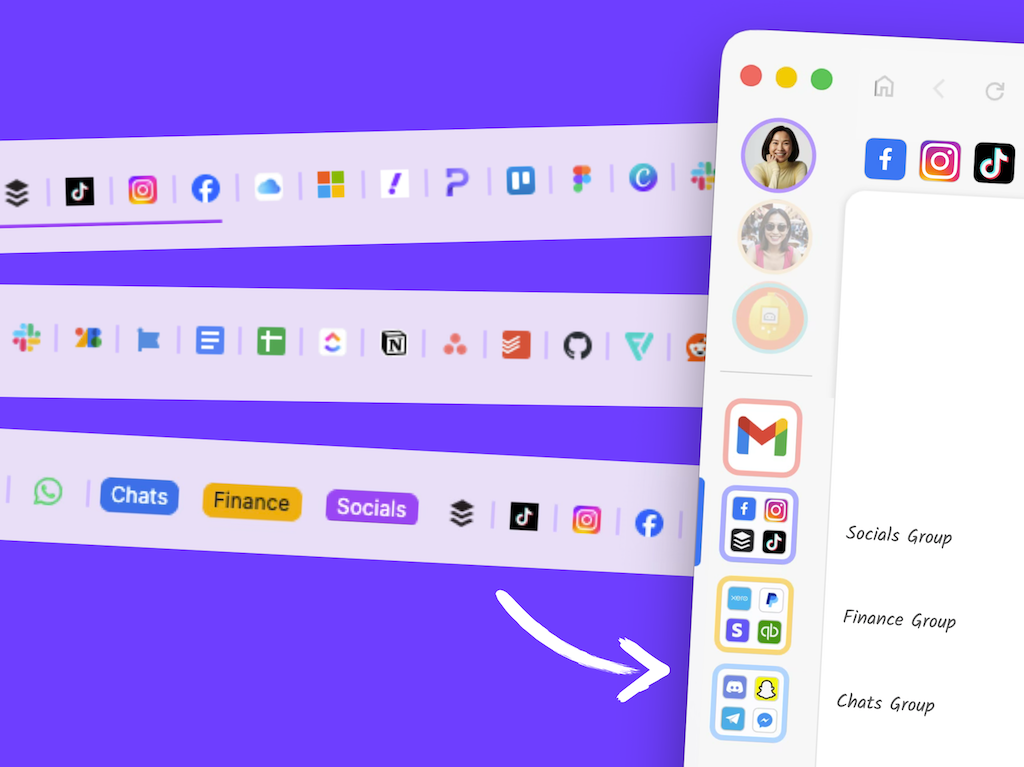
Switching from another browser, such as Chrome, to Wavebox means transforming chaos into clarity. In this guide we'll bring all your Chrome tabs into Wavebox and organize them—turning scattered Chrome profiles, tab groups, and pinned tabs into a streamlined, productive workspace.
What you'll learn:
- How Chrome concepts map to Wavebox features
- Step-by-step migration for Chrome profiles, tab groups, and tabs
- Why Wavebox's approach eliminates tab overload
- How to organize your digital workspace for maximum productivity
🚀 Chrome v Wavebox Terminology
As a productivity browser, Wavebox has superior tab management built for power users—taking you beyond simple Chrome extension tools. Here's how they compare:
- Chrome Profiles ⇢ Wavebox Spaces
- Chrome Tab Groups ⇢ Wavebox Groups
- Chrome Pinned Tabs ⇢ Wavebox Apps
- Tabs you always have open ⇢ Wavebox Apps
- Bookmarks ⇢ Wavebox Apps, Saved Items, Open Tabs
What about Wavebox Profiles? Wavebox also has Profiles, but these are completely separate instances of Wavebox with different settings, groups, and apps. Although they are separate, we've made it easy to switch between them from the main Wavebox window.
Ready to Make the Switch?
Here are six steps to migrate from Chrome to Wavebox. You can tackle them all at once for a complete transformation, or work through them gradually over a few days—whatever fits your style. It may look like a lot, but this isn't just a declutter—it's a complete digital makeover that will change how you work online.
Side note:If you want to import your existing Chrome tabs and bookmarks into Wavebox, read this guide on importing bookmarks. You'll need to create your Spaces and Groups manually first, then pull in your imported bookmarks, drag them into Groups, and boost them into Apps.
🚀🤖 An AI importer to automate all of this is coming Q2 2026.
1. Chrome Profiles ⇢ Wavebox Spaces
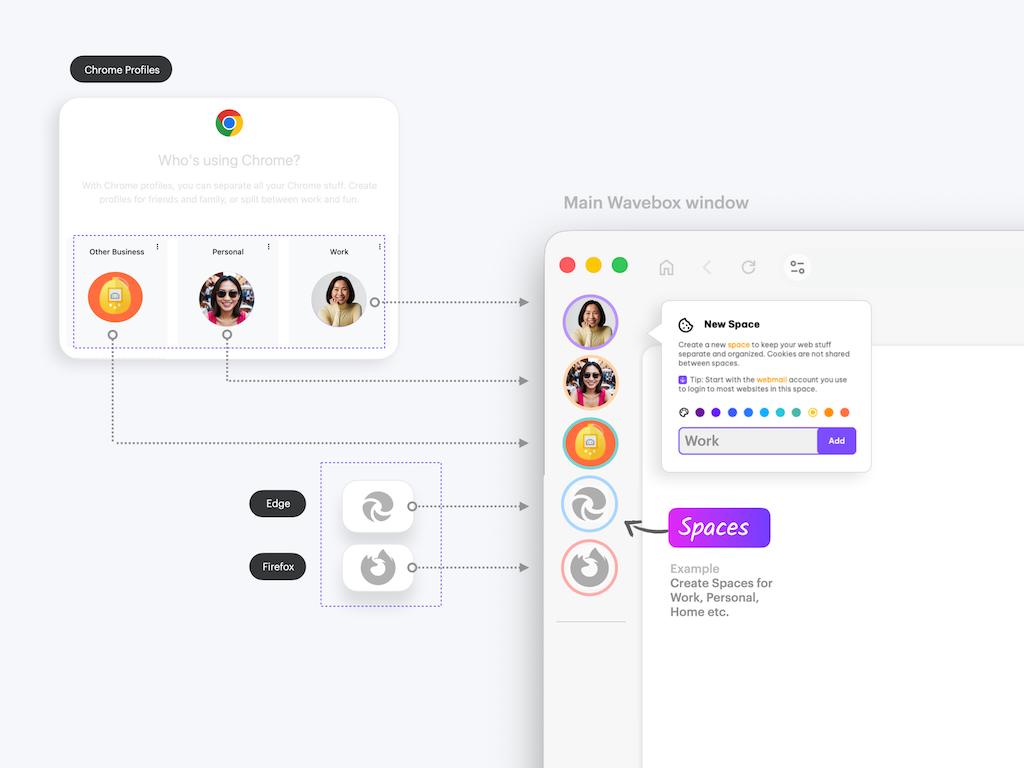
What Are Spaces?
Spaces are cookie containers that keep your accounts and browsing data separate. Each Space has its own cookies, so you can stay signed in to multiple accounts (e.g., multiple Gmail accounts) of the same service simultaneously—without logging in and out or switching Chrome profiles or browsers. They do the same thing as Chrome profiles; the main difference is that you can use them side-by-side in one window.
👍 Tip: Create one space for each Chrome profile, or browser you currently use.
Benefits of Spaces Over Chrome Profiles
- 🚀 All profiles in one window — no more switching between Chrome windows or remembering which profile has which account.
- 🔃 Instant switching — click between Spaces in about one second, not 10.
- 📢 Powerful notifications — see notifications and unread badges from all Spaces; never miss updates because you're in the "wrong" profile.
- 🔎 Cross-space search — Global Search lets you find tabs across all Spaces.
- 🔋 Better performance — Wavebox handles multiple Spaces more efficiently than Chrome handles multiple profiles.
2. Chrome Tab Groups ⇢ Wavebox Groups
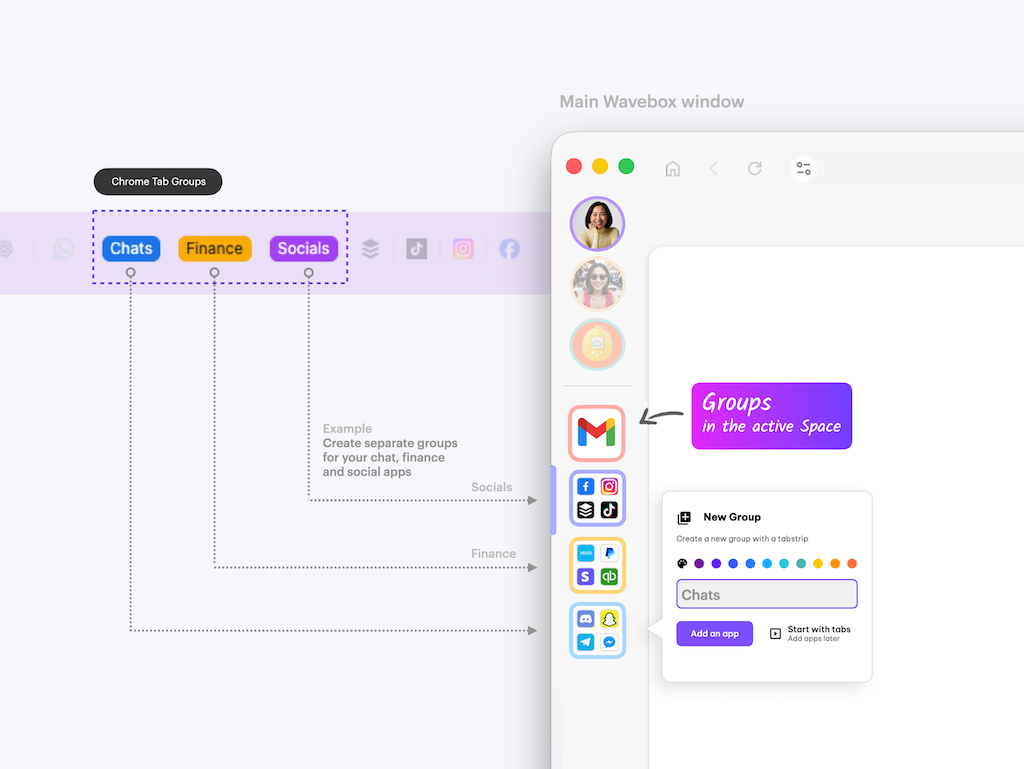
What Are Groups?
Groups are collections of related Apps and tabs that live inside Spaces. They appear in the webdock (sidebar) as rounded squares. When you click on a Space you will see all the Groups in that Space in the webdock. Each Group has its own horizontal tabstrip, creating a mini-browser for each task or project.
👍 Tip: Think of a Group as a mini-browser dedicated to a workflow—like "Email & Calendar", "Client Project", or "Socials". Create a Group for each Chrome tab group you currently use.
Benefits of WB Groups Over Chrome Tab Groups
- 🗄️ Persistent organization — Groups don't disappear when you close tabs or restart your browser.
- 🗂️ Separate tab strips — Each Group has its own tabstrip, so tabs are always kept in context, which prevents tab overload.
- 🧠 Context preservation — Switch between Groups instantly; each maintains its own state and tabs.
- ✨ Visual separation — Groups appear in the webdock sidebar for easy navigation.
- 🍪 Granular isolation — A Group can be in its own Space; many Wavebox users have a Group for each client.
- 🔃 Works side-by-side — Use Groups alongside each other, even when in different Spaces (e.g., view Client A's Gmail alongside Client B's Gmail in the same window). (Learn about using the webdock in List Layout.)
3. Chrome Tabs (from Groups) ⇢ Wavebox Apps
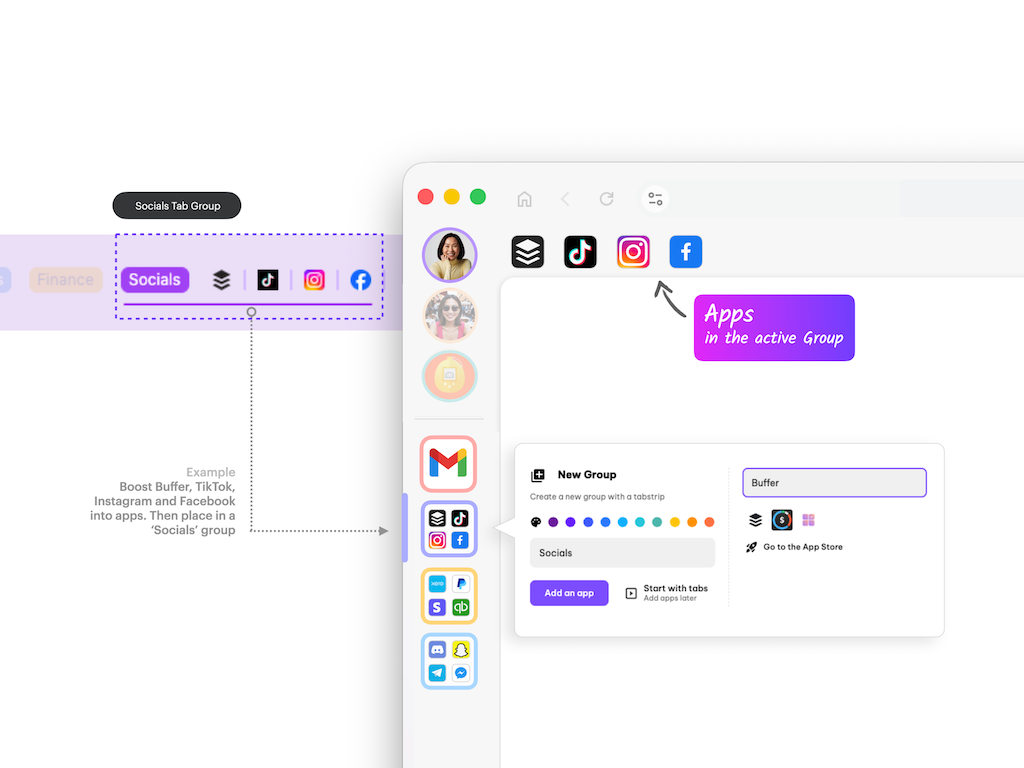
What Are Apps?
Apps are boosted tabs with superpowers. They're always pinned to the left of the group tabstrip and include features such as a customized icon and title, unread badges, desktop notifications, a tooltip menu, and Saved Items.
👍 Tip: Think of Apps as your most important SaaS tools and websites elevated to first-class status. For example, your "Socials" Group might include Apps for Instagram, TikTok, and Pinterest.
Benefits of Apps Over Regular Tabs
- 🧲 Never accidentally close them — Apps stay pinned and persistent.
- 📢 Real-time notifications — Get desktop alerts for new emails, messages, and updates.
- 🔔 Unread badges — See red dots and numbers showing unread items at a glance.
- 🔗 Link routing — Apps support Link Engine rules, which ensure that links from elsewhere in Wavebox open in the correct place (e.g., click a Trello link in Slack and it opens in Trello).
- 📍 Saved Items — Bookmark pages within each App using the tooltip hover menu.
- 🔒 Always signed in — Apps remember your login sessions between restarts.
4. Chrome Pinned Tabs ⇢ Wavebox Apps
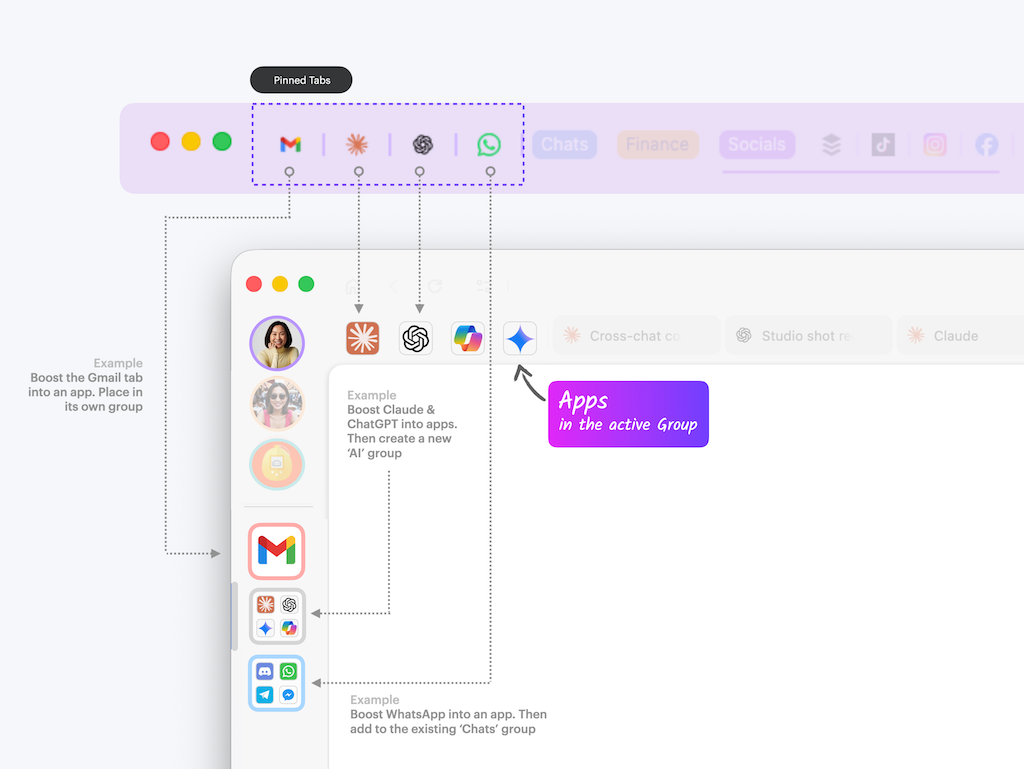
If you currently use pinned tabs in Chrome for services you need quick access to, these should become Apps in the relevant Group.
👍 Tip: Groups can have just one App. So if you want Slack as an App in the webdock, create a Group called "Slack" and add Slack as an App.
Benefits of Apps Over Pinned Tabs
- 🗄️ Organized by context — Apps live in Groups, not all crammed at the top of one window.
- 🍪 Multiple accounts supported — Use different Spaces for different accounts of the same service.
- 🔎 Easy search — Apps can be easily found using Global Search, even across Spaces.
- 🔔 Unread badges — Actually see when you have new items (pinned tabs don't show this).
- 🔋 Better performance — Apps can sleep when inactive to save memory.
- 🍪 Space-aware — Apps belong to Spaces, keeping work and personal accounts separate.
5. Persistent Tabs ⇢ Wavebox Apps, Saved Items or Tabs
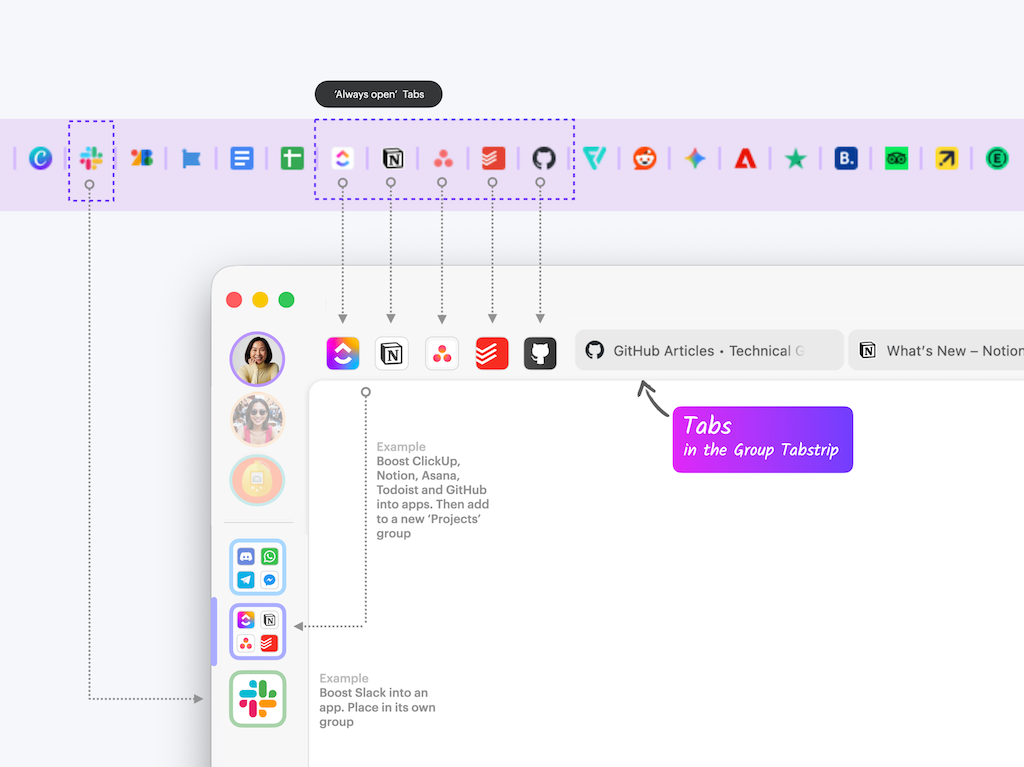
Do you have tabs you always keep open in Chrome—tabs for documentation, project tracking, or reference materials? These can become Apps; you can save them to an App's tooltip menu as Saved Items, or just keep them as tabs in the relevant Group's tabstrip.
👍 Tip: Because tabs are organized by context in relevant Groups, you can have as many tabs as you like in Wavebox and they will stay tidy. Our sleep engine keeps performance in check.
Decision Framework
🚀 Make it an App if:
- You check it multiple times per day
- You want notifications or unread badges
- You need to stay signed-in
- It's a primary tool for your work
💾 Add to the App's tooltip as a Saved Item
- You reference it often
- It's linked to a particular app
- You want to control where it opens when you click on it
🗂️ Keep it as a tab (in a group tabstrip) if:
- You reference it occasionally
- It's project-specific or temporary
- You don't need notifications
- It's a document or one-time resource
Benefits of Organized Tabs Over Chrome's Approach
- 🗄️ Context preservation — Tabs live in relevant Groups, not all mixed together.
- 🧘 No tab overload — Each Group has its own tabstrip with manageable tab counts.
- 🧲 Persistent across restarts — Tabs reopen exactly where you left them (if you enable "Continue where you left off" in Startup Settings: https://hub.wavebox.io/start-up-settings/).
- 🔎 Easy to find — Tabs are organized by task/project, not chronologically, and can easily be found using Global Search.
6. Everyday Tabs ⇢ Wavebox Apps
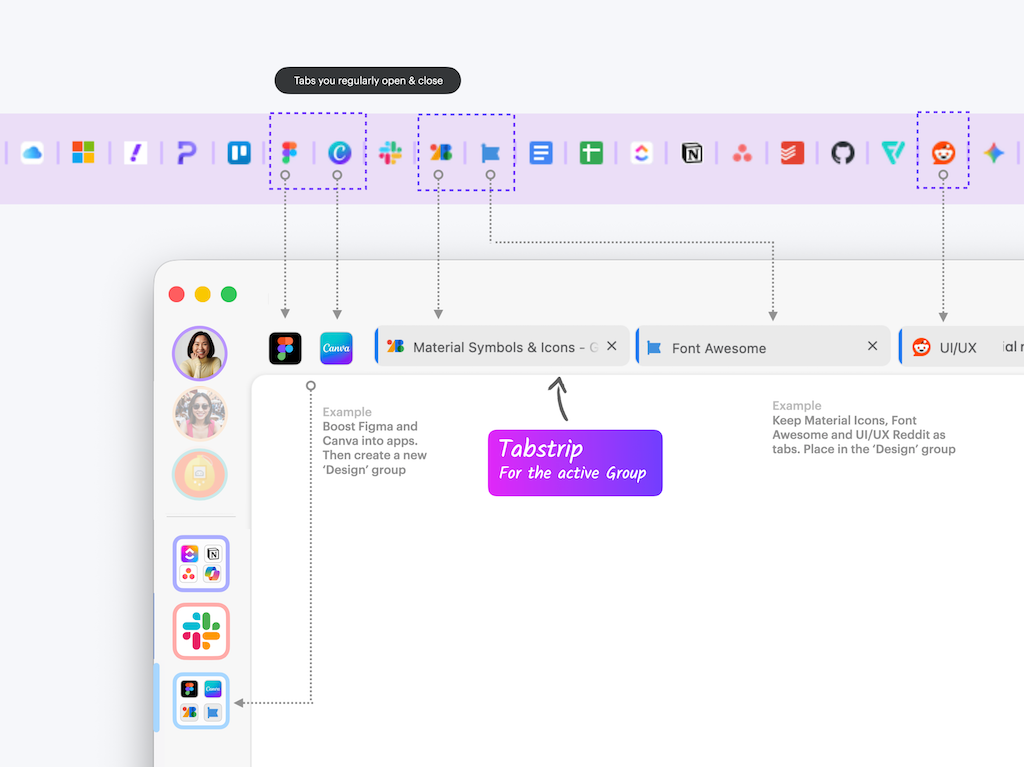
These are the tabs you open each day to get work done, then close when you're finished. In Chrome, they pile up randomly across your tab bar. In Wavebox, they live in relevant Groups.
Examples of everyday tabs:
- Client websites you check daily
- Project-specific tools and dashboards
- Social media scheduler for today's posts
- Analytics pages you review each morning
- Research pages for current projects
Benefits of Group Tabs Over Chrome's Tab Bar
- 🗄️ Context preservation — Tabs for "Client A" don't mix with tabs for "Client B".
- 🔎 Easy to find — Tabs are in the Groups where they belong, not scattered across 47 random tabs.
- 🗑️ Clean slate option — Close all tabs in a Group when that task is done.
- 🗂️ Separate tabstrips — Each Group has its own tabstrip, so you never have 60+ tabs in one place.
- 🧲 Persistent Groups — Even when tabs are closed, the Group structure remains for next time.
👍 Tip: Use Tab Sessions (https://hub.wavebox.io/tab-sessions/) to save sets of everyday tabs you open together—then reopen them all with one click.
Bonus: What About Bookmarks?
Your Chrome bookmarks have better homes in Wavebox, but don't just import all bookmarks blindly. This is your chance to declutter and organize intentionally!
👍 Tip: Importing your tabs and bookmarks into Wavebox can save you time: Read this KB on how to bulk add bookmarks to Wavebox using "import".
Migration for Bookmarks
- Bookmark Folders → Convert to Groups
- Example: Tasks you do frequently, or for projects or research.
- Bookmarks you visit daily → Convert to Apps
- Example: Your company's internal tools, frequently-used SaaS platforms
- Bookmarks you visit weekly → Add as Tabs in relevant Groups
- Example: Industry news sites, competitor research pages
- Bookmarks you reference occasionally → Use Saved Items
From Chaos to Calm
Switching from Chrome to Wavebox transforms browser chaos into organized productivity. By mapping Chrome profiles to Wavebox Spaces, tab groups to Wavebox Groups, and pinned tabs to Apps, you create a structured workspace where everything has its place.
The six-step migration process, whether completed all at once or gradually, eliminates tab overload by organizing your tools by context instead of chronology.
With Spaces keeping accounts separate, Groups preserving task context, and Apps providing notifications and badges, you'll spend less time hunting for tabs and more time getting work done.
Your browser becomes as organized as your computer's file system—and just as easy to navigate.
 Susan Davies
 Susan Davies
 Susan Davies
 Susan Davies