Profile Snapshots
This replaces the Profile Backup (Cloud) KB article.
Snapshots make a periodic backup of a Profile to the cloud.
You can restore a Profile from a Snapshot at any time to recover groups, apps, tabs, bookmarks, settings etc. Snapshots can also be used to setup Wavebox on another computer.
Snapshots are automatically created every 24 hours and are stored securely in your cloud account. Snapshots can be disabled in Settings.
Snapshots Overview
- Automatically enabled for new and existing users from January 19th 2026.
- Snapshots replace Profile Sync for backing up a Profile to the cloud. (Profile Sync is still used to sync a Profile on multiple computers).
- There are separate Snapshots for each Profile.
- Snapshots are stored securely and fully encrypted in the cloud (see section below).
- A new Snapshot is created approximately every 24 hours.
- You can manually create a new Snapshot at anytime.
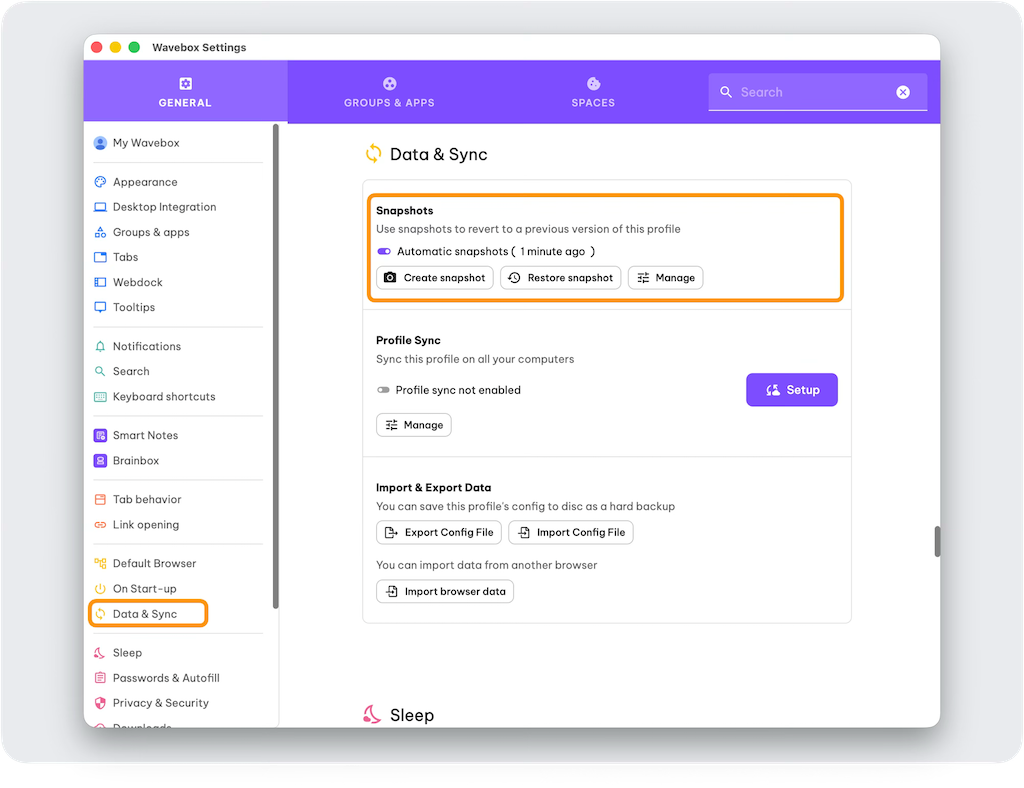
- Snapshots can be managed from Settings > General Tab > Data & Sync.
- Snapshots can be disabled at any time.
- You can restore any Profile Snapshot from any computer that's signed-in with the same Wavebox account.
What's Included in Snapshots?
- Settings
- Groups, Apps, Tabs, Saved Items
- Bookmarks
- Extensions
- Smart Notes
- Brainbox
- Dashboards and widgets
- Desktop Web Apps
- ⚠️ Passwords (existing users — see note below).
Managing Snapshots
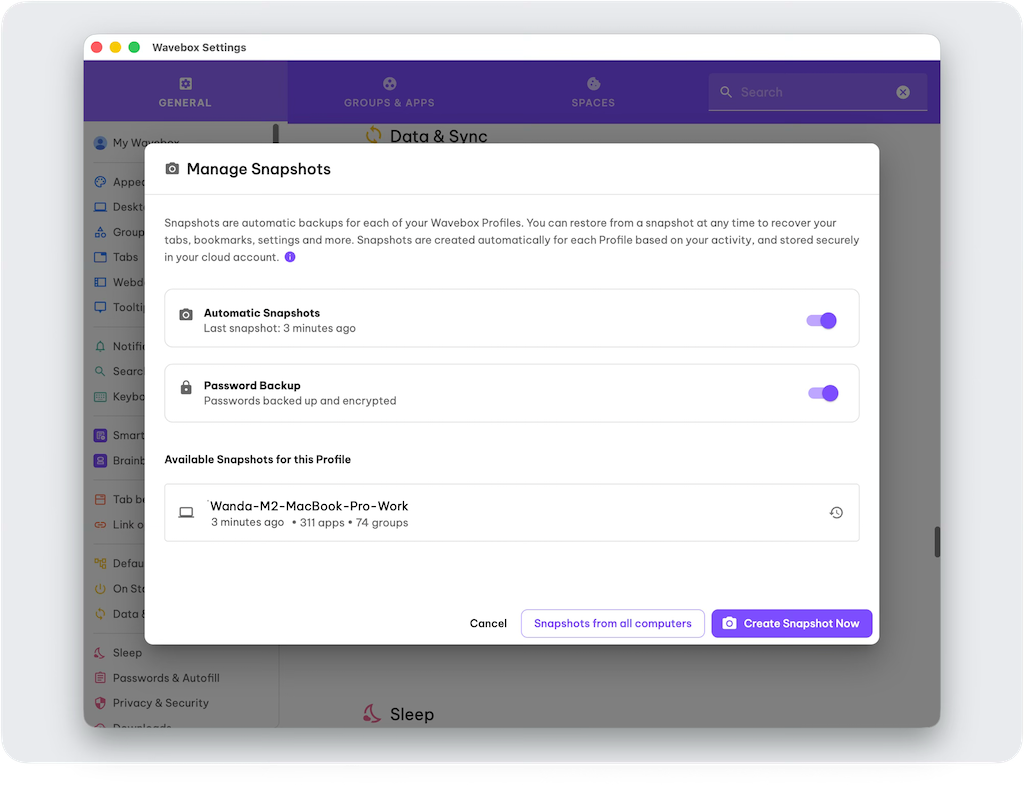
- Go to Settings > General Tab > Data & Sync > Snapshots
- You can check when the last snapshot was created.
- You can select [Manage] for more actions.
Enable/Disable Passwords
- Passwords are included in snapshots for new users.
- Go to Settings > General Tab > Data & Sync > Snapshots
- Select [Manage]
- Look for "Password Backup" and toggle ON/OFF.
⚠️ Enabling Passwords
To include passwords in Snapshots, all existing users must manually enable them by re-authenticating their Wavebox login email.
To do this:
- Go to Settings > General Tab > Data & Sync > Snapshots
- Look for "Password backup turned off" and click on Fix.
- Follow the steps to verify your login email.
- Passwords are then included in your Snapshots.
Manually Create a New Snapshot
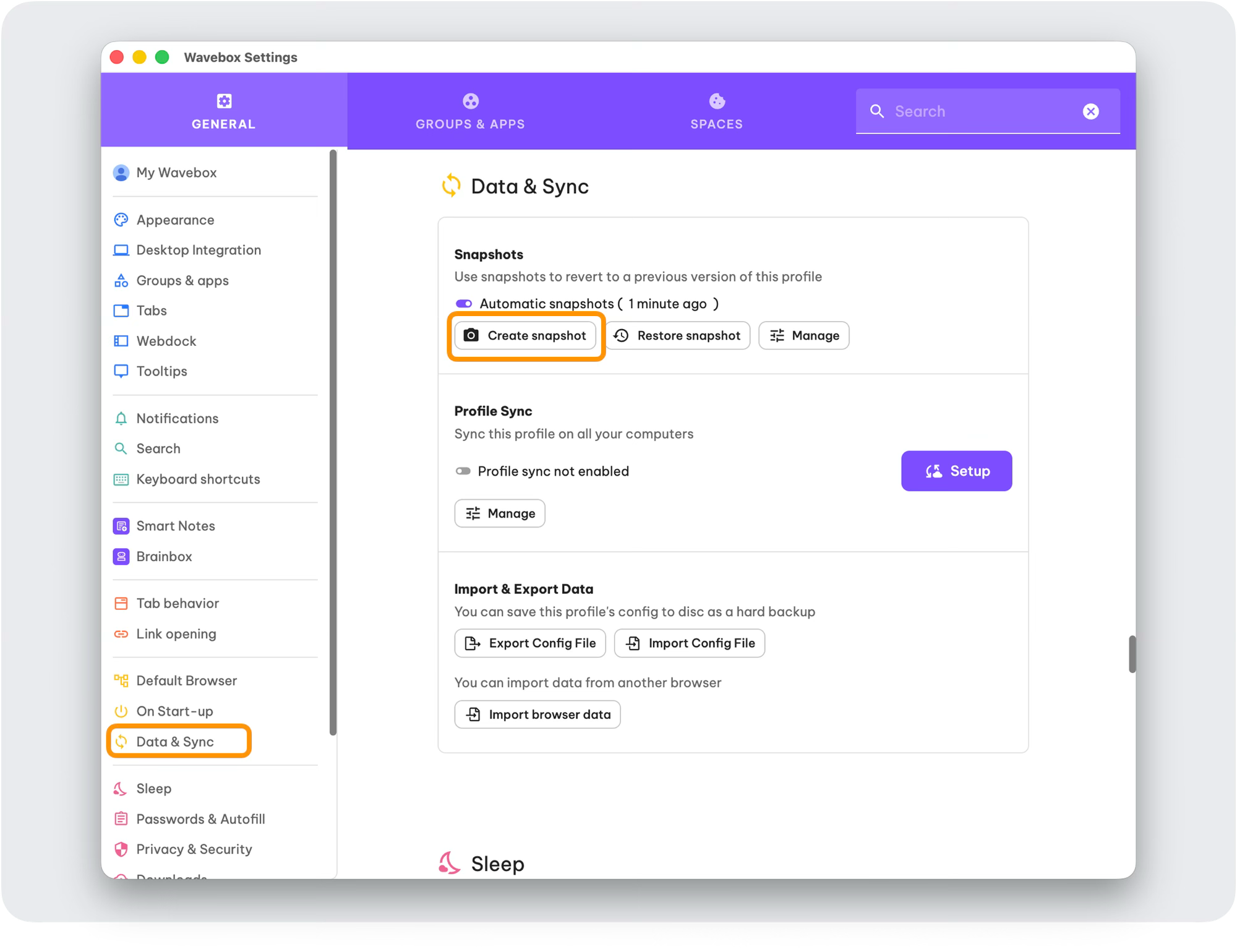
- Go to Settings > General Tab > Data & Sync > Snapshots
- Select [Create Snapshot]
View all Snapshots
- Go to Settings > General Tab > Data & Sync > Snapshots
- Select [Manage]
- Look for "Available Snapshots for this Profile" at the bottom of the window to see snapshots for the Profile you are using on that computer.
- Click on [View all Snapshots]
- The All Snapshots window displays a list of snapshots from all your computers.
- Legacy Backups: At the bottom of the list are your older Profile backups, where available. These will be retired eventually.
Restore a Snapshot
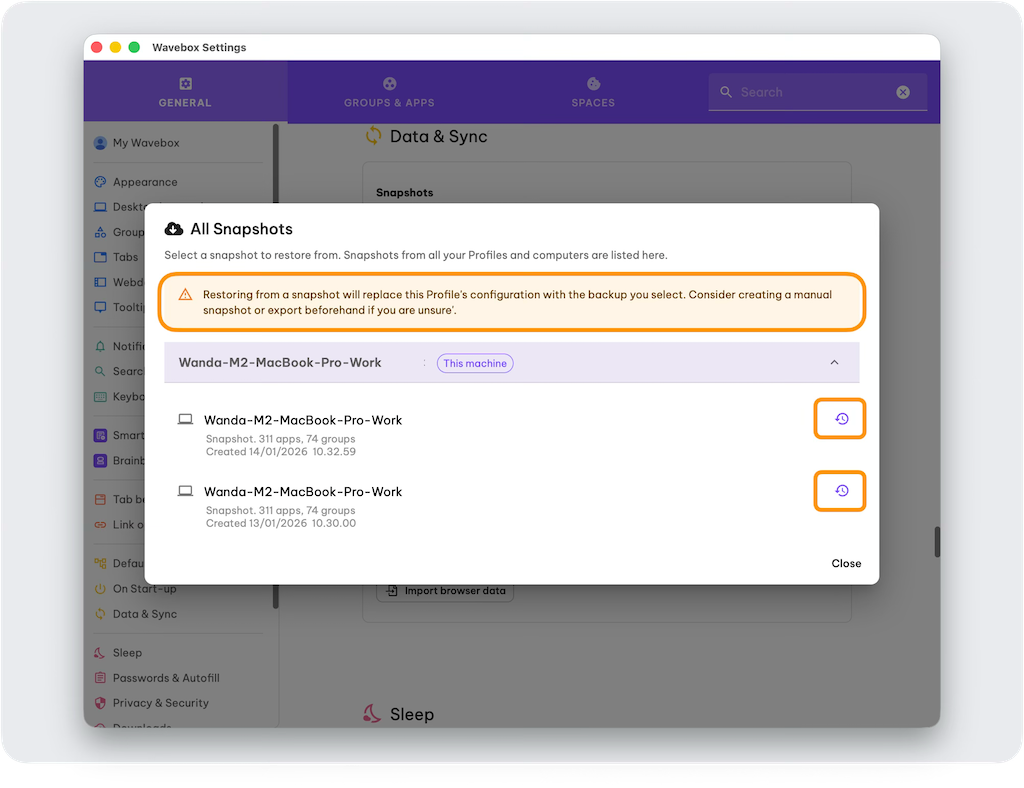
- Go to Settings > General Tab > Data & Sync > Snapshots
- Select [Restore Snapshot]
- In the All Snapshots window, find the snapshot you want to restore from.
- Click on the 🕣 Timer icon for that Snapshot.
- ⚠️ Check the Restore Prompt carefully and click on [Restore Snapshot] to continue.
- Wavebox will restart, opening the restored Profile.
- Note that any other Profiles will also shutdown. Reopen them manually using the Profile icon top-right.
Enable/Disable Snapshots
- Go to Settings > General Tab > Data & Sync > Snapshots
- Select [Manage]
- Look for "Automatic Snapshots", and toggle ON/OFF.
Snapshot Encryption
Wavebox encrypts your snapshot data using keys derived directly from your login credentials—whether you sign-in with Google, Microsoft, or email and password. This approach means encryption keys are never stored on our servers; they're generated on-demand each time you authenticate. The result is a zero-knowledge architecture where only you can access your encrypted data, while still allowing seamless recovery simply by signing back in. Here's how it works under the hood.
Deterministic Key Derivation
Wavebox uses HKDF (HMAC-based Key Derivation Function) to derive encryption keys from either your Google OAuth, Microsoft OAuth or Email/Password.
The Cryptography
We use AES-256 for symmetric encryption with the derived key. The key is only stored on the client (your computer) so there is no access server-side to sensitive information.
Key Properties
- Deterministic: Same credentials → same key (enables re-authentication to recover the key).
- No key storage: Keys are derived on-demand, eliminating key database compromise risk.
- Provider isolation: Salt includes provider name so Google and Microsoft keys are cryptographically independent.
- 256-bit AES key: Produces a 32-byte key suitable for AES-256 encryption.
The Flow
OAuth/Login → Extract ID (sub/oid/password) → HKDF → WebSocket broadcast → Desktop client.
After authentication, the server broadcasts the derived key to the client's WebSocket channel. The client uses this to encrypt/decrypt snapshot data locally.
Security Considerations
- No sensitive data stored server-side: Keys are never persisted.
- Password change = new key: Users changing passwords get a different encryption key (old snapshots won't decrypt with new key).
- Transport security: Keys only sent to authenticated client channel over WSS.
 Susan Davies
 Susan Davies