
Profile Sync
Create a Profile in the cloud, then join it from any computer to keep them all in sync.
Any changes you make to the Profile, is seen on all computers that are connected to that sync in real-time. Sync is done at the Profile level. If you have any other Profiles, you must manually create a Profile Sync for each one.
👋 Hey, January 2026 Updates to Profile Sync
With the introduction of 📸 Snapshots for backup and restore, the role of Profile Sync has changed. Profile Sync is now only used to sync a Profile on multiple computers e.g. your Office PC and a Laptop. This article has been updated accordingly.
To summarise the changes:
✅ New Users After January 2026
To sync multiple computers:
- First computer - Manually setup a new Profile Sync. See below for instructions.
- Second computer - During install, select a Profile Sync to join. If already installed, manually join an existing sync. See below for instructions.
✅ Existing Users Before January 2026
If you already have Profile Sync enabled:
- 💻 On one computer - If Profile Sync is enabled for just one computer, you can disable it, and use Snapshots instead, which are already enabled (optional).
- 💻💻 On multiple computers - If Profile Sync is enabled to sync multiple computers, there are no changes to make.
Profile Sync Overview
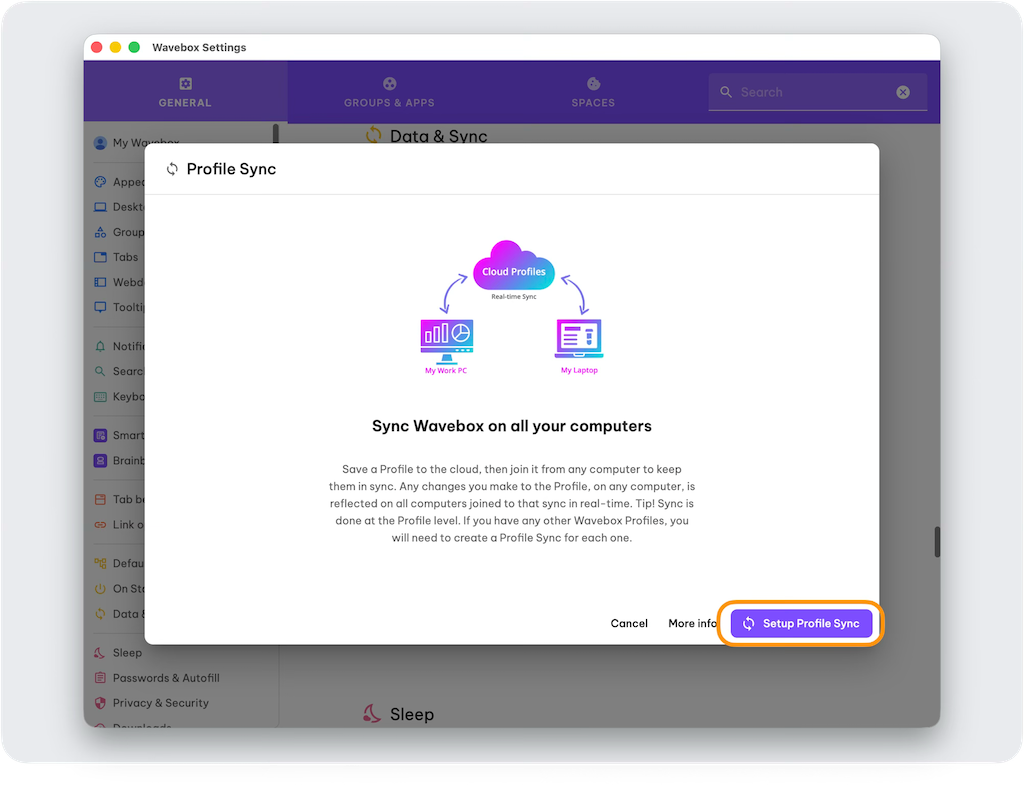
- Use Profile Sync to keep office and home computers in sync.
- Profile Sync must be setup for each individual Profile in Settings.
- You can join a Profile Sync from any computer where you are sign-in to Wavebox with the same login credentials.
- Data syncing takes place in near-real-time.
- Profile Sync is separate to 📸 Snapshots.
- Use 📸 Snapshots to one-time restore a Profile (no syncing).
What's Included in Profile Sync?
Profile Sync saves all your Wavebox setup. You can choose what you want to include when you create a new sync (next section). The options are:
- Groups & Apps
- Settings
- Dashboards
- Desktop Web Apps
- Bookmarks
- Tabs, Saved Items & Windows
- Smart Notes
- Extensions
- Passwords
- Brainbox AI (coming to sync soon)
Grab Tabs Manually
- Tabs are synced, but must be manually restored from the cloud.
- This is to avoid losing any unsaved/ongoing work.
- Go to '☰ Wavebox Menu > Restore All Tabs from Another Device'
- You can learn more in this article.
How to Sync Two Computers
1. Create the Profile Sync the first Computer
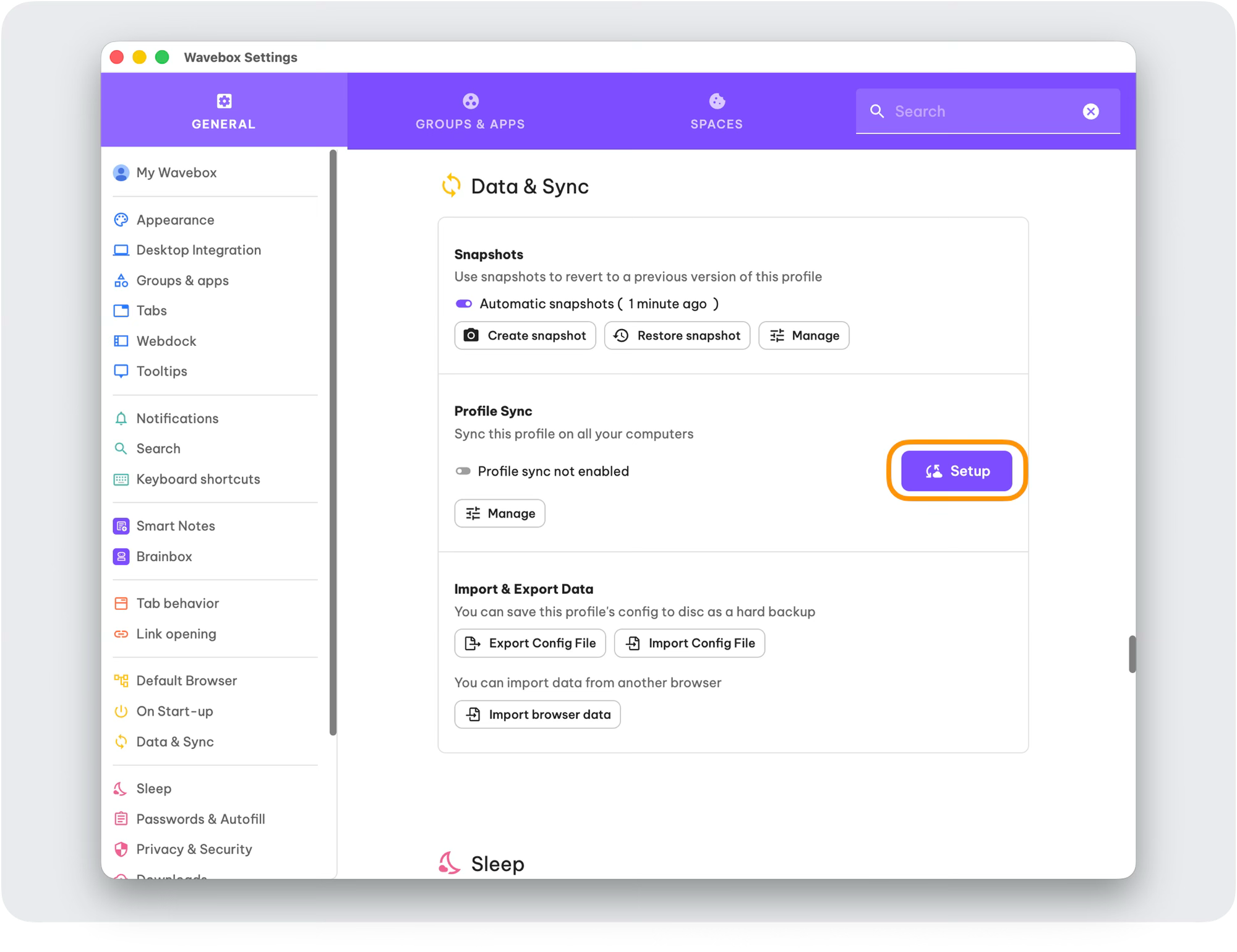
- In your Wavebox, go to the Profile you want to sync.
- Go to Settings > General Tab > Data & Sync > Profile Sync.
- Click the [Setup] button.
- In the setup wizard window, click the [Setup Profile Sync] button.
- Click [Create New Cloud Profile] button.
Profile Sync Setup Wizard
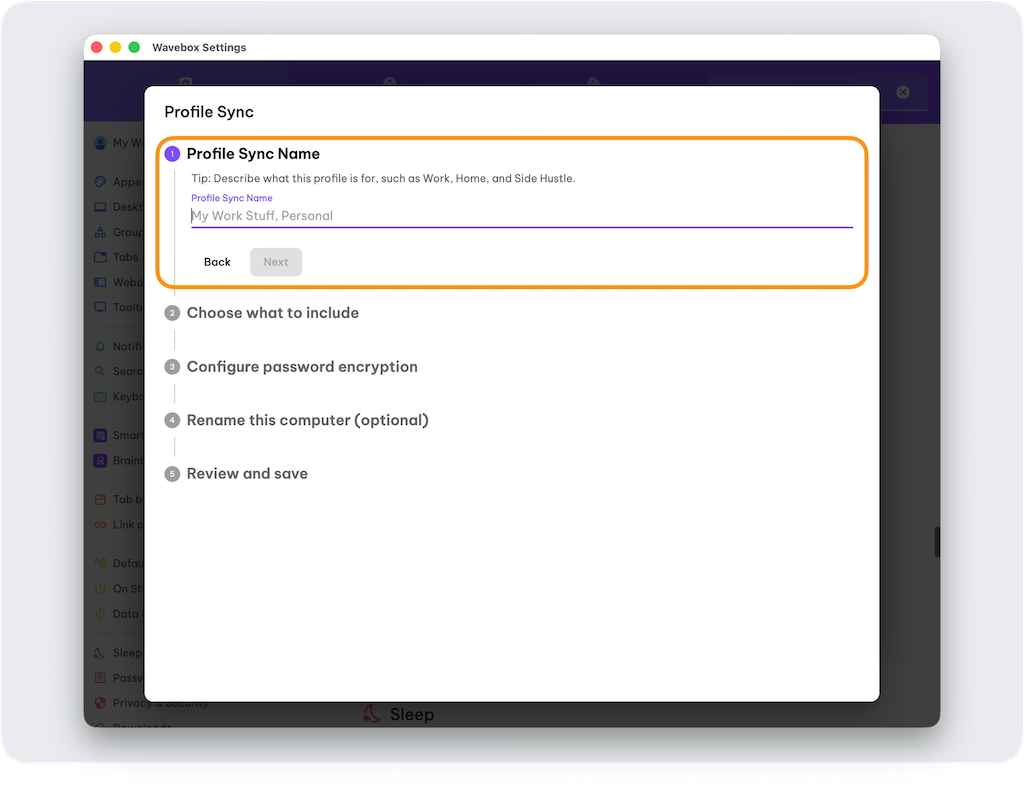
- Give the sync a name: e.g. My Main Work Profile. Click [Next].
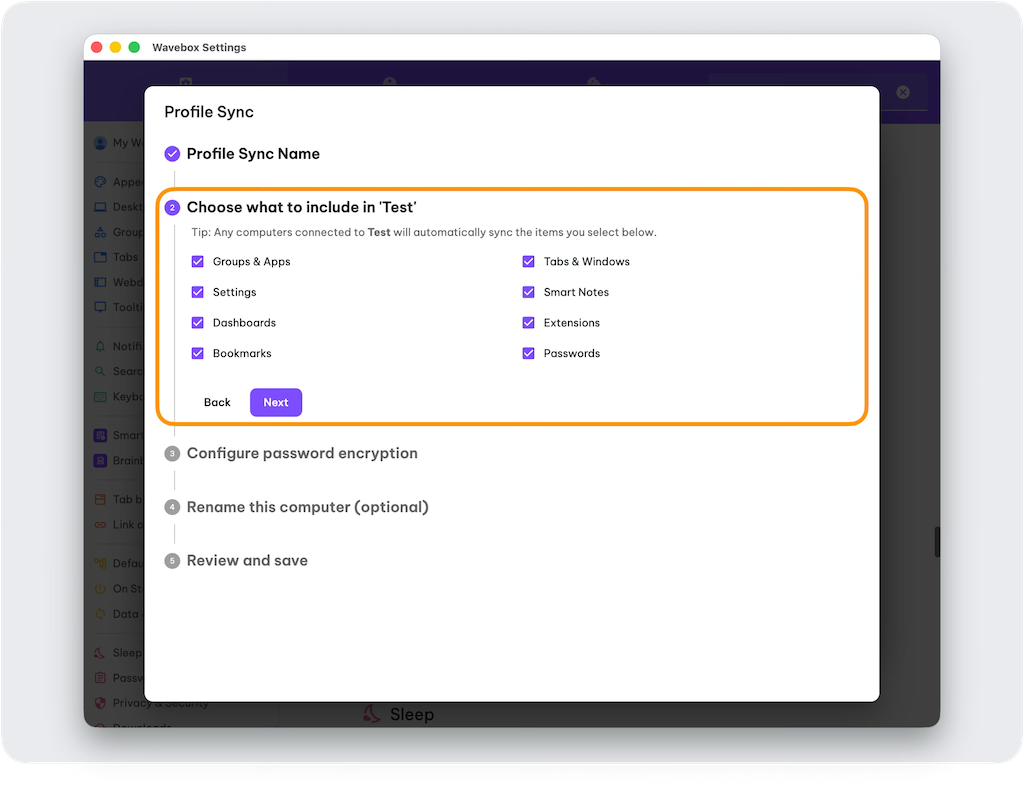
- Choose what to include: Check/uncheck the boxes next to each item, then click [Next].
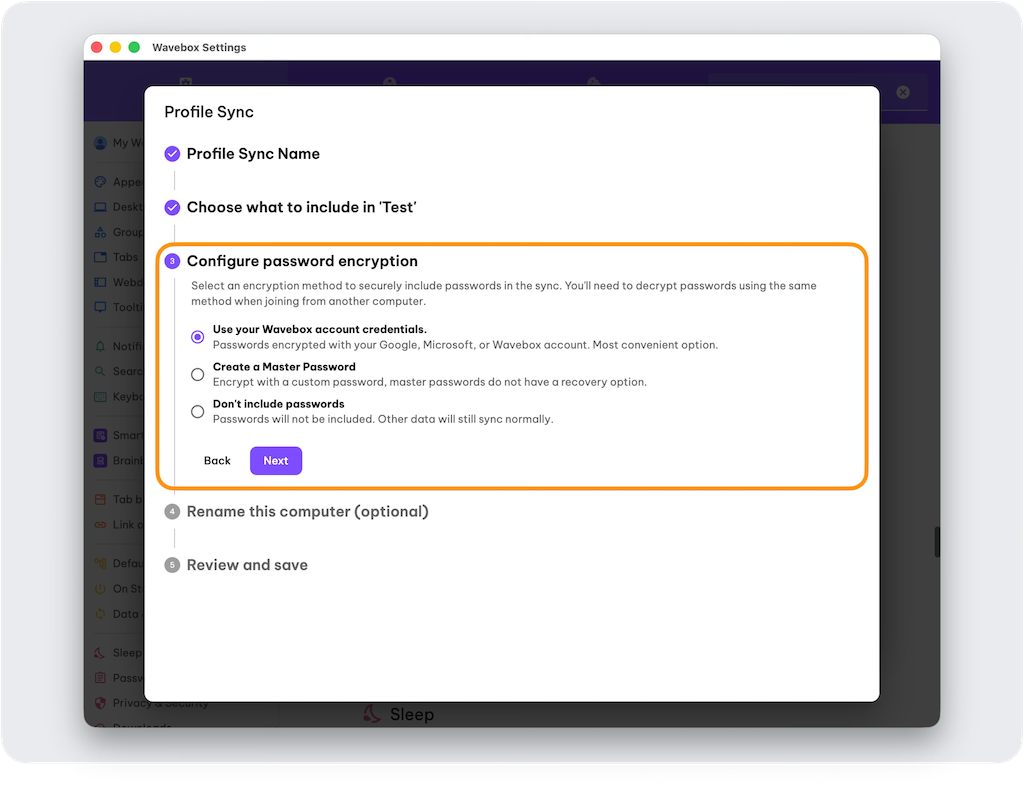
- Configure password encryption: Choose to include passwords. ⬇️ Refer to the section below for more details. Then click [Next].
- Rename your computer (optional): You have the option to rename the computer so that you can easily identify it when joining the sync from another computer. Then click [Next].
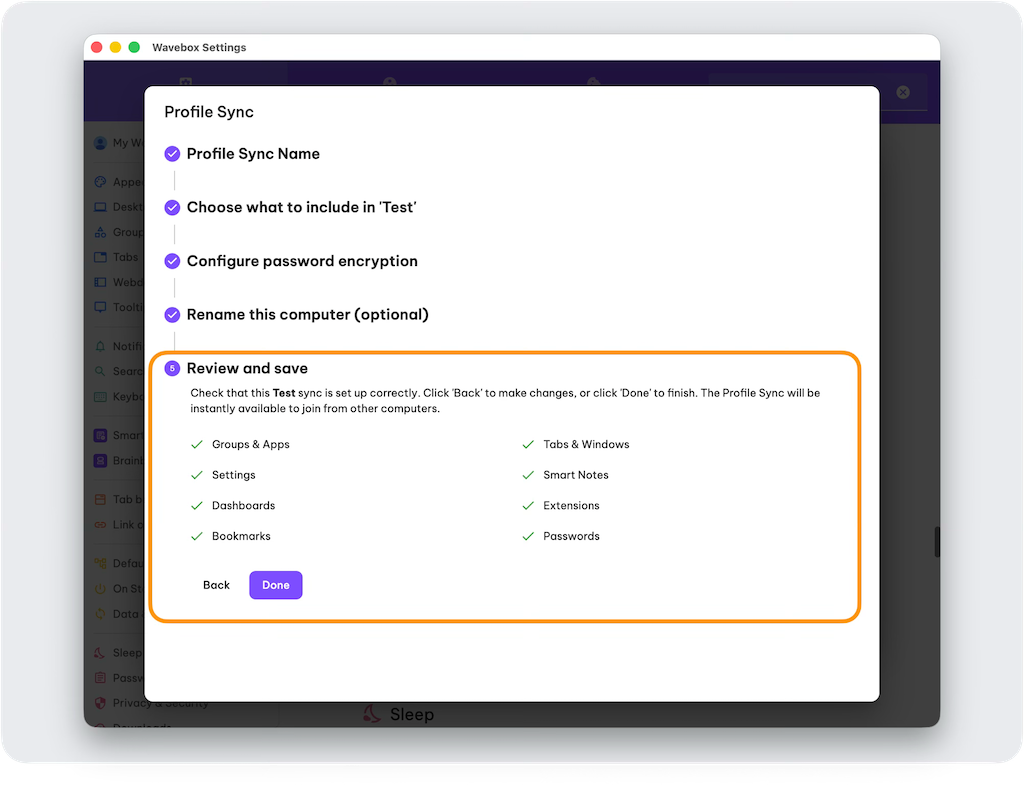
- Review and Save: Check that the setup looks correct before creating the new Sync. To make changes click [Back], or click the [Done] button to finish the setup.
The Profile Sync is immediately available to join on other computers where you are signed-in with the same Wavebox account.
2. Join the Profile Sync on a Second Computer
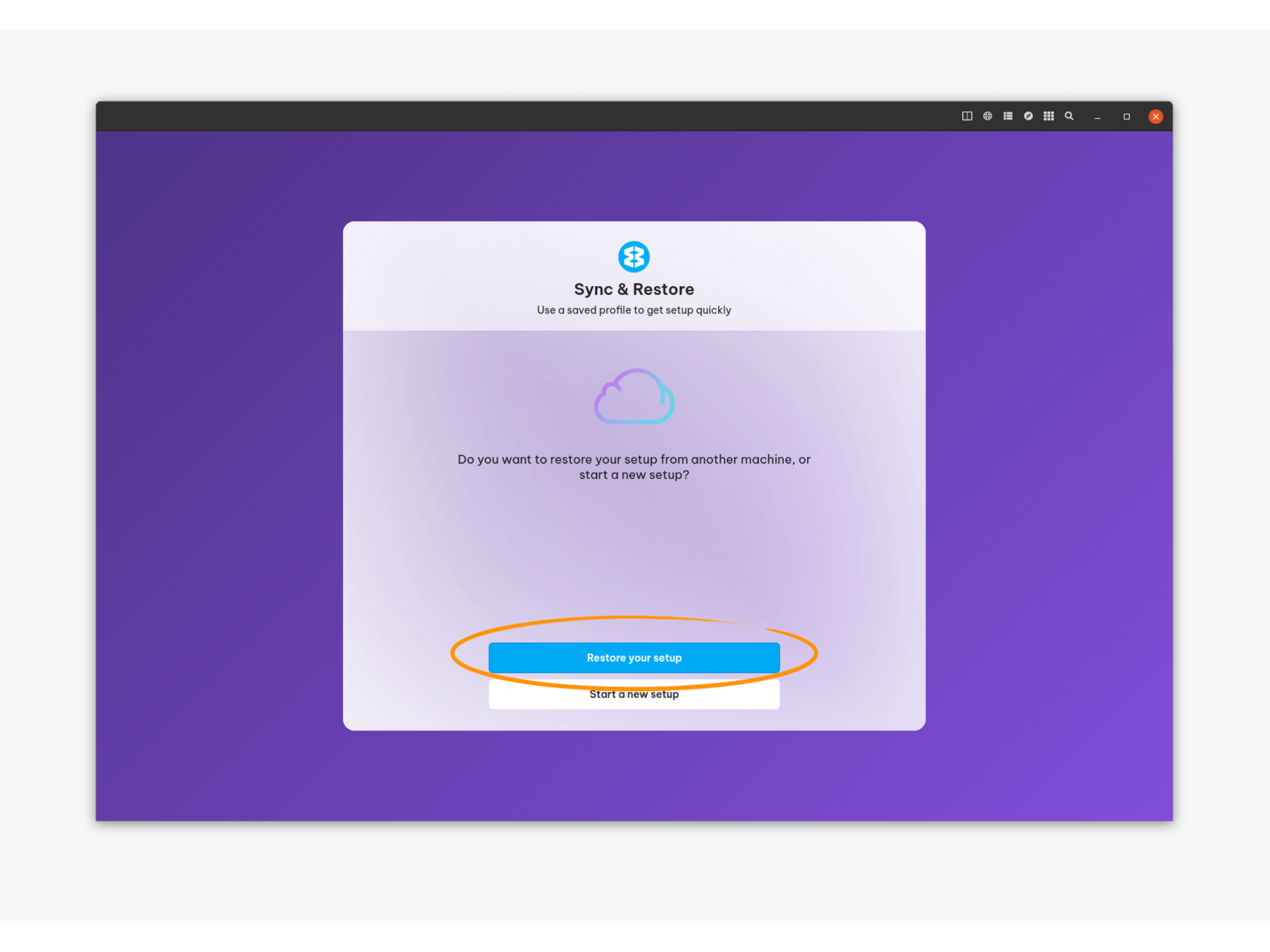
🆕 Brand New Install
- During install, sign-in using the same login as your first computer.
- On the Sync and Restore screen, click [Restore your Setup]
- Choose a Profile Sync from the list and follow the wizard.
- If the sync has a Master Password you will need to enter it.
- The Profile will load, populated with the sync data.
- Go to '☰ Wavebox Menu > Restore All Tabs from Another Device'
📦 Already Installed—Sync disabled
- Go to Settings > General Tab > Data & Sync > Profile Sync.
- Click the [Setup] button.
- In the setup wizard window, click the [Setup Profile Sync] button.
- Choose a Profile Sync from the list and follow the wizard.
☁️ Already Installed—Sync enabled
- Go to Settings > General Tab > Data & Sync > Profile Sync.
- Click the [Manage] button.
- Select [Turn Off Sync] and click again to confirm.
- Click the [Setup] button.
- In the setup wizard window, click the [Setup Profile Sync] button.
- Choose a Profile Sync from the list and follow the wizard.
Configuring Password Encryption
If you want to include credentials from Password Manager, you need to select an encryption method to use when joining the Profile Sync on another computer.
- ✅ Default: Use Account Credentials - use your Wavebox login (Google, Microsoft, Email) to encrypt passwords.
- 🔡 Extra: Create a Master Password - encrypt using a custom password of your choice. This provides an additional layer of security on top of your Wavebox account credentials.
- Write it down! Master Passwords cannot be reset, so make a note of it somewhere.
- Forgotten it? You will need to setup the Profile Sync again from scratch, and create a new Master Password.
- An alternative to including Passwords is using a password Extension like 1Password.