Profile Import & Export
Importing and exporting Profile data (local backups)
Being able to manually export and import your Profile data is useful if you want a local copy of your Wavebox setup on your computer. Local copies let you:
- Back up a Profile on your computer
- Copy a Profile setup to another computer (instead of using sync)
- Share a Profile setup with someone else
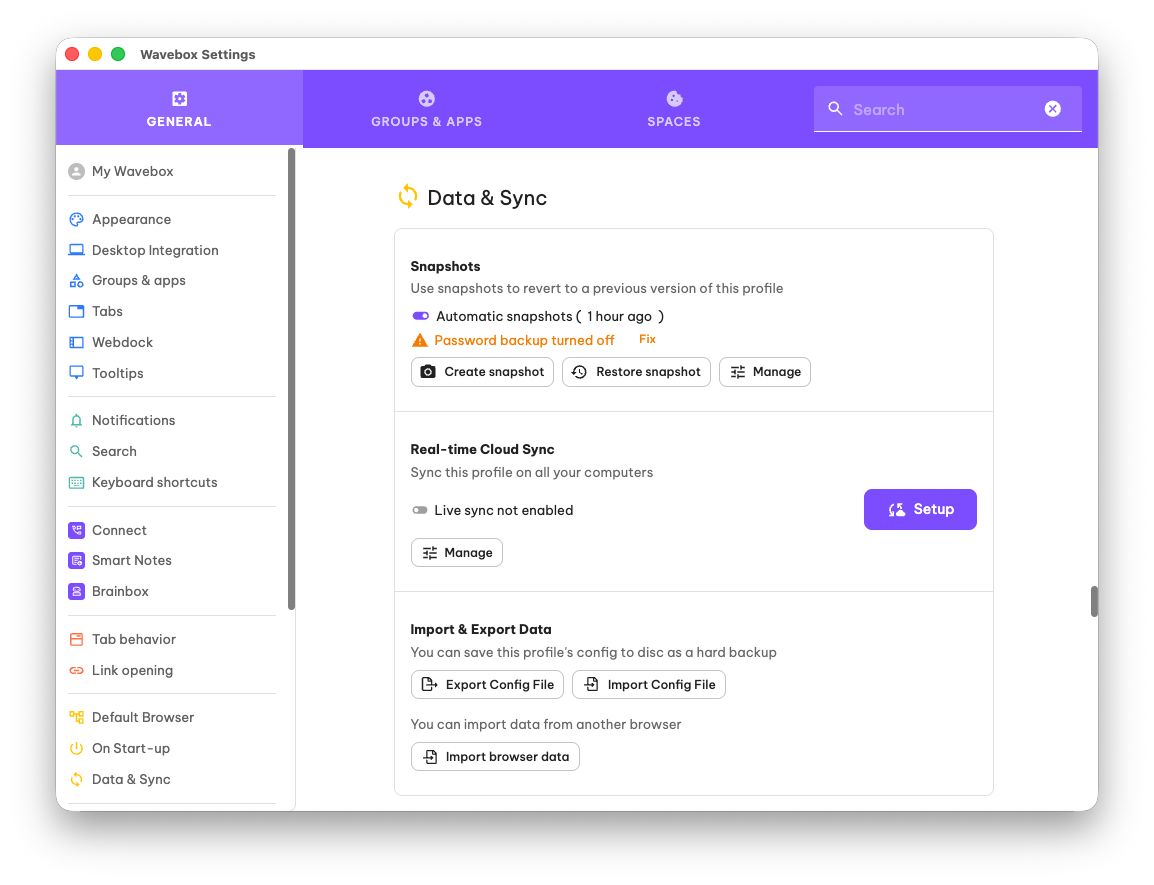
Where to find the feature: Settings > General Tab > Data & Sync > Import & Export Data.
Export (save a local copy)
- Open Settings > General > Data & Sync > Import & Export Data.
- Click the [Export profile config file] button.
- Check the box if you want to include Passwords. Create a Master Password and make a note of it somewhere.
- Choose a download destination on your computer and save the file.
- Note the filename and location (for example: Work Profile Backup — 2026-01-13).
Import (replace the current profile)
- Open Settings > General > Data & Sync > Import & Export Data.
- Click the [Import profile config file] button.
- Find and select the saved config file on your computer and confirm the import.
- Enter the Master Password, if passwords are included in the file.
- Wavebox will shut down and reopen with the imported profile in focus. Importing replaces the current profile configuration — export your current profile first if you want to keep it.
Profiles
Profiles are completely separate Waveboxes—perfect for managing work and personal accounts, clients, or sharing customized setups with teams.
 Susan Davies
Profile Snapshots
Snapshots automatically back up your Wavebox profiles to the cloud, letting you restore groups, apps, tabs, bookmarks, and settings anytime.
 Susan Davies