
Microphone & Camera Permissions
When trying to access the camera and/or microphone from an app for the first time, a dialog box appears, prompting you to give Wavebox permission to use them. Just follow the steps to allow Wavebox access.
You can check settings here:
macOS Privacy & Security
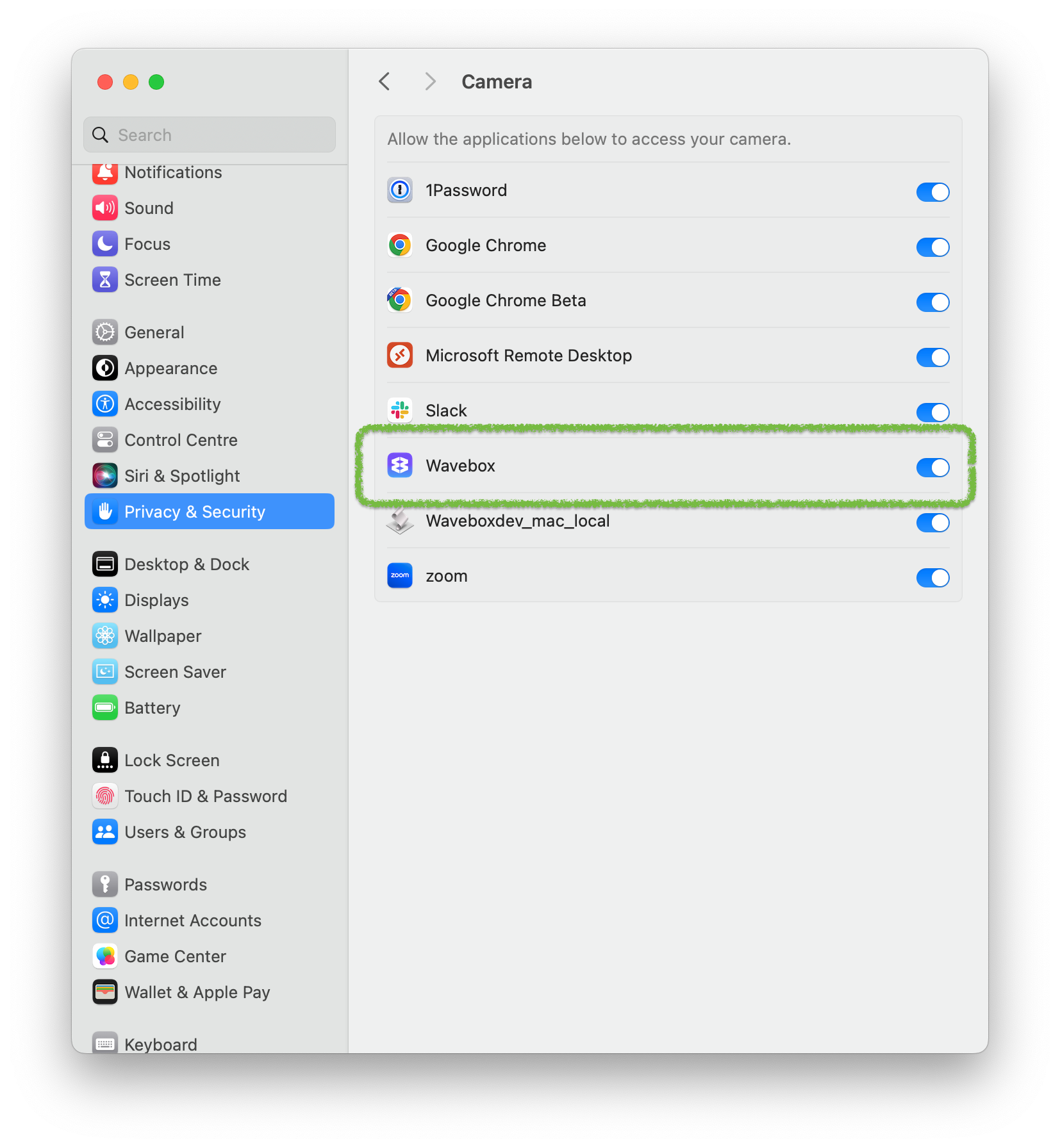
- Open macOS System Preferences > Security & Privacy
- Click the privacy tab
- Ensure that Wavebox has both Camera and Microphone permissions
- Restart Wavebox
Windows Privacy & Security
- Start > Settings > Privacy & Security > Camera
- Start > Settings > Privacy & Security > Microphone.
Troubleshooting
- Camera and microphone not working in an app. Ensure the app has permission to use the camera & microphone.
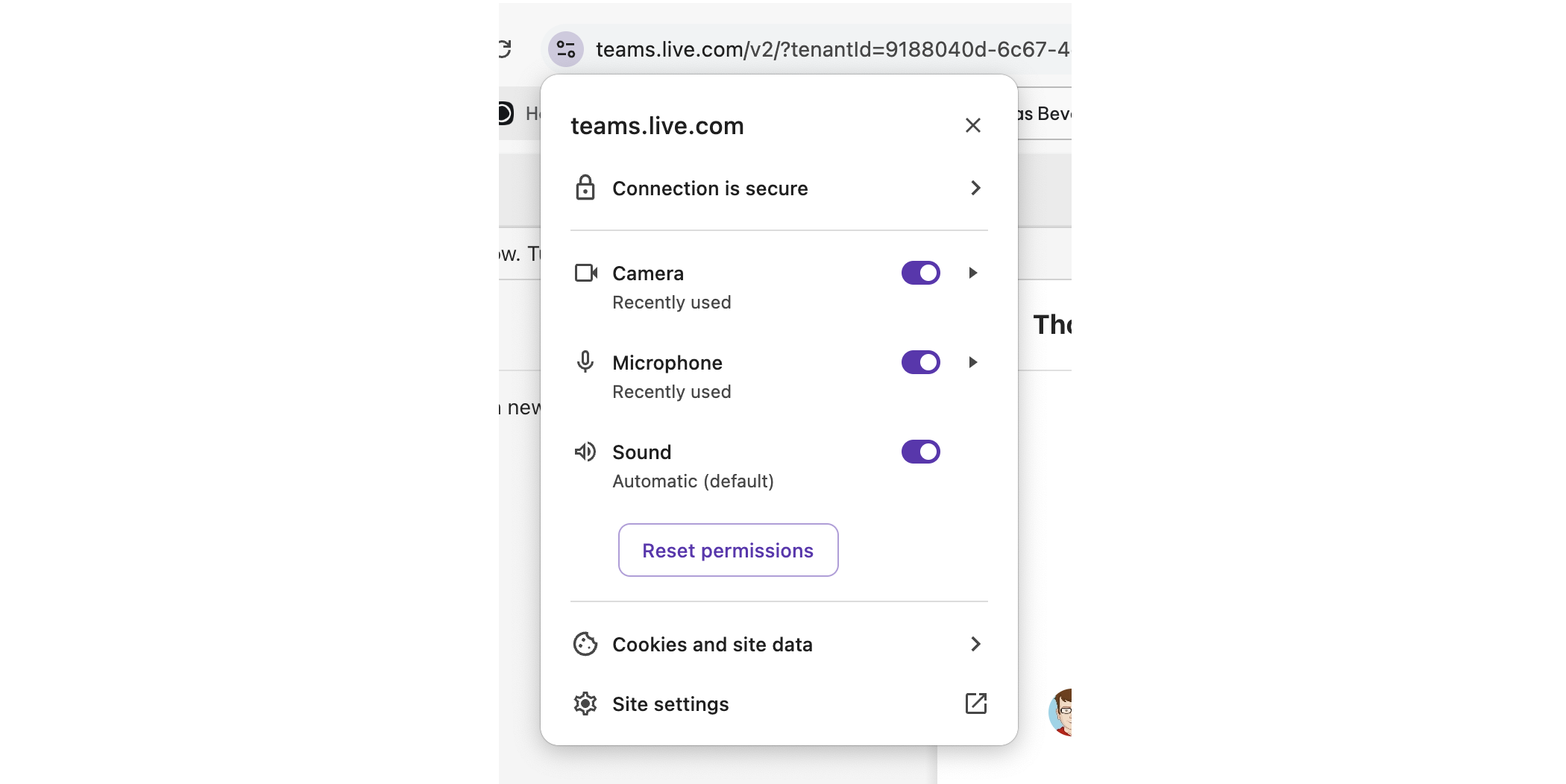
- Navigate to the app in any tab.
- Click on the site settings button to the left of the address bar
- Ensure that Camera & Microphone permissions are both toggled ON.
- Reload the app.
Troubleshooting Camera Access for Google Meet
You must allow camera access the first time you join a meeting.
- In Wavebox open meet.google.com.
- Join a video meeting.
- In the address bar, click Camera.
- Turn on Camera.
- Click Allow on every visit.
Check your site permissions for Wavebox
- Open a new tab and enter wavebox://settings/content/camera
- Under "Default behavior," select "Sites can ask to use your camera"
- If you've allowed camera access for Meet before:
- Under "Allowed to use your camera," next to "https://meet.google.com:443," click Delete.
- Next to "https://meet.google.com:443," click Expand
- Under "Permissions," click "Camera" > "Allow camera access"
Allow camera access in Windows
- On your computer, click Start > Settings
- Select Privacy & Security > Camera
- Turn on Camera access > Allow apps access your camera
If those don't work
- Try a full machine restart
- Try another browser, does the camera work here?
- Are you able to view your camera here - https://webcamtests.com/
- Generate Diagnostics