🤔 Is Wavebox Right for You? 11 Honest Answers from the Co-Founder.

As Co-Founder I answer a lot of questions about Wavebox—through support tickets, onboarding calls, and emails from people who are curious but not quite sure if it's right for them. These are the questions that come up again and again, so I thought I'd answer them all in one place.
Q1. What is Wavebox?
A. Wavebox is a desktop browser designed for people who spend their day working across multiple web apps and accounts.
Most people I talk to have cobbled together workarounds over the years. Some switch between Chrome profiles throughout the day to get things done. Others run Chrome for work, Firefox for personal stuff, and maybe Edge for that one client who needs a separate login. It works, sort of, but it's clunky and things go wrong, usually because nothing is keeping track of which context you're actually working in.
That's why we built Wavebox. It keeps you signed into everything at once, organizes your business critical SaaS tools and tabs by context so you can find things quickly, and makes sure links open in the right account. It's a framework for getting stuff done on the web.
I use Wavebox to run Wavebox. All my email accounts, our support system, analytics, social media, EVERYTHING lives in one window. It's like having a desktop for the web, and I think of it less as a browser and more as an operating system for web-based work.
Under the hood, Wavebox is built on Chromium, the same engine that powers Chrome, Edge and most other modern browsers. So every website and web app works exactly as you'd expect, and all your Chrome extensions are compatible too.
Q2. How is Wavebox different to other browsers?
A. What makes Wavebox different comes down to how it thinks about context.
There are plenty of browsers out there now. Some are focused on privacy, some on AI features, some on aesthetics and design. Many of them are doing interesting things, and we're all ultimately trying to help people work better on the web.
Most browsers treat profiles (sometimes called workspaces) as separate environments, which works well for keeping things organized. But those environments are disconnected. You can't easily see or search across them, and you end up running what are essentially separate browsers side by side.
Wavebox takes this a step further with Spaces that are isolated from each other but still connected when you need them to be. Each Space is a self-contained context with its own cookies, logins, and identity, but Wavebox treats them all as part of one unified workspace.
This context-aware structure is what makes everything else possible:
- View multiple Spaces side-by-side in split screen
- Search across all your accounts and Spaces at once
- Get unified notifications from everything in one place
- Use AI across your entire workspace, not just the tab you're in
- See badge counts from all your apps without switching contexts
Because your Spaces can work together while staying independent, Wavebox becomes a single window into your entire digital life rather than a collection of separate containers. It manages your apps, your notifications, your workflows, and your identity across everything, all in one place. That's the bit we're most proud of.
Q3. What problems does Wavebox solve?
A. The big one is managing multiple accounts of the same service.
If you have three Gmail accounts, two Slack workspaces, and a handful of client dashboards, you know the pain of signing in and out, getting "access denied" errors, or accidentally sending something from the wrong account. The root cause is always the same: your browser has no concept of which context you're working in.
Wavebox solves this with Spaces, which are isolated containers that each have their own cookies and logins. You stay signed into everything simultaneously, and Wavebox's Link Opening Engine makes sure links open in the right account automatically. It understands context, so when you click a Google Drive link from a client's Gmail, it opens in that client's Space and not your personal one.
Beyond that, Wavebox helps with:
- 🗄️ Organization – Groups keep related apps together so you're not hunting through dozens of tabs. Wavebox eliminates tab overwhelm!
- 🔔 Notifications – Real-time, unified notifications and badges show you where your attention is needed across all accounts. The Wavebox Mini is the nearest thing to a unified inbox you'll get for desktop.
- 🔋 Performance – Running one browser instead of 4 and using one profile instead of 3 chrome profiles keeps your computer running smoothly. Smart sleep suspends inactive tabs so you can run 100+ apps without your computer slowing down.
- 🧘 Focus – Focus Mode hides distractions when you need to concentrate.
- 🚀 Productivity – With 23+ built-in extensions, Wavebox has the extra features you need to get work done fast.
When you step back and look at everything Wavebox does, from managing apps and routing links to handling notifications and providing built-in tools, it starts to look a lot more like an operating system than a browser. That's intentional. Your browser IS your workspace now, and we think it should act like one.
I speak to users all the time who say they didn't realize how much mental energy they were spending just navigating their browser until they switched to Wavebox.
Q4. Who uses Wavebox?
A: Wavebox attracts people who spend significant time in web applications and need to manage multiple accounts or clients.
Replying to support tickets every day means I get to know our users pretty well, and a few patterns come up again and again.
- 📞 Virtual assistants and client service providers make up a big chunk of our users. For VAs, that often means 10+ clients, each with their own Gmail, calendar, and project management tools. One Space per client keeps everything tidy. Each client gets their own isolated context, so there's zero risk of sending the wrong email from the wrong account.
- 👾 Developers and IT professionals love Wavebox for managing multiple GitHub accounts, AWS consoles, and localhost development across different projects without authentication headaches. Each project lives in its own context, with its own credentials and state.
- 📢 Digital agencies and marketing teams use it to manage social media accounts, analytics dashboards, and client communications across dozens of brands without risking posting to the wrong account.
- 🔀 Anyone managing multiple webmail accounts will find Wavebox useful too. If you're juggling work, personal, and side-project email, Wavebox shows all of them at once with unified badge counts. You get a bird's-eye view of everything, with each account maintaining its own separate context.
Q5. Can I use all my favourite apps like Slack, Zoom, Gmail, Outlook, Asana, and Jira?
A. Absolutely. If it runs in a browser, it runs in Wavebox.
Our App Store includes over 2,500 popular applications with pre-configured settings for notifications and badges. That includes Slack, Zoom, Gmail, Outlook, Microsoft 365, Google Workspace, Asana, Jira, Notion, Trello, Figma, GitHub, LinkedIn, WhatsApp, Discord, and many more. And if an app isn't in the store, you can add any website as a custom app in seconds.
Because Wavebox is built on Chromium, every web app works exactly as it does in Chrome. You're not learning a new way to use Gmail or Slack. The apps look and behave identically. The difference is in how Wavebox organizes and connects everything around them. Like an operating system manages the programs you install, Wavebox manages your web apps, giving each one a permanent home, notification badges, and the right context to run in.
Q6. Can I use my Chrome extensions?
A. Yes, Chrome extensions work in Wavebox.
You can install them globally or limit them to specific Spaces, which is handy if you only need certain extensions for work but not for personal browsing. That context-awareness extends to extensions too. You can even run separate extension accounts in different Spaces, which is perfect if you manage client accounts through tools like HubSpot or LastPass.
Wavebox also includes 23+ built-in super-extensions that work better than their Chrome equivalents because they understand Spaces and context. These include enhanced navigation, AI sidebar, global search across all accounts, customizable keyboard shortcuts, and smart new tab pages. Features you might otherwise need separate extensions or subscriptions for are already built in.
Q7. Will Wavebox speed up my computer?
A. Yes, it often does—which surprises people who assume more features means more resource usage.
Wavebox's intelligent sleep system automatically suspends inactive tabs while keeping their notification badges updated. This means you can have 100+ apps open without the memory bloat you'd get from keeping that many tabs running in Chrome.
Many users tell me that switching to Wavebox actually improved their computer's performance because they're no longer running multiple browsers simultaneously or keeping dozens of Chrome tabs active. The sleep system does the work for you. Tabs wake instantly when you click back to them, with your state preserved. It's like how a good operating system manages memory behind the scenes. Apps you're not actively using get moved out of the way, but they're ready the moment you need them.
Q8. Can I sync Wavebox across my computers?
A. Yes, your Wavebox subscription works across all your computers—Mac, Windows, and Linux.
Your entire setup syncs automatically: Spaces, Groups, Apps, Settings, and customizations. Set things up once on your main machine and it's all there when you log in on another device. It's like logging into your operating system on a different computer and finding everything exactly where you left it.
You can use Wavebox on any two computers at the same time, so you could have it running on your office desktop and your laptop simultaneously. If you move to a third device, that's fine too. It just signs you out of the oldest session. Most people find this covers their needs whether they're working from home, the office, or traveling.
Q9. Is Wavebox an AI browser?
A. Wavebox has AI built in, but it's not trying to be an "AI browser" in the way some newer browsers are positioning themselves.
You're in control of how much AI you want, including none at all. For everyday AI tasks, you can use your favorite AI engine directly on their websites, just like in any other browser. ChatGPT, Claude, Gemini, Perplexity, they all work perfectly in Wavebox. AI tools built into your favorite apps, such as Copilot and ClickUp Brain, also work perfectly, as do AI extensions you might want to add like Sider.
Where Wavebox adds something different is Brainbox, our integrated AI assistant.
Brainbox understands Wavebox's structure and can work across your Spaces, Groups, Apps and tabs with full context. It's not limited to just the page you're on. It understands which Space you're in and what you're working on.
Brainbox comes with:
- Built-in skills for common tasks like summarizing, drafting, and translating
- Custom skills you can create yourself, tailored to your workflow
- 1 million free tokens monthly with access to leading models including GPT-5 and Claude
This is another area where Wavebox behaves more like an operating system than a browser. Just as your OS provides system-level services that any application can tap into, Brainbox provides AI capabilities that work across all your apps and contexts, not siloed into a single tab.
Q10. Is Wavebox complicated to set up?
A. No, and this is something I really want to clear up because I know some people have heard Wavebox has a learning curve.
The basics are simple: download it, create a couple of Spaces (most people start with Work and Personal), add your most important business SaaS tools as apps, and you're working. Wavebox recognizes over 2,500 popular applications and configures them automatically with sensible defaults for notifications and badges. You can be productive in minutes.
The "complexity" reputation comes from depth, not from the basics. Wavebox has a lot of features like link rules, advanced sleep settings, dashboard widgets, and custom keyboard shortcuts, but you don't need to touch any of that to get started. All the default settings work well for most people. It's like any operating system: you can start using it immediately, and discover the power features as you need them.
I help new users get set up, and once they see how straightforward it is, they wonder why they waited so long. Start simple with two Spaces, one for each context you work in, and a few Groups. You can always add more as you go.
💡 Tip: If you're not sure where to begin, just add the apps you use most often and organize them the way that makes sense to you. There's no wrong way to do it. The key insight is to think about your different contexts (work, personal, each client) and give each one its own Space.
Q11. Why should I pay for a browser?
A. It's a reasonable question, since Chrome and Firefox are both free.
The short answer is that you're paying for time, privacy, and a completely different class of tool.
Free browsers make money from ads, sponsored content, and tracking. That's why your new tab page is full of "recommended" stories you didn't ask for, why your search results are nudging you toward certain products, and why Google knows what you had for breakfast. The browser is optimized for their business model, not your productivity.
Wavebox flips that entirely. Your subscription means we work for you, not advertisers. There are zero ads, zero sponsored items, zero tracking, and Google tracking is disabled by default. Your searches and start pages are 100% your own.
But the privacy angle is just the start. You probably pay for Slack, or Asana, or Notion because they make your work better. Wavebox is in that category. It's the tool that connects all your other tools together and makes them work as one system. If we promoted Wavebox as a SaaS Productivity Platform, you'd probably be more inclined to try it and pay for it.
In terms of what it actually saves you:
- ⏰ Time – I hear from users all the time who tell me they save 30 to 90 minutes a day by not switching profiles, hunting for tabs, or signing in and out of accounts. Over a year, that adds up to hundreds of hours.
- 💰 Money on extensions – Wavebox has 23+ features built in that replace paid Chrome extensions. Things like tab suspension, smart notes, focus mode, AI assistant, and global search are all included. That's real money you're not spending elsewhere.
- 💰 Money on AI - Use ChatGPT in Wavebox with 1 million free tokens per month.
- 🧘 Mental energy – This is the one people don't expect. The cognitive load of managing a chaotic browser setup is genuinely exhausting. Users consistently say they feel calmer and more focused after switching to Wavebox.
We're also an independent, UK-built browser that's not backed by venture capital or big tech. We're profitable, and we've been around for years. Your subscription directly supports a small team that cares deeply about making the best possible tool for people who work on the web.
And if it's not for you? We offer a 30-day money-back guarantee, no questions asked. We offer a 70% for education and non-profits and there's also a free Basic plan you can use indefinitely with 2 Spaces, so you can always try before you commit.
Don't Take My Word for It
I can tell you all day long how great Wavebox is, but I'm obviously biased 😊. So if you'd rather hear from the people who actually use it every day, there are a few places to look.
Survey: We ran our most recent user survey in 2025 and published the full results on our blog. Reading through the responses was genuinely heartwarming, and there are some fascinating patterns in how people use Wavebox across different industries and workflows. You can read the highlights here: Wavebox Survey 2025 Results
Discord: We also have an active Discord community where Waveboxers share tips, workflows, and setup ideas with each other. It's a friendly group, and the team and I are active there too. You're welcome to join and ask anything: Join Wavebox Discord
Testimonials: For independent, verified reviews, you can check out what users have written on Trustpilot and Capterra. These are unfiltered, and I'm proud to say the feedback is overwhelmingly positive. But don't just take my word for it, go have a look.
And of course, if you want to talk to a real person, you can always email support@wavebox.io. I read and respond to every ticket personally, and I'm always happy to chat, whether you're a long-time user or just trying to figure out if Wavebox is worth a look.
Still Got Questions?
If there's something I haven't covered here, just reach out. I answer every support ticket personally, and I'm always happy to help people figure out if Wavebox is right for them—or to help you get set up if you decide to give it a try.
Download Wavebox free for Mac, Windows, or Linux. 7-day free trial, no credit card required.
 Susan Davies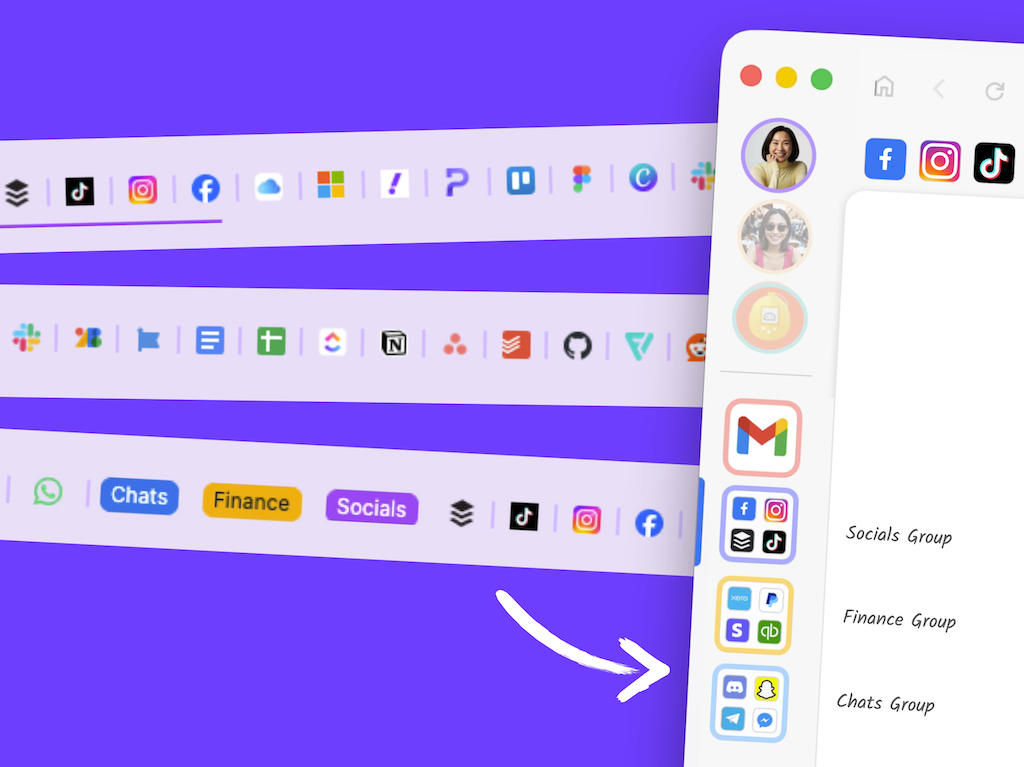
 Susan Davies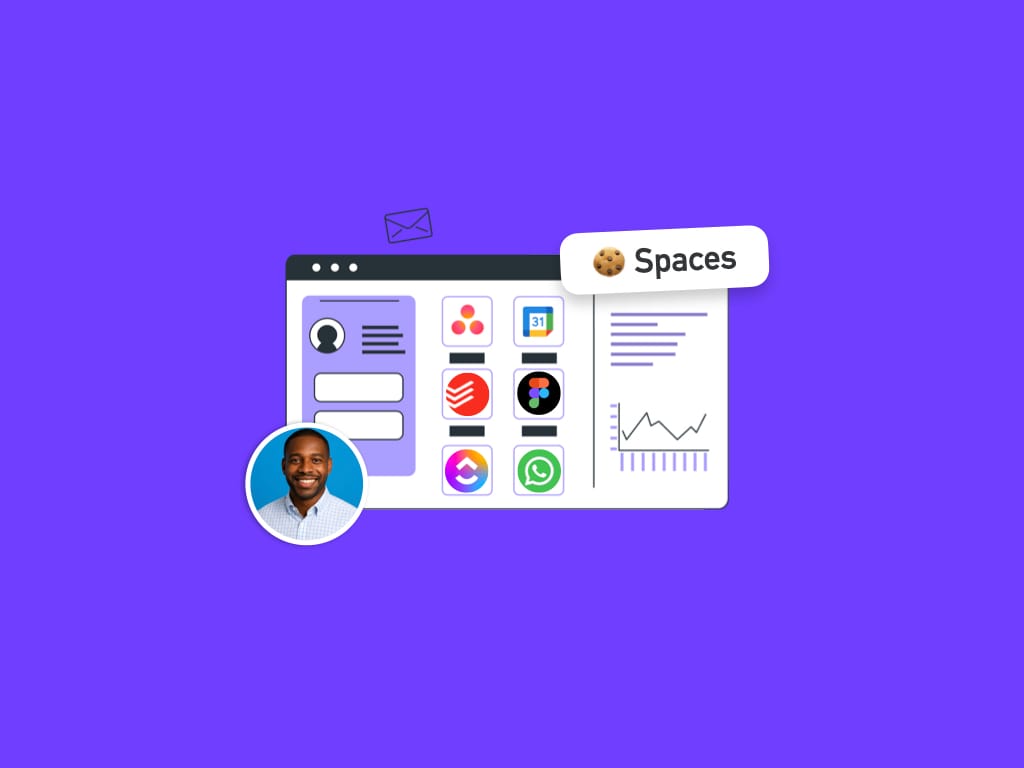
 Susan Davies
 Susan Davies