🤔 How Do I Set Up Wavebox for Someone Else?

Wavebox Live Profile vs Profile Template
Two ways to set up Wavebox for a team member or VA — choose the right approach for your needs.
Overview
There are two ways to give someone else a Wavebox setup based on your own configuration. The right choice depends on whether you need ongoing control over their profile or just want to give them a head start.
⚡Wavebox Live Profile gives you ongoing, centralized control. You create a managed profile, grant access to specific team members, and can push updates or lock down features at any time. This requires a Teams subscription and consolidated billing.
📸 Profile Template is a one-time setup. You create a template from your own configuration (or any other profile), and the other person applies it when they install Wavebox. After that, their copy is fully independent — you have no further control. This only requires a Pro subscription and doesn’t need shared billing.
Which Should I Choose?
Ask yourself: Do I need to make ongoing changes to their profile and restrict what they can modify?
- If yes → Use ⚡️Wavebox Live (requires a Teams subscription within your consolidated billing).
- If no → Create a 📸 Profile Template for them to use on install (Pro subscription required, don’t have to be part of your team).
Option 1: Wavebox Live Profile
Subscription: Teams (consolidated billing required)
Best for: Managed team setups where you need ongoing control.
A Live Profile is a centrally managed Wavebox configuration that you control as an admin. Team members receive the profile in their Wavebox and see your updates in real time.
How it Works:
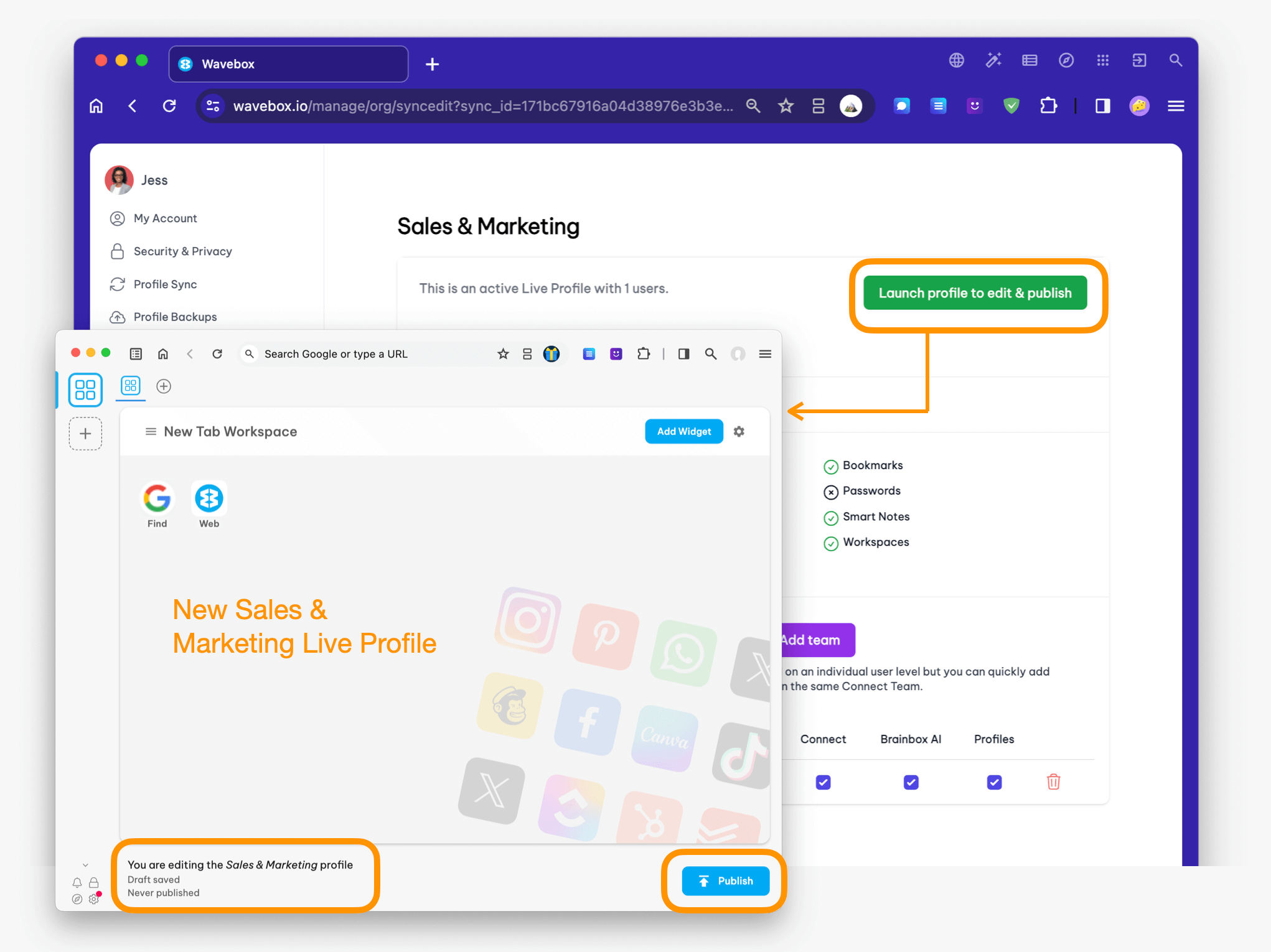
- Step 1: Create a Live Profile
Build the profile from your own setup, choosing which apps, groups, and settings to include. Exclude anything sensitive (e.g. banking apps). - Step 2: Grant access to your VA or team member
They must be on your team’s consolidated billing account. Ad-hoc users outside your billing cannot join. - Step 3: They receive the profile instantly
The Live Profile appears in their Wavebox, ready to use with all the apps and settings you configured. If passwords are included, they need to enter the master password. - Step 4: You stay in control
Make changes anytime and publish updates — they see them instantly. You can also lock down Wavebox features like multiple Profiles, Connect, and Brainbox AI.
Key Characteristics:
- Quickly add and remove users.
- You can update the profile remotely and push changes in real time.
- You can lock down Wavebox features to prevent unauthorized changes.
- The team member cannot modify the Live Profile — only you (the admin) can.
- All users must be under the same consolidated billing account.
 Susan Davies
Option 2: Profile Template
Subscription: Pro (no shared billing needed)
Best for: Independent contractors, VAs, or anyone who just needs a starting point
A 📸 Profile Template is a snapshot of your Wavebox configuration that someone else can apply when they install Wavebox. After applying it, their profile is completely independent from yours.
How it Works:
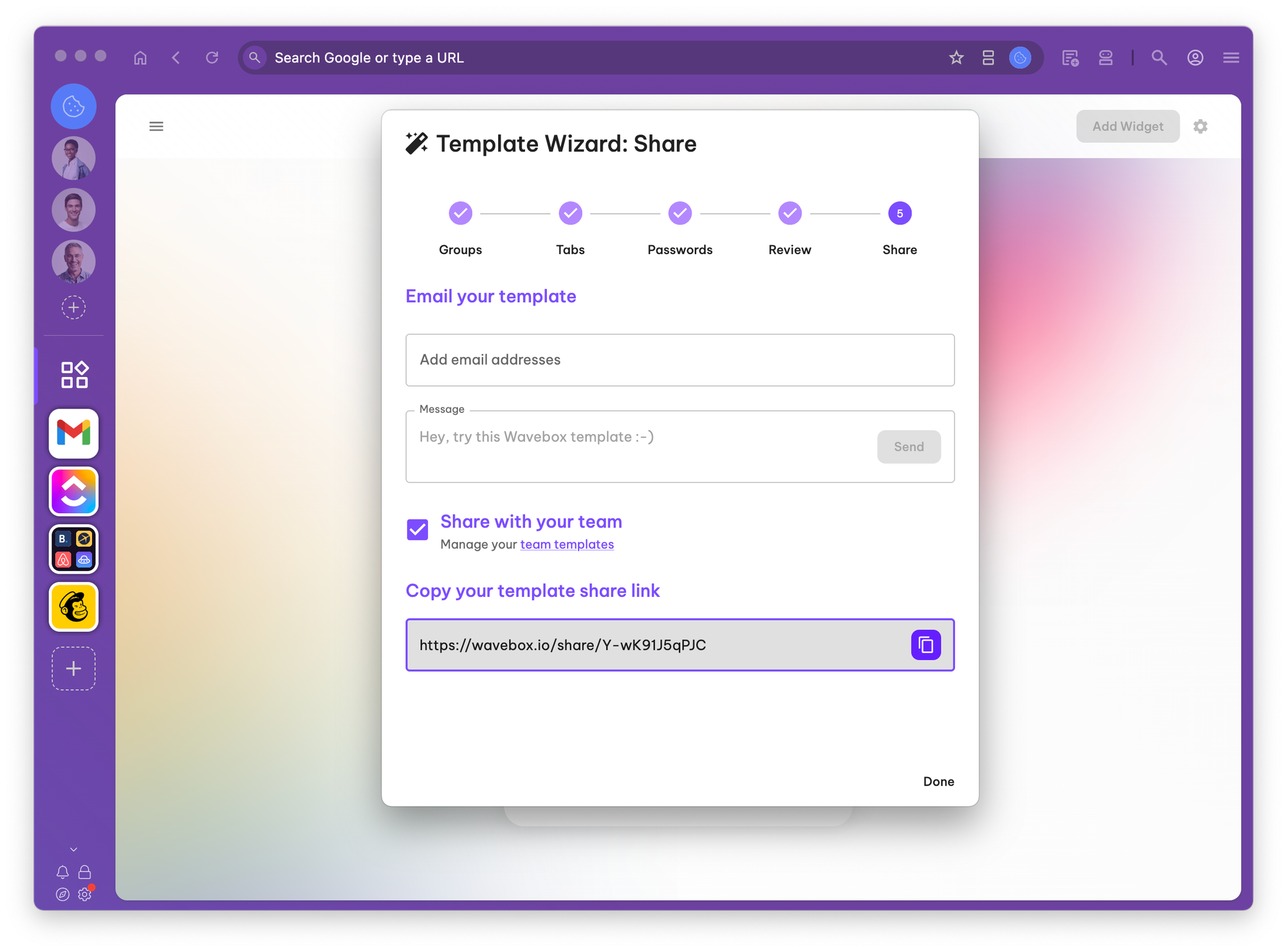
- Step 1: Create a template from your setup
Export a profile template, choosing which apps to include. Leave out anything sensitive like banking apps or saved passwords. - Step 2: Test the template (optional)
Create a new Profile in your own Wavebox and start with a blank new Wavebox. Then paste in the template URL code. - Step 2: Send the template to your VA
Share the template URL. They don’t need to be on your billing account — they just need their own Pro subscription. - Step 3: They install Wavebox and apply the template
During initial setup, they paste in the template code to get a matching configuration with all the apps and layout you chose. If passwords are included, they need to enter the master password. - Step 4: Their profile is now independent
After applying the template, their Wavebox is a separate copy. You have no control over it, and they can change anything they like.
Key Characteristics:
- One-time setup with no ongoing management.
- The VA gets a fully independent copy they can customize freely.
- You can exclude sensitive apps and passwords from the template.
- No shared billing or team membership required.
- If you make changes to your own setup later, the VA’s profile is not affected.
 Susan Davies
Side-by-Side Comparison
| Live Profile | Profile Template | |
|---|---|---|
| Ongoing remote control | Yes | No |
| Push updates in real-time | Yes | No |
| Lock down features | Yes | No |
| VA can customize freely | No | Yes |
| Shared billing required | Yes (Teams) | No (Pro) |
| VA needs their own account | On your team | Independent |
| Setup effort | One-time + ongoing | One-time only |
Important Notes
- Never share your Wavebox account credentials. Allowing someone to log into your Wavebox gives them access to everything — all your profiles, saved passwords, and billing. Always set them up with their own account using one of the methods above.
- Exclude sensitive apps and passwords. When creating either a Live Profile or a Template, leave out any apps you don’t want the other person to access (e.g. banking, finance, personal accounts).
- Live Profiles require consolidated billing. The team member must be added to your billing account before they can receive a Live Profile. Ad-hoc users outside your billing cannot join.
- Templates are a starting point, not a link. Once someone applies a template, their profile is completely separate. Any future changes you make to your own Wavebox won’t reach them.
Handling Passwords
Both Live Profiles and Profile Templates give you the option to include saved passwords for the apps in the profile. This can be convenient — your VA gets immediate access to the tools they need without having to log into each one individually. However, it’s entirely optional, and you have full control over which passwords (if any) are included.
How password sharing works in Wavebox:
- You choose which passwords to include. When setting up a Live Profile or Template, you select on a per-app basis which saved passwords to share. You might include login credentials for your project management tool and shared email, but leave out anything sensitive like banking or personal accounts.
- Shared passwords are protected by a master password. If you choose to include passwords, they are encrypted and locked behind a master password. You provide this master password to the recipient separately, and they use it to unlock the credentials on their end. Without it, the passwords remain inaccessible.
Alternative: Use a password manager
If you’d prefer not to share passwords through Wavebox at all, a dedicated password manager chrome extension is a great alternative. Extensions like LastPass, 1Password, Bitwarden, or Dashlane work seamlessly inside Wavebox and give you additional control over shared credentials. This approach works well alongside either option. Simply add a password manager chrome extensions to your template or live profile.
Quick Summary
Choose Live Profile if…
You want ongoing control, the ability to push updates, and to lock down what the team member can do. Requires Teams subscription with consolidated billing.
Choose Template if…
You just want to give someone a matching starting setup. No ongoing control needed. They manage their own independent Pro subscription.
 Susan Davies
 Susan Davies
 Susan Davies
 Susan Davies