📸 Changed something by mistake? Use Snapshots to restore your Wavebox setup.

Accidents happen — Snapshots are Wavebox’s safety net. They automatically create timestamped backups of your Profile so you can roll back to a previous version in just a few clicks. Use Snapshots to recover deleted groups, undo unintended changes, or set up another computer to the exact same state.
📸 Snapshot Basics
- What they are: automatic, periodic backups of your Wavebox Profiles, saved securely to your cloud account.
- Restore to a previous version: each Snapshot is timestamped so you can choose the exact point in time to return to.
- Frequency: Snapshots are created automatically every 24 hours.
- What’s included: groups, apps, tabs, bookmarks, and settings.
- Scope: Snapshots from all devices associated with your account appear in the Snapshots list.
- Control: Snapshots can be disabled in Settings if you prefer.
When to Use Snapshots
- You synced with a different computer and want to revert to your previous setup.
- You accidentally deleted a space or other important item.
- You prefer to set up a second computer from a Snapshot rather than using live sync.
- You want a quick rollback before or after a major configuration change.
👍 Tip: Before making any major changes to your Wavebox setup, always create a manual Snapshot so that you have a recent version to revert to, if you need it. Go to: Settings > General Tab > Data & Sync > Snapshots > Create Snapshot.
How to Restore Using a Snapshot
Restoring from a Snapshot is straightforward and only takes a moment. Follow the steps below to roll back your Wavebox setup to a previous state.
1) Go to SnapShots in Settings
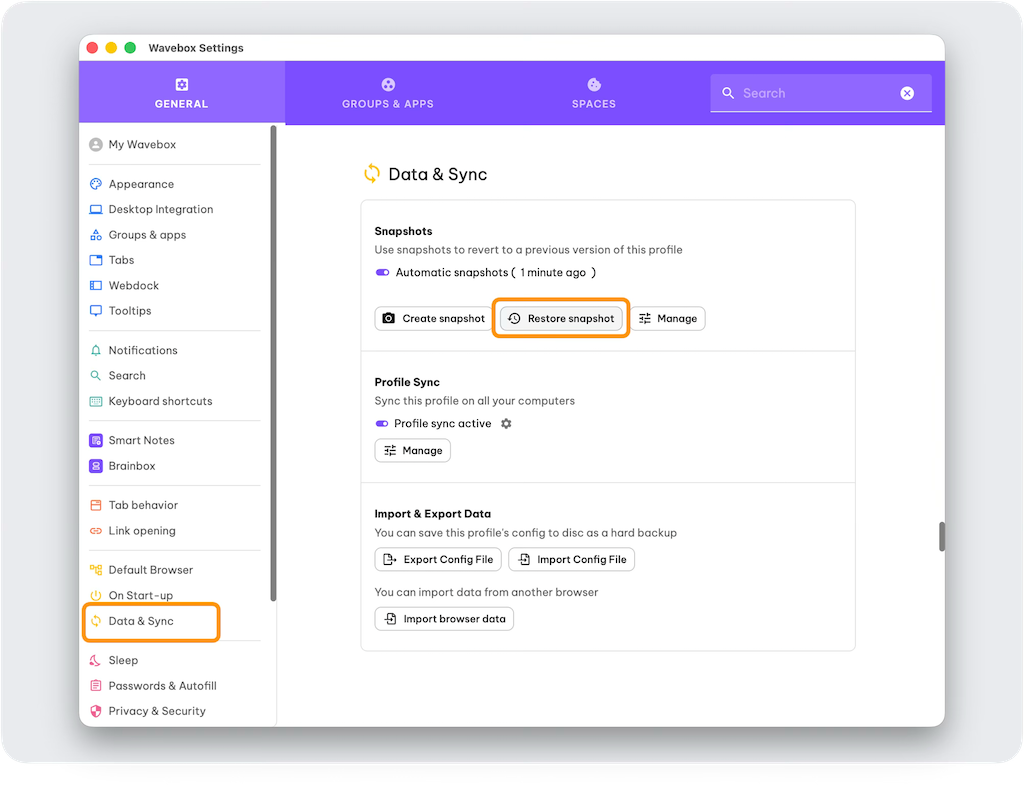
- Open Settings > General > Data & Sync > Snapshots.
- Click Restore Snapshot to open the All Snapshots window.
2) Choose a Snapshot
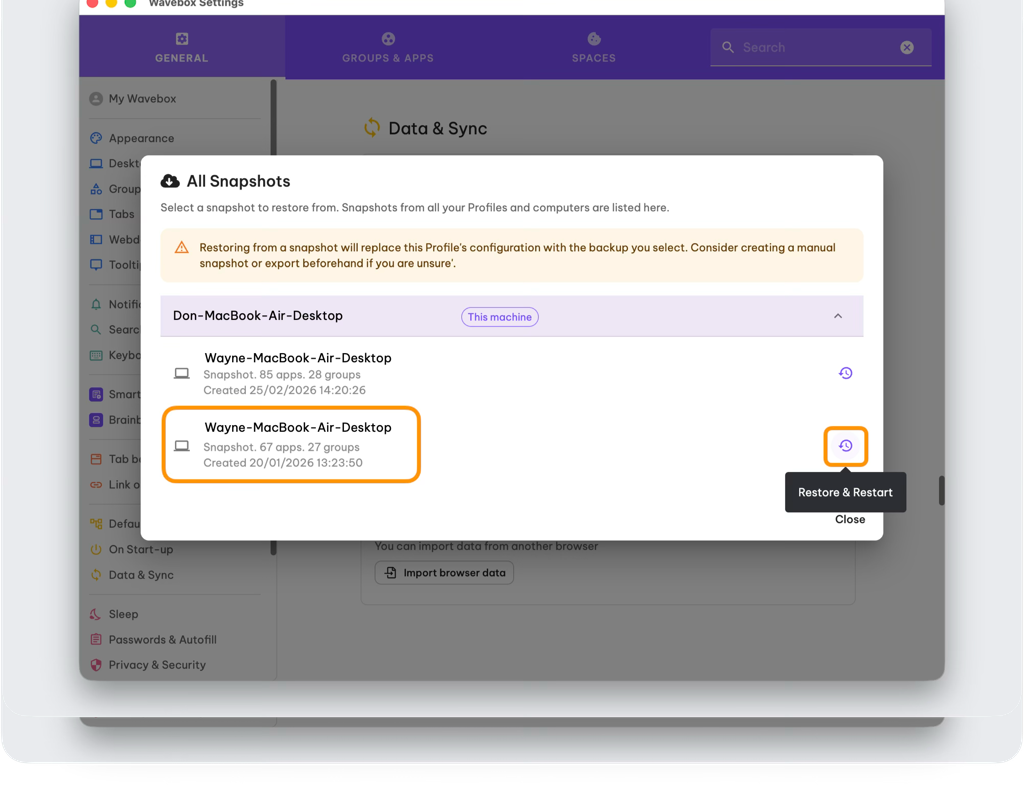
- In the All Snapshots window, find the timestamped Snapshot you want (Snapshots from all your computers are shown).
- Click the 🕣 timer icon to select it and open the restore prompt.
3) Review, Confirm & Restart
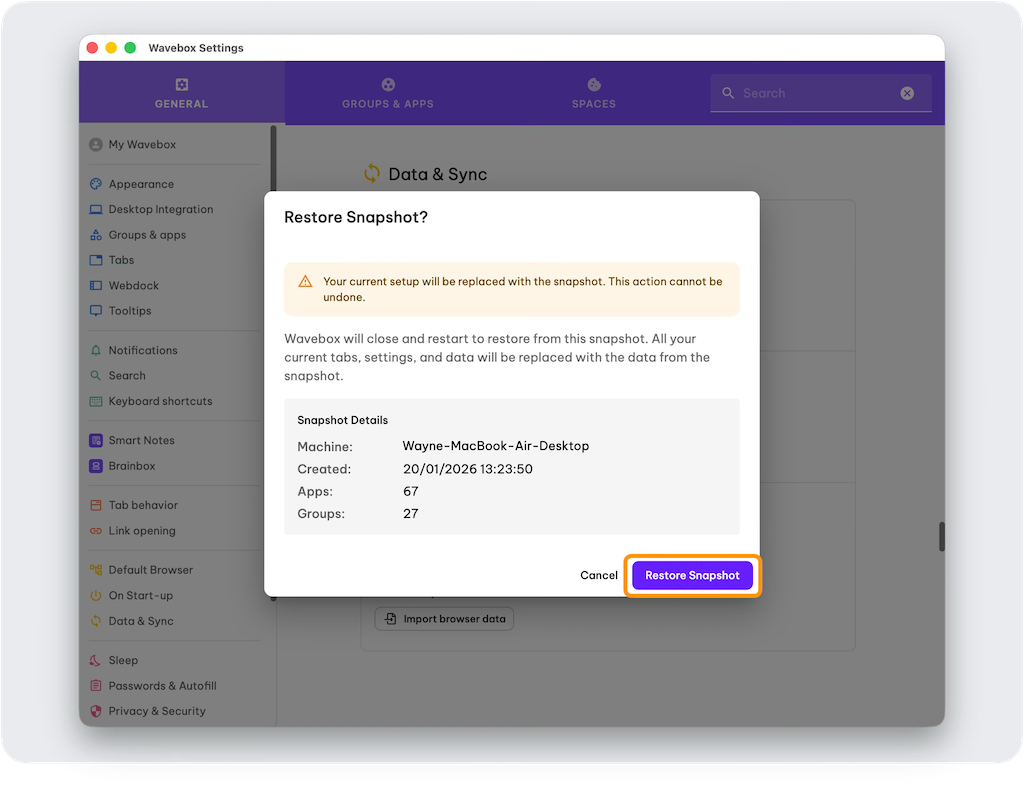
- Review the confirmation carefully — restoring will replace your current Profile with the selected Snapshot. If you want to keep the current state, click Cancel and create a new Snapshot, export any important items before continuing.
- Click Restore Snapshot to confirm. Wavebox will restart and open the restored Profile.
- Note: other Wavebox Profiles will shut down during the restart; reopen them using the Profile icon (top-right).
Tips & Troubleshooting
- Pick the right timestamp — Snapshots let you target the exact version you want.
- Restores replace the current Profile — so if you want to preserve the current state, save a Snapshot first.
- Snapshots for all your computers and profiles are shown in the All Snapshots window.
- As a test, consider creating a new Profile first (call it "test") and restore from your chosen Snapshot there. If all's well, you can safely restore in your original profile and delete the "test" Profile after.
- If a Snapshot you expect is missing, check other devices on your account or contact support.
- Need help? Email support@wavebox.io.
Summary
Snapshots give you a quick, secure way to roll back your Wavebox Profiles to a previous version. To restore: Settings > General > Data & Sync > Snapshots → pick a timestamp → confirm → Wavebox restarts.
 Susan Davies
 Susan Davies
 Susan Davies