
How do I fix my Gmail unread counts?
Gmail has five different inbox types, and each one handles unread messages in its own way. Wavebox reads your unread count based on the Inbox Type set for your Gmail app, so if it doesn't match what Gmail is actually using, the unread badge can show nothing or the wrong number. Matching the two takes a minute.
Contents
Step 1
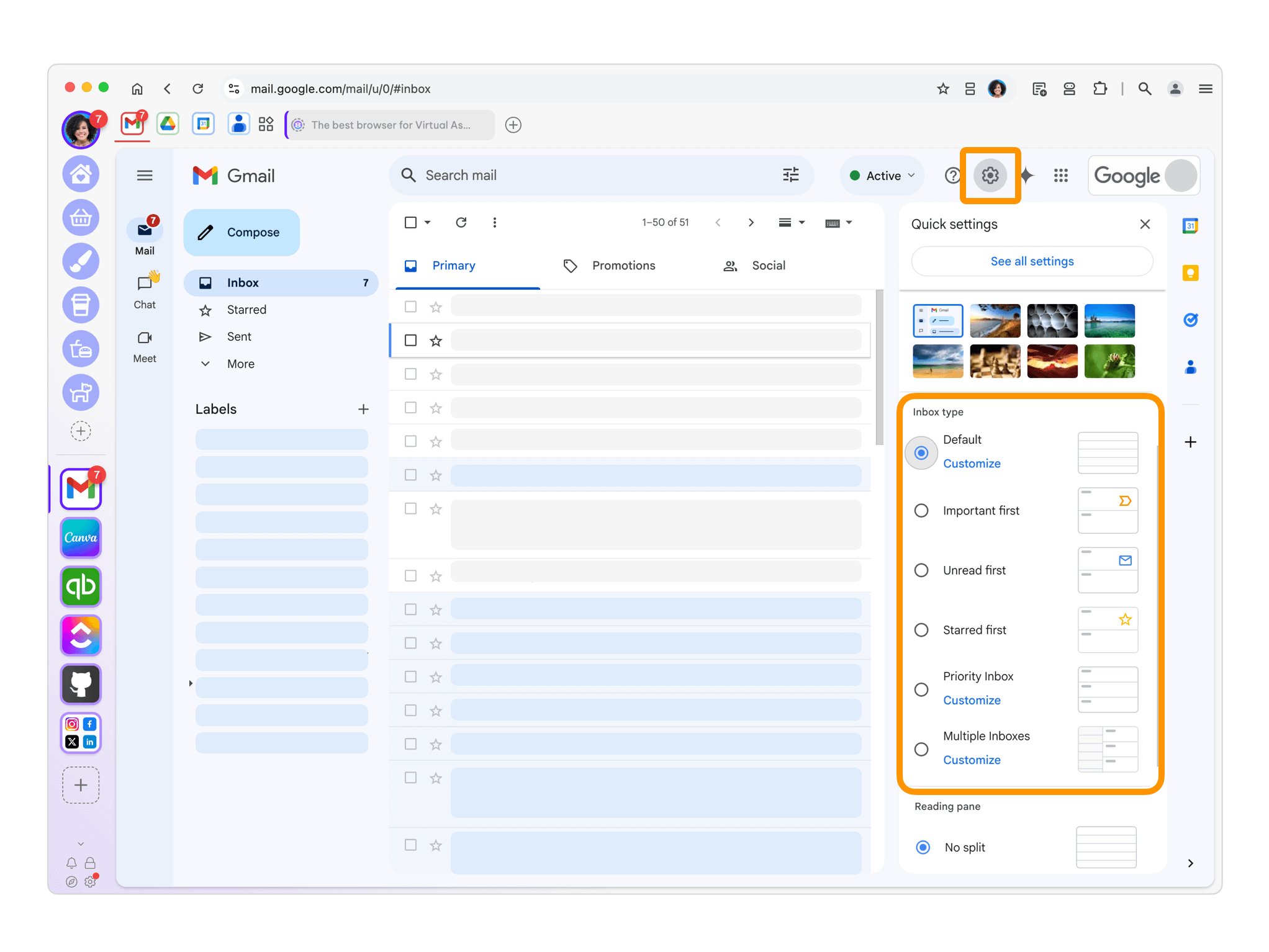
- In Gmail, click the Settings cog in the top right.
- The Quick Settings panel shows your current inbox type, for example Default, Unread first, or Priority Inbox.
Step 2
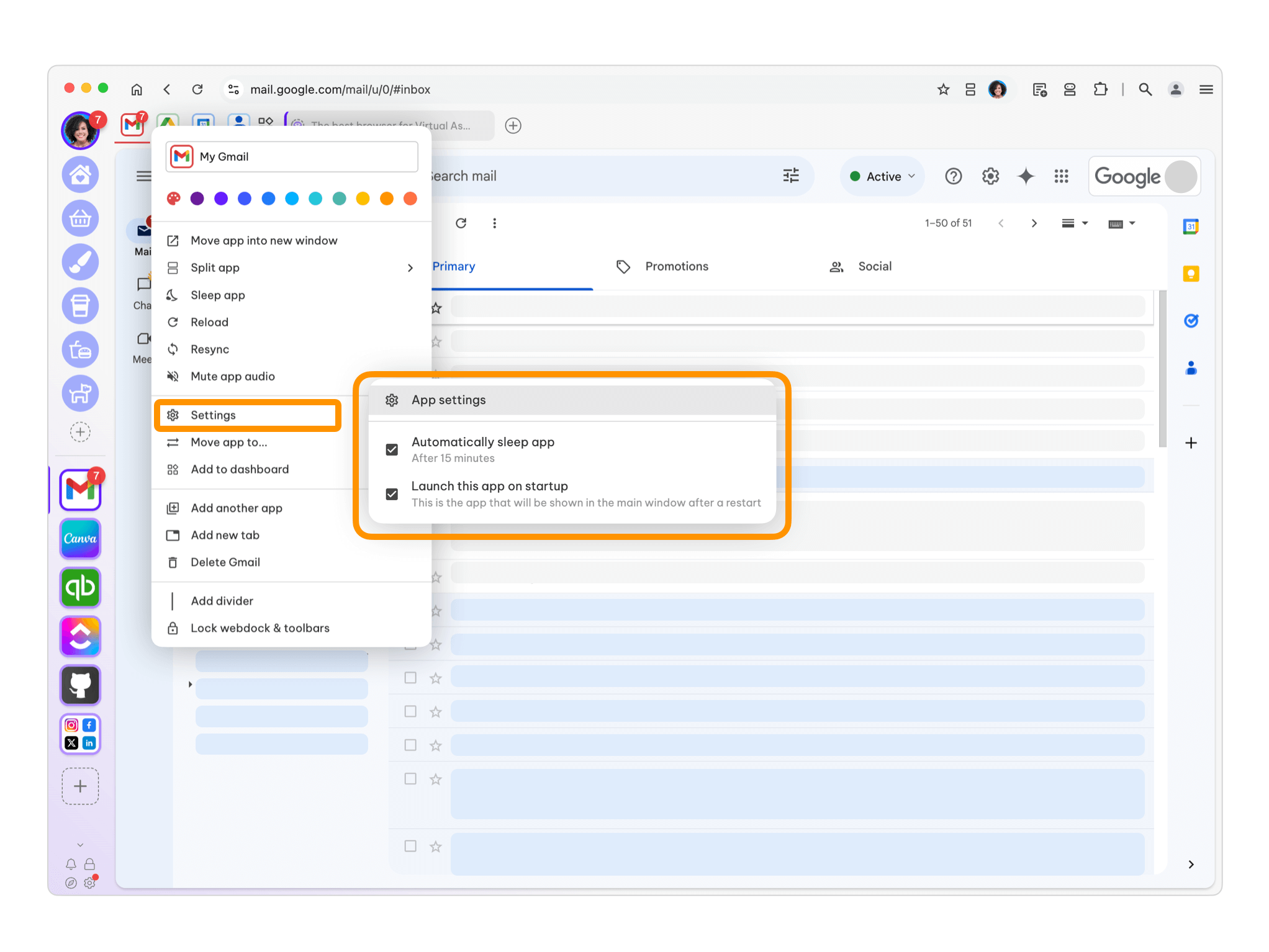
- Right-click the Gmail app icon in the webdock.
- Click Settings to open App Settings.
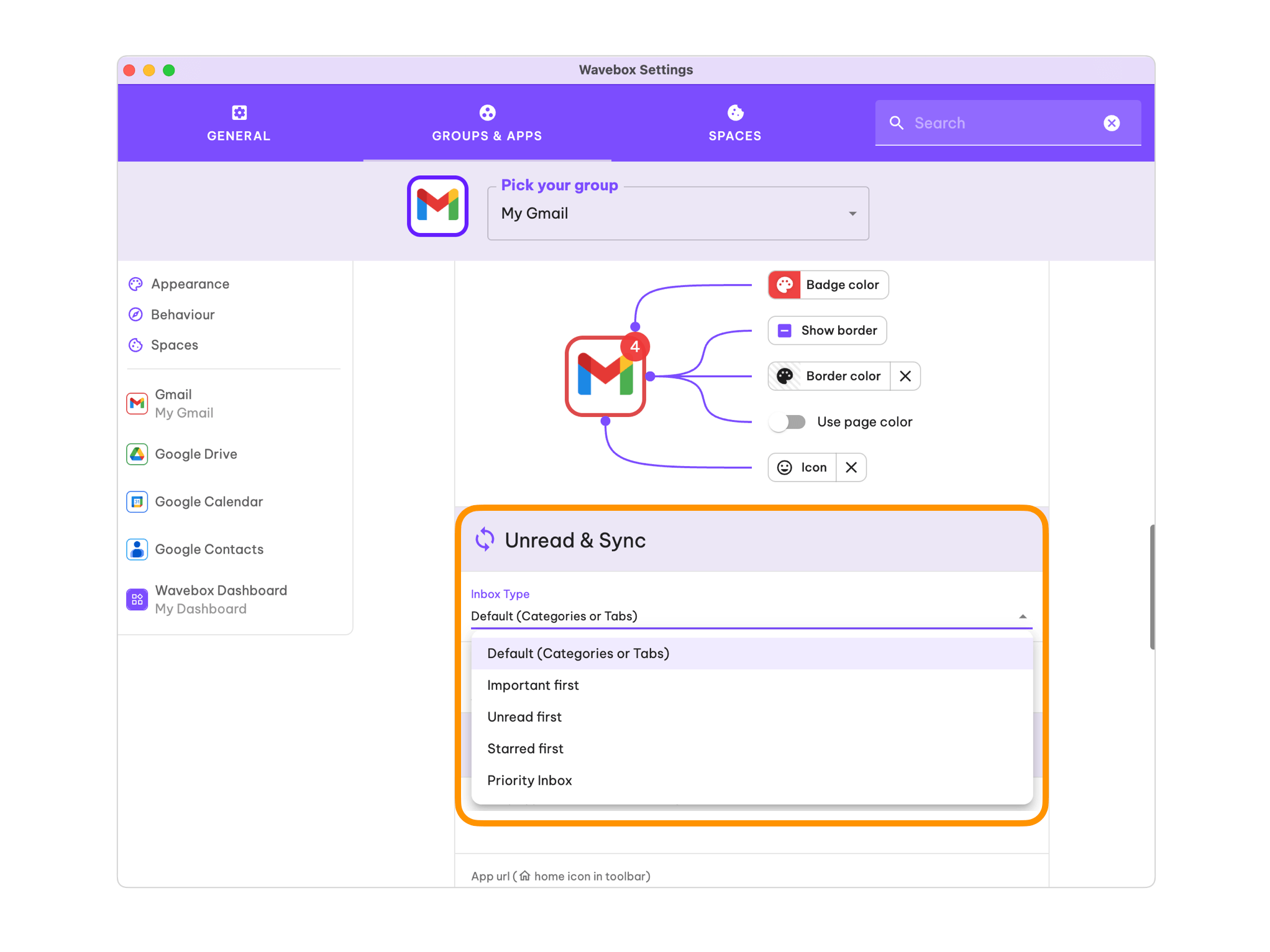
- In the Unread & Sync section, set Inbox Type to the same option Gmail showed you.
The badge updates the next time the unread count refreshes. If it doesn't, reload the Gmail app.
If you want more background on the inbox types themselves, Google has good advice on choosing the right inbox type.
Special Cases
The steps above cover most setups, but a couple of Gmail configurations count unread mail differently. If your count still looks wrong after matching the Inbox Type, check whether one of these applies.
1. Default Inbox, with only the Primary category: use Unread First
You're using the Default Inbox setting in Gmail, but have disabled all categories apart from the Primary one (this cannot be disabled).

In this case, Gmail treats your Inbox as Unread First and doesn't apply the Primary label to any incoming emails. Set your Wavebox Inbox Type to Unread First.
2. Priority Inbox, with a different Gmail Unread count configuration: use Unread First
You're using the Priority Inbox setting in Gmail, but have chosen Unread items in the inbox as your unread count
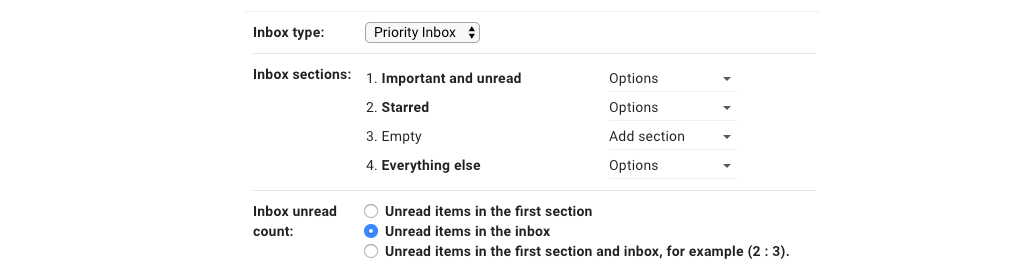
In this case, the Gmail unread count is taken from the total amount of unread items in your inbox. Set your Wavebox Inbox Type to Unread First
Further Troubleshooting
If you're still seeing an incorrect unread count after setting your Inbox Type and checking the special cases, there may be some other scenarios that cause an incorrect count.
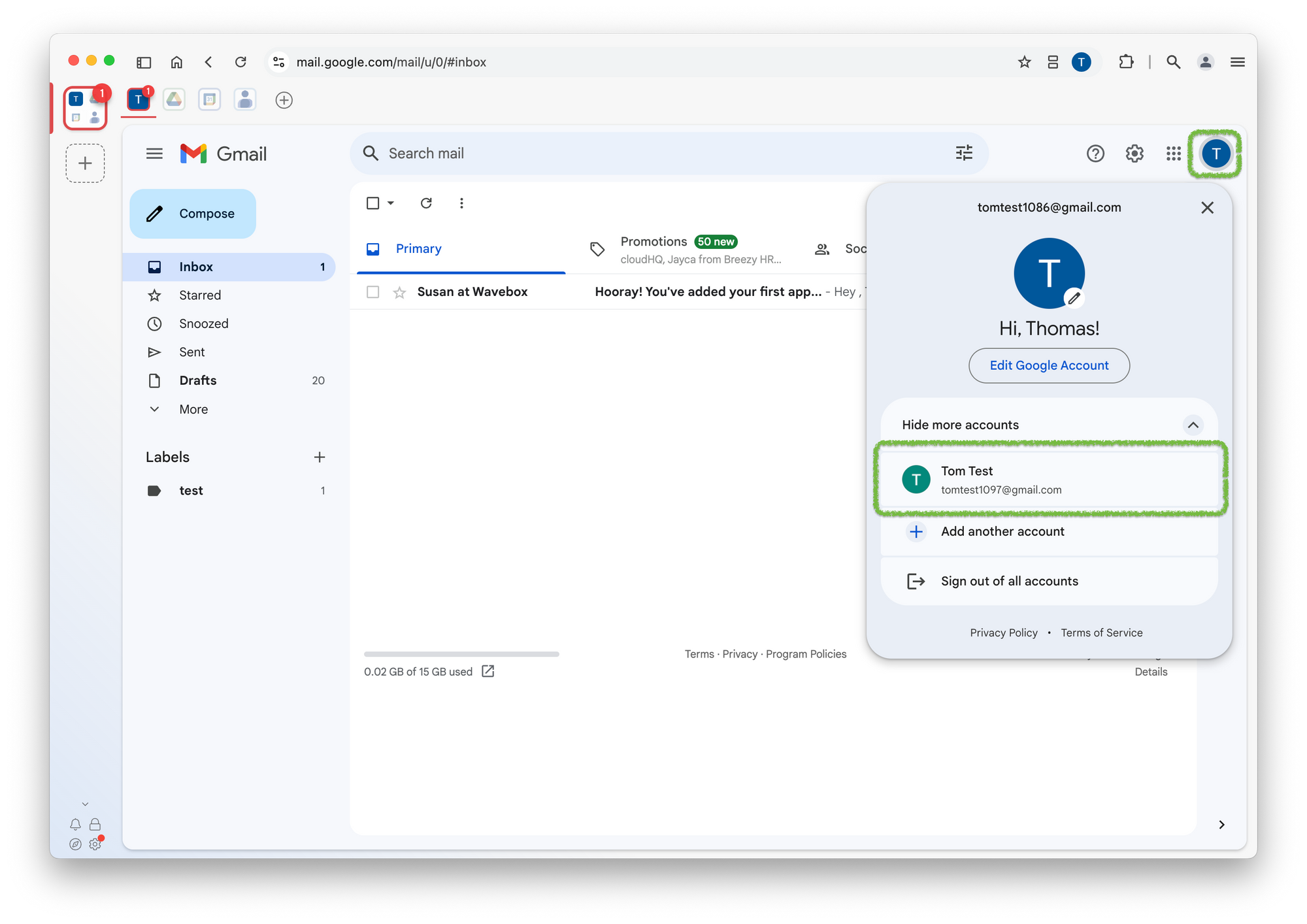
Signed in to more than one Google account in the same Space. Wavebox shows the unread count for the first account only. To check, click your account picture in Gmail (top right). If more than one account is listed, that's the cause.
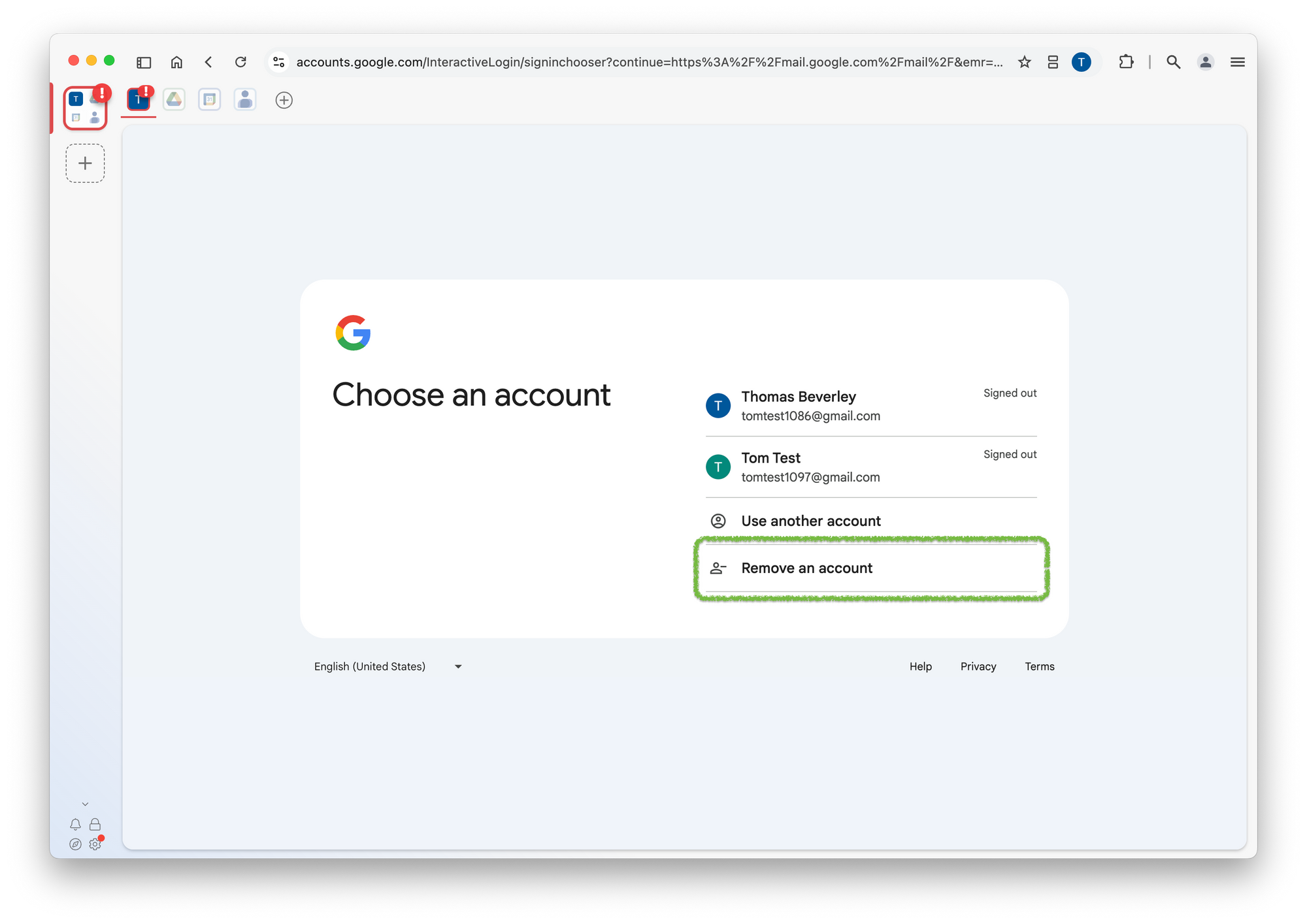
Click Sign out of all accounts, then use Remove an account on the sign-in screen to remove the one you don't need there, and sign back in with the account you want. Each Google account works best in its own Space, so add any extra accounts to a new Space.
Badge showing nothing at all. Check the app isn't sleeping, that you're signed in, and that Focus Mode isn't hiding badges. The Unread Badges article covers these checks.
Still not right? Reach out to support at support@wavebox.io and we'll help you get set up.