
Extensions: 1Password
Add Wavebox to the 1Password desktop app as a trusted browser
We know many of our Waveboxers rely on 1Password to keep their accounts secure and their daily workflows moving. While Wavebox fully supports the 1Password browser extension, you may have run into a snag where the 1Password extension fails to connect to the desktop app. Without this connection, Wavebox won't be able to use things such as biometric unlock with Touch ID or Windows Hello for 1Password.
The good news is that 1Password now officially supports adding "additional browsers" directly to its desktop app. Here is how to set up the connection on macOS, Windows, and Linux.
macOS
- Open and unlock the 1Password app on your Mac.
- Click on your account or collection at the top of the sidebar, then select Settings.
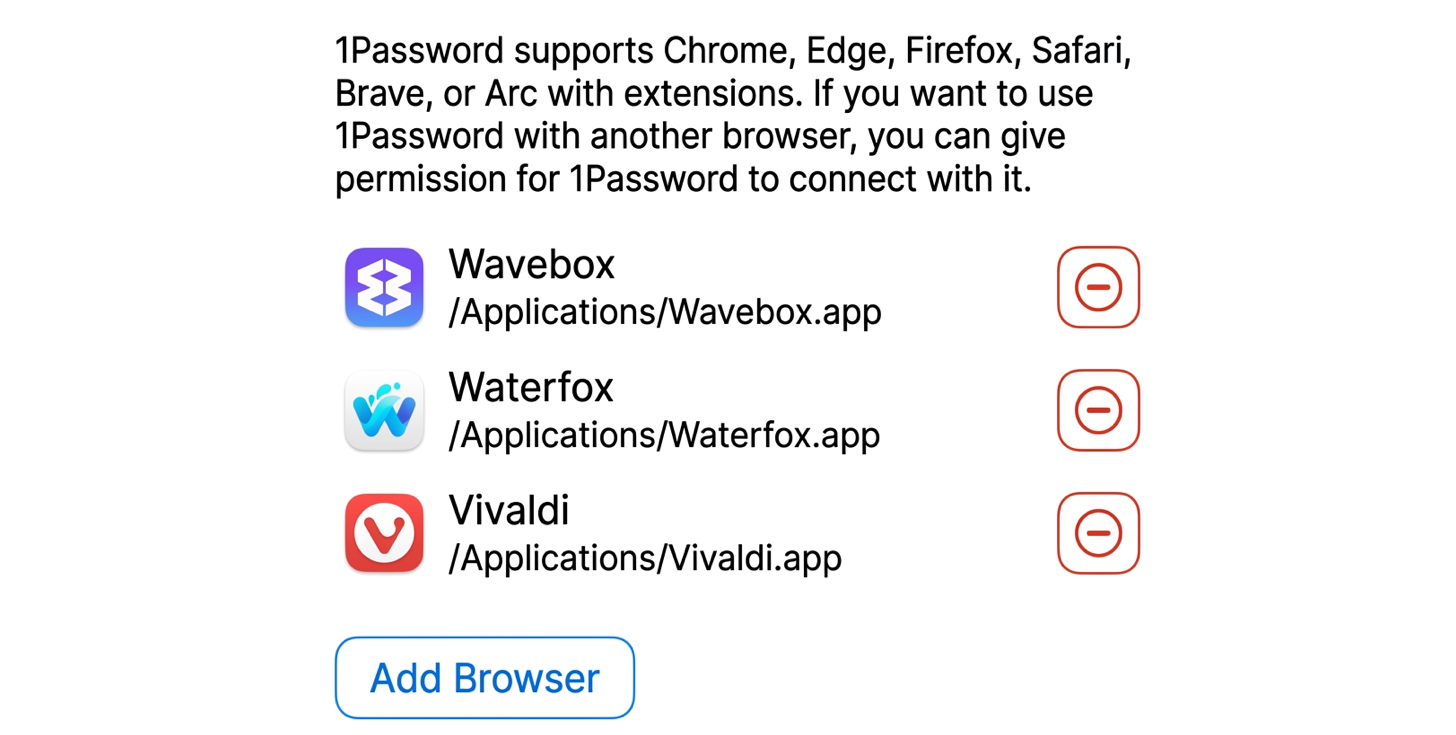
- Select Browser in the sidebar, then click Add Browser.
- Browse to your
Applicationsfolder and choose Wavebox.
Windows
- Open and unlock the 1Password app on your Windows PC.
- Click on your account or collection at the top of the sidebar, then select Settings.
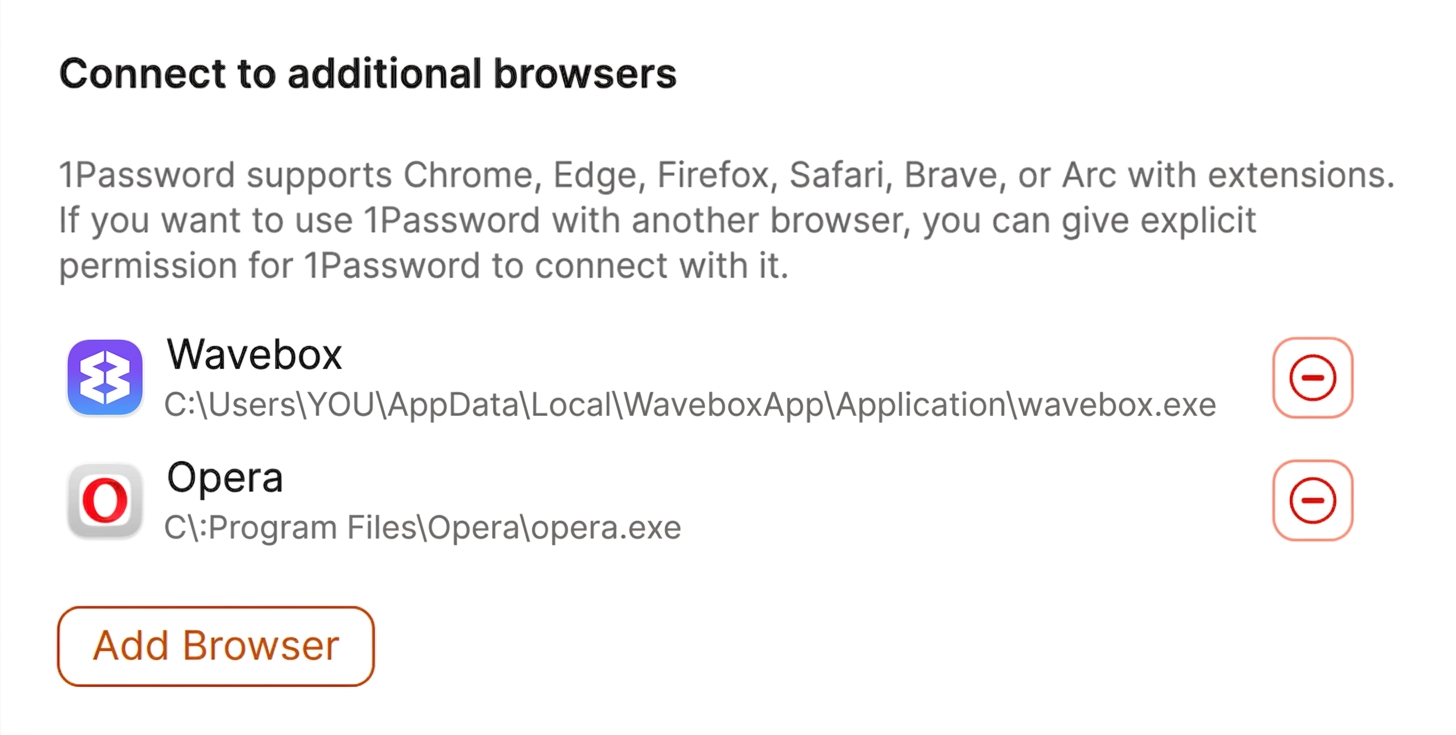
- Select Browser in the sidebar, then click Add Browser.
- Now locate Wavebox, by default it's installed in
%LOCALAPPDATA%\WaveboxApp\Application\wavebox.exe(you can paste this into the explorer file picker) , which is normally something likeC:\Users\YOU\AppData\Local\WaveboxApp\Application\wavebox.exe
Linux
Connecting Wavebox on Linux requires a quick terminal edit to add Wavebox to your allowed browsers list:
- Quit Wavebox completely.
- Open the custom allowed browsers file in a terminal editor with root permissions. For example:
sudo nano /etc/1password/custom_allowed_browsers - Add the binary name for Wavebox on a new line:
wavebox - Save your changes and exit the editor.
- Open the 1Password app, click the vertical ellipsis (⋮) and select Quit to close the desktop app completely.
- Reopen and unlock 1Password. It will automatically detect the additions to the file and allow Wavebox to connect!
Looking for more information?
If you're looking for more details on how this feature works under the hood or need additional troubleshooting help, you can read more about connecting additional browsers on the 1Password Support Blog.